


How to Do It
Prerequisites
-
- iOS version 14 or later is required for advanced customization options.
-
- Ensure your iPhone has enough storage space; lacking storage may hinder downloading new ringtones.
-
- Backup your iPhone before making changes to avoid losing any data. You can do this via Settings → Your Name → iCloud → iCloud Backup → Back Up Now.
Step-by-Step Instructions
-
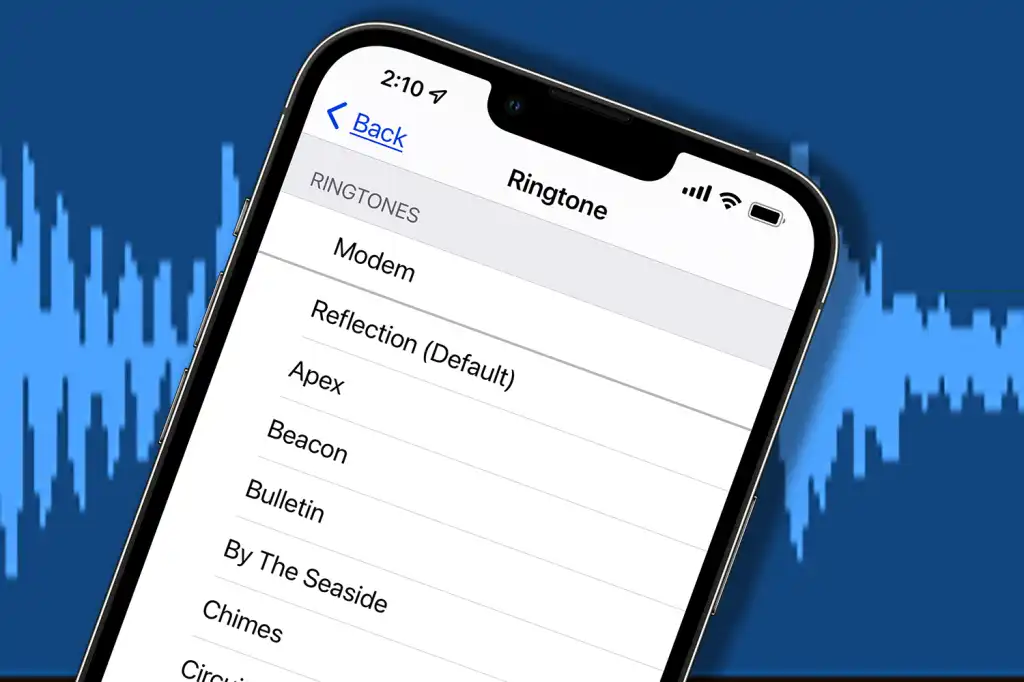
- Open the Settings app on your iPhone. Navigate to Settings → Sounds & Haptics → Ringtone.
-
- Choose a default ringtone or tap on Store to purchase new ringtones from the iTunes Store.
-
- If you want to use a song as a ringtone, you’ll need to create a custom tone. This is done using the GarageBand app, available on the App Store if not pre-installed.
-
- Open GarageBand and create a new project. Select an empty project, then choose a musical instrument or audio recording option to import your song.
-
- Tap the loop icon in the top right corner to access your music library. Import the song you want to use by tapping on it and dragging it into the project timeline.
-
- Edit the song segment to a maximum of 40 seconds to meet ringtone requirements. Tap the music icon, then select My Songs when done.
-
- Tap and hold your song until it lifts up, then drag it to the Share icon and select Ringtone.
-
- Set a name for your ringtone and tap Export. Once the export completes, you will receive a confirmation message.
-
- Now navigate back to Settings → Sounds & Haptics → Ringtone and select your newly created ringtone from the list.
Verify it worked
Make a test call to your iPhone from another device to hear if the ringtone plays as expected.
Best Practices, Tips & Pitfalls
-
- Always back up your phone before making significant changes. This can prevent loss of data.
-
- Limit the length of custom ringtones to under 40 seconds to ensure compatibility.
-
- Utilize the iTunes app on your computer for easier management of ringtones.
-
- If your custom ringtone doesn’t appear in the list, try restarting your iPhone.
-
- For best audio quality, use high-bitrate audio files.
-
- Regularly check for software updates as Apple may introduce new features or fix bugs related to ringtones.
Alternatives & Comparisons
If you’re looking for alternative methods to change ringtones, consider the following options:
| Option | Best for | Trade-offs |
|---|---|---|
| Custom Ringtones via iTunes | Users who prefer desktop management | Requires a computer |
| Third-party Apps | Wide selection of sounds | Potential ads and privacy issues |
Key Takeaways
-
- Changing your ringtone is an easy way to personalize your iPhone.
-
- You can create custom ringtones using the GarageBand app.
-
- Always back up your iPhone before making changes.
-
- Limit custom ringtone lengths to under 40 seconds for compatibility.
-
- Explore third-party apps for additional sound options.
FAQ
Can I set different ringtones for different contacts?
Yes, you can create custom ringtones for specific contacts. Go to Contacts → Select Contact → Edit → Ringtone to assign a unique ringtone.
What formats do custom ringtones need to be in?
Custom ringtones should be in .m4r format for compatibility with iPhones.
How can I undo changes to my ringtone?
If you want to revert to the default ringtone, go back to Settings → Sounds & Haptics → Ringtone and select a default tone.
