

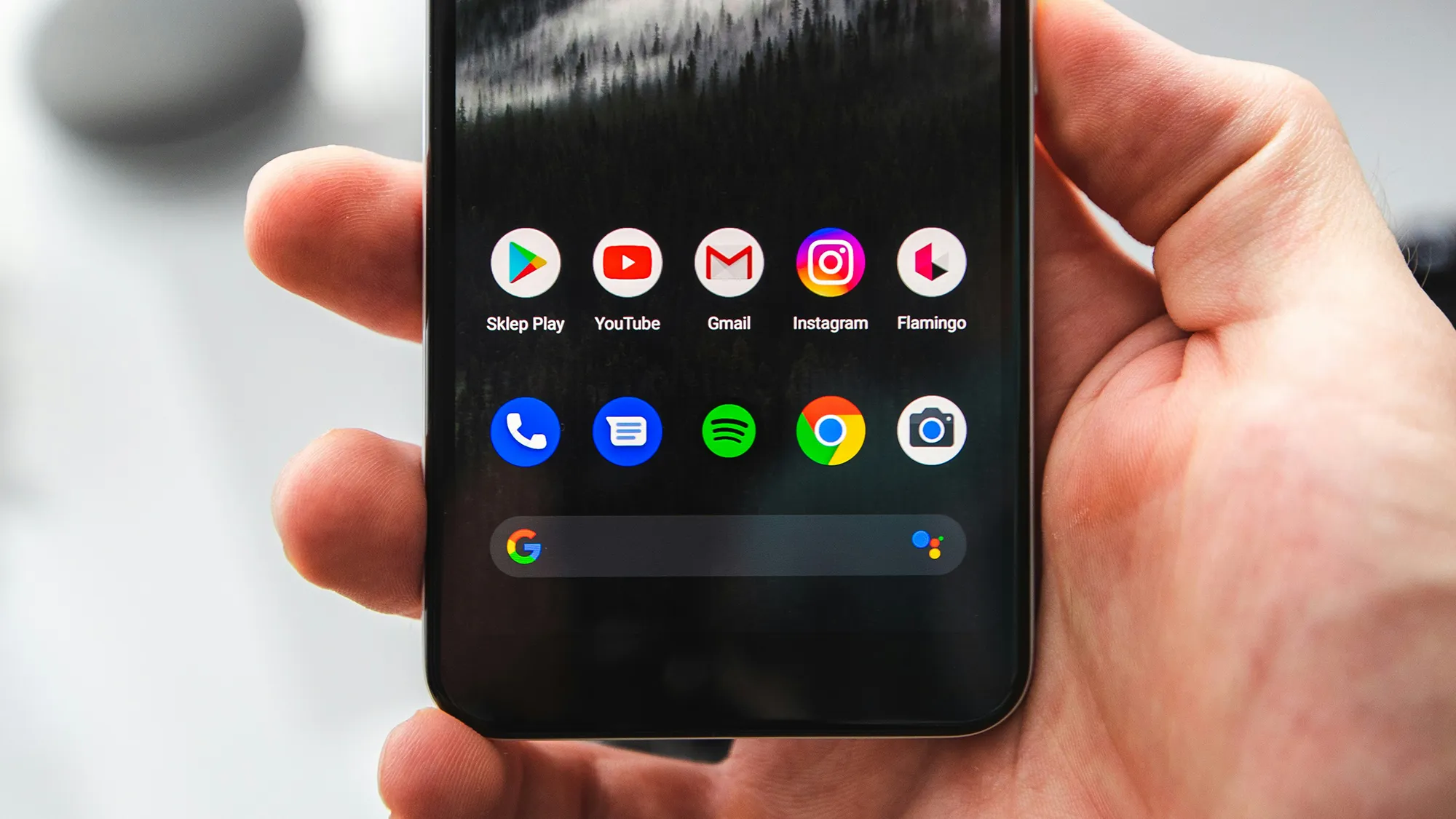

Understanding Android 15 and 14, along with the unique variations each OEM introduces, is essential for anyone looking to maximize their Android experience. With numerous devices, each running different software versions, users can feel overwhelmed. “Take Control: Change Default Apps on Your Android Device with Ease” is a timely guide that helps demystify this process. This guide will clarify essential terms while providing practical insights on how to navigate the Android ecosystem smoothly.
How to Do It
Prerequisites
- Android version: Ensure your device runs Android 14 or 15; features may vary across these versions.
- Backup: Consider backing up your device through Settings → System → Backup to avoid data loss.
- Familiarity: Basic understanding of navigating through your device settings is helpful.
Step-by-Step Instructions
- To change default apps in Android 14 or 15, go to Settings → Apps → Default apps. Here, you can choose which apps should handle specific actions.
- Select the category you want to modify, such as “Browser app” or “Messaging app.” Tap on the current default to see a list of available applications.
- Choose your preferred app from the list. If it doesn’t appear, ensure the app is installed.
- Verify the change by opening a link or message to see if it opens in the newly selected app.
Best Practices, Tips & Pitfalls
- Keep your apps updated. Newer versions may provide better compatibility with default settings.
- Regularly check app permissions. Navigate to Settings → Apps → [App Name] → Permissions to ensure they align with your preferences.
- Test app changes right away. Open a link or action to confirm the new default is working as intended.
- Be cautious with third-party apps; they may not always integrate seamlessly with system-level features.
- If you encounter issues, try resetting app preferences through Settings → Apps → Menu → Reset app preferences.
Alternatives & Comparisons
Different OEMs like Samsung, Xiaomi, and OnePlus offer unique interfaces and additional features, influencing how default apps are managed. Here’s a brief comparison:
| Option | Best for | Trade-offs |
|---|---|---|
| Samsung One UI | Customization and unique features | Can feel bloated; learning curve for new users |
| MIUI | Feature-rich experience with regular updates | Ad-supported environment; may require additional configuration |
| OxygenOS | Sleek interface with near-stock Android experience | Limited additional features compared to fully customized ROMs |
Key Takeaways
- Android 15 and 14 introduce streamlined processes for changing default apps.
- OEM variations can impact user experience significantly.
- Regular updates and app management enhance system performance.
- Testing changes immediately ensures that they are functioning correctly.
- Understanding settings and features unique to your OEM can optimize your Android experience.
FAQ
How do I know if my app is eligible to be set as a default?
Only apps that can handle specific tasks (like web browsing or messaging) will appear in the default app list.
Can I revert to the previous default app easily?
Yes, simply follow the steps to change the default app again and select the previous app from the list.
Are any apps permanently set as default?
No app is permanently set as default; you can change it at any time using the steps outlined.
