


- 1. Understanding macOS and Its Ecosystem
- 2. Step-by-Step Guide to Uninstalling Apps on Mac
- 2.1 Using the Built-in Launchpad
- 2.2 Using Finder
- 2.3 Using System Preferences (For Built-in Apps)
- 2.4 Uninstalling Apps via Third-Party Uninstallers
- 3. Best Practices for App Management
- 4. Troubleshooting Uninstallation Issues
- 5. Expert Insights and Predictions for the Future
- Conclusion
As we move further into 2025, the Mac ecosystem continues to evolve with new features and hardware innovations that enhance user experience and system performance. Uninstalling apps is a fundamental task that every Mac user should master. This guide provides detailed, step-by-step instructions for uninstalling apps on macOS, explores the latest features, discusses best practices for performance optimization and security, and presents troubleshooting techniques to ensure a seamless experience.
1. Understanding macOS and Its Ecosystem
1.1 The Evolution of macOS
macOS has seen significant updates in recent years, culminating in the latest version, macOS Sonoma. This update emphasizes enhanced performance, security, and user interface refinements. Features like Stage Manager, improved window management, and enhanced gaming capabilities reflect Apple’s commitment to improving user experience.
1.2 Hardware Innovations
The M-series chips, such as the M2 and M3, have revolutionized the Mac lineup. These chips offer incredible performance and efficiency, which is particularly important when it comes to managing system resources effectively, including when uninstalling apps.
1.3 Compatibility and Software Ecosystem
With an increasing number of applications available in the Mac App Store and from third-party developers, compatibility issues can arise. Staying updated with the latest software versions is crucial for optimal performance.
2. Step-by-Step Guide to Uninstalling Apps on Mac
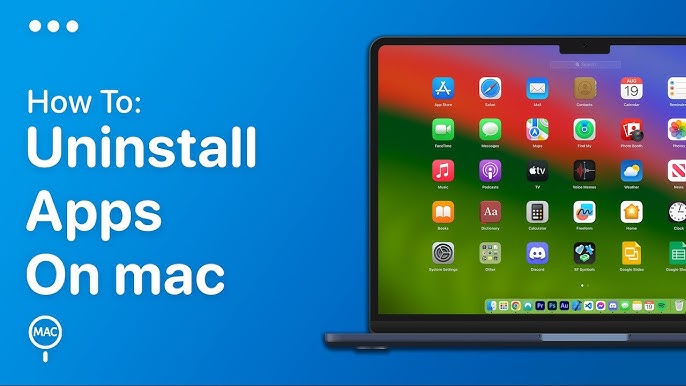
2.1 Using the Built-in Launchpad
Step 1: Open Launchpad
- Click on the Launchpad icon in your Dock or pinch with your thumb and three fingers on the trackpad.
Step 2: Find the App
- Scroll through the pages or use the search bar at the top.
Step 3: Uninstall the App
- Click and hold the app icon until they all start to jiggle. Click the “X” on the app you want to uninstall. Confirm the action when prompted.
2.2 Using Finder
Step 1: Open Finder
- Click the Finder icon in the Dock.
Step 2: Navigate to Applications
- In the sidebar, select “Applications.”
Step 3: Locate the App
- Browse or use the search bar to find the app you wish to uninstall.
Step 4: Move to Trash
- Right-click (or Ctrl-click) the app and select “Move to Trash.” Alternatively, drag the app to the Trash icon in the Dock.
Step 5: Empty the Trash
- Right-click the Trash icon and select “Empty Trash” to permanently delete the app.
2.3 Using System Preferences (For Built-in Apps)
Some built-in apps, like GarageBand or iMovie, can be uninstalled through System Preferences.
Step 1: Open System Preferences
- Click the Apple menu and select “System Preferences.”
Step 2: Go to Storage
- Click on “Apple ID,” then “iCloud” preferences. Choose “Manage” to see a list of apps.
Step 3: Uninstall
- Find the app, select it, and choose “Remove.”
2.4 Uninstalling Apps via Third-Party Uninstallers
For applications that leave behind residual files, consider using third-party uninstallers like AppCleaner or CleanMyMac X.
Step 1: Download and Install Application
- Install the uninstaller from the official website.
Step 2: Open the Uninstaller
- Launch the application and drag the app you want to uninstall into the uninstaller.
Step 3: Complete the Uninstall
- Follow the prompts to remove the app and any associated files.
3. Best Practices for App Management
3.1 Performance Optimization
-
Regular Maintenance: Regularly uninstall unused apps to free up system resources. This habit can significantly improve performance, especially on older hardware.
-
Review Startup Items: Check your System Preferences under “Users & Groups” to manage startup items. Removing unnecessary startup applications can lead to faster boot times.
-
Activity Monitor: Use the Activity Monitor (found in Applications > Utilities) to check for apps consuming excessive CPU, memory, or energy, and consider uninstalling them.
3.2 Security Settings
-
Gatekeeper: Ensure your Gatekeeper settings are set to “App Store and identified developers” under System Preferences > Security & Privacy > General. This prevents unauthorized apps from being installed in the first place.
-
Regular Updates: Keep macOS and all installed apps up to date. Go to System Preferences > Software Update to check for macOS updates.
3.3 Software Compatibility
-
Check Compatibility: Before installing any new app, check compatibility with your macOS version. Use the Mac App Store to find apps that are optimized for your system.
-
Read Reviews: Look for user reviews and expert opinions on software compatibility with your Mac hardware.
4. Troubleshooting Uninstallation Issues
4.1 App Not Uninstalling
If an app refuses to uninstall, consider the following steps:
-
Check Permissions: Ensure you have the necessary permissions to uninstall the app. Use an administrator account if needed.
-
Force Quit the App: If the app is still running, use Activity Monitor to force quit it before attempting to uninstall.
4.2 Residual Files
After uninstalling an app, some residual files may remain. To find and remove these:
-
Manual Search: Open Finder, select “Go” from the menu bar, then “Go to Folder…” and enter
~/Library/. Search for any folders related to the uninstalled app (check in Application Support, Caches, Preferences). -
Use a Third-Party Tool: Tools like AppCleaner or CleanMyMac can automate the search for residual files.
4.3 Reinstalling Apps
If you encounter issues after uninstalling, you may need to reinstall the app:
-
Reinstall from the App Store: Open the App Store, search for the app, and click “Get.”
-
Install from Developer’s Website: For non-App Store apps, visit the developer’s website to download the latest version.
5. Expert Insights and Predictions for the Future
As technology continues to advance, the way we interact with apps on macOS will evolve. Here are some expert predictions:
-
Increased Integration with iOS: Expect enhanced app compatibility and features that sync between macOS and iOS, allowing for a seamless user experience across devices.
-
Artificial Intelligence: Future macOS updates may incorporate AI to automate app management tasks, making uninstallation and maintenance easier for users.
-
Enhanced Security Protocols: With the rise in cyber threats, future macOS versions will likely include more robust security measures, making it essential to stay informed about app permissions and security settings.
Conclusion
Uninstalling apps on a Mac is a simple yet essential skill that can significantly enhance your system’s performance and security. By following the steps outlined in this guide, leveraging the latest macOS features, and adopting best practices, you can ensure your Mac remains efficient and secure in 2025 and beyond. As the ecosystem continues to evolve, staying informed and adapting your practices will empower you to make the most of your Mac experience.
This comprehensive guide aims to provide clarity and confidence in managing applications on your Mac, ensuring that you are well-equipped to navigate the ever-changing landscape of technology.
