

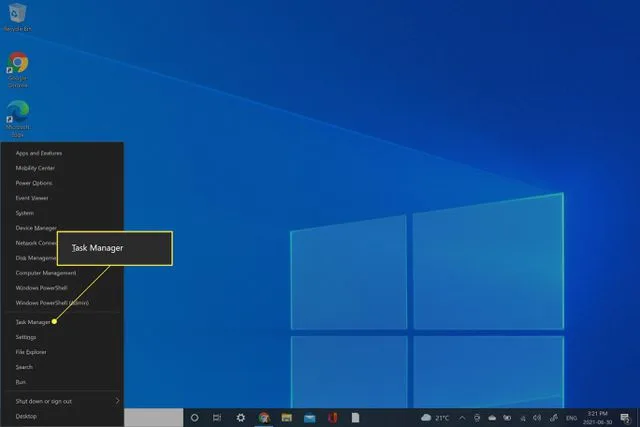

In today’s fast-paced digital landscape, efficiency and productivity are paramount. “Mastering Your System: A Step-by-Step Guide to Accessing Task Manager” is designed for users who want to take control of their computers, ensuring that they can monitor and manage processes effectively. Understanding Task Manager is key for troubleshooting performance issues, analyzing resource usage, and terminating unresponsive applications. In this guide, we will simplify the process of accessing Task Manager, catering to users of various technical backgrounds.
How to Do It
Prerequisites
- Operating System: Task Manager is available in Windows 10 and Windows 11. The steps outlined may vary slightly between these versions.
- Backup: It’s advisable to save any unsaved work before accessing Task Manager, particularly if you plan to terminate processes, as this can lead to data loss.
Step-by-Step Instructions
- Access Task Manager via keyboard shortcut: Press Ctrl + Shift + Esc. This direct method opens Task Manager instantly.
- Alternatively, navigate through the UI: Click Start Menu → Windows System → Task Manager.
- For power users, you can use the Run dialog: Press Windows Key + R to open Run, type
taskmgr, and press Enter. - In Windows 11, you can right-click the taskbar and select Task Manager from the context menu.
- Once Task Manager is open, familiarize yourself with the tabs: Processes, Performance, App history, Startup, Users, Details, and Services.
- To inspect a specific process, click on it in the Processes tab. You can end a process by selecting it and clicking the End Task button in the bottom right corner.
- Verify it worked: Ensure the process has ended by checking the active processes list.
Best Practices, Tips & Pitfalls
- Use Task Manager to monitor applications that are consuming high CPU or memory resources, and consider terminating them if they are unresponsive.
- Regularly check the Startup tab to manage which programs launch at startup, improving boot times.
- Be cautious when terminating processes; ensure you recognize the application, as ending critical system processes can lead to system instability.
- Utilize the Performance tab to track system resource usage over time, helping identify patterns or recurring issues.
- If you encounter issues launching Task Manager, ensure your system is updated. Sometimes, outdated system files can affect functionality.
- Common errors like “Task Manager is disabled by administrator” can be fixed by modifying Group Policy or the registry, but proceed with caution and back up settings first.
Alternatives & Comparisons
While Task Manager is a robust tool for managing processes, there are alternatives that also provide valuable features. Below are a few noteworthy options:
| Option | Best for | Trade-offs |
|---|---|---|
| Process Explorer | Advanced users needing detailed process information | More complex UI, requires more system resources |
| Resource Monitor | In-depth resource usage analysis | Less intuitive for quick tasks |
| System Monitor | Monitoring system performance over time | May require setup and configuration |
Key Takeaways
- Task Manager is accessible via multiple methods, including shortcuts and the taskbar.
- Familiarize yourself with the various tabs to effectively monitor system performance.
- Be cautious when ending processes to avoid unintended consequences.
- Consider alternative tools for more advanced features and insights.
- Regularly check Task Manager to optimize system performance.
FAQ
What is Task Manager?
Task Manager is a system monitor utility in Windows that allows users to view and manage running processes, applications, and system performance.
How can I fix Task Manager if it is not opening?
Try restarting your computer and checking for Windows updates. If it still doesn’t open, check your system settings to ensure it hasn’t been disabled.
Can I use Task Manager to uninstall applications?
No, Task Manager cannot uninstall applications. However, you can end processes that are unresponsive and manage startup applications. To uninstall, use the Settings app or Control Panel.
