

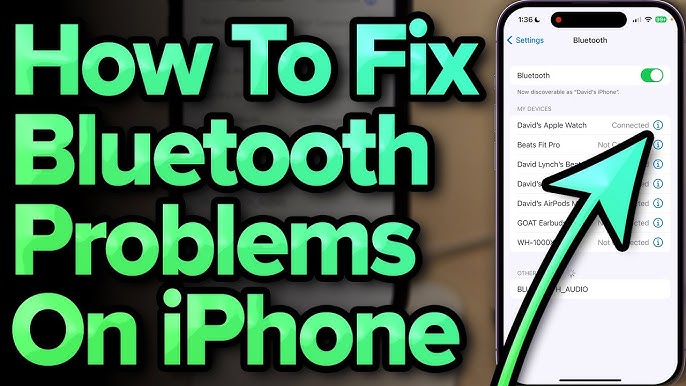

Troubleshooting Bluetooth Issues? Here’s How to Reset Your iPhone’s Bluetooth Settings is a crucial guide for anyone facing connectivity problems with their Bluetooth devices. With more gadgets relying on Bluetooth for seamless interaction, knowing how to address issues becomes vital for a smooth tech experience. This guide will help both smart general readers and tech-savvy users understand the steps necessary to resolve common Bluetooth problems by resetting their iPhone’s Bluetooth settings, ensuring optimal device performance. Key terms like Bluetooth, connectivity, and settings will be defined in straightforward language to make the process accessible to all.
How to Do It
Prerequisites
- Ensure your iPhone is running iOS 12 or later, as steps may differ slightly in earlier versions.
- Before making changes, back up your device by going to Settings → [Your Name] → iCloud → Back Up Now to prevent data loss.
- Keep your Bluetooth devices handy to verify the connection post-reset.
Step-by-Step Instructions
- Open the Settings app on your iPhone by tapping the Settings icon.
- Navigate to Bluetooth from the menu.
- Toggle Bluetooth off by switching the toggle to the left. Verify it worked by checking that the toggle appears gray.
- Next, restart your iPhone by pressing and holding the Side button and Volume Up button until the slider appears. Drag the slider to turn off your device.
- Once the iPhone is off, hold the Side button again until you see the Apple logo.
- Return to Settings → Bluetooth and toggle Bluetooth on again. Ensure it’s blue, indicating it’s active.
- To forget a device and reset Bluetooth settings, tap the i icon next to the device you want to remove, then select Forget This Device. Confirm by tapping Forget Device.
- Re-pair your Bluetooth devices by selecting them from the Bluetooth menu and entering any necessary access codes.
- Verify it worked by checking if your device connects without issues.
Best Practices, Tips & Pitfalls
- Always back up your device before performing significant changes.
- If issues persist, check for software updates under Settings → General → Software Update.
- Consider resetting all network settings if Bluetooth problems continue by going to Settings → General → Transfer or Reset iPhone → Reset → Reset Network Settings. Note that this affects Wi-Fi passwords and other network configurations.
- Ensure that your Bluetooth devices are charged and within range to avoid connectivity issues.
- Regularly check for interference from other electronic devices that might disrupt Bluetooth signals.
Alternatives & Comparisons
If resetting Bluetooth doesn’t resolve your issues, consider these alternatives:
| Option | Best for | Trade-offs |
|---|---|---|
| Reset All Settings | Comprehensive troubleshooting | Restores all settings to default |
| Factory Reset | Severe software issues | All data will be erased |
Key Takeaways
- To reset your iPhone’s Bluetooth, toggle it off and on, restart the device, and re-pair your Bluetooth devices.
- Always back up your data before making system changes.
- Check for software updates if Bluetooth issues persist.
- Consider alternative troubleshooting options like resetting network settings if necessary.
FAQ
What should I do if my Bluetooth still doesn’t work after resetting?
If your Bluetooth remains unresponsive, ensure your iPhone is updated to the latest software version. If issues persist, consider resetting all settings or factory resetting your device as a last resort.
How can I ensure my Bluetooth devices are compatible?
Check the specifications of your Bluetooth devices on the manufacturer’s website to confirm compatibility with your iPhone model and iOS version.
Will forgetting a device remove it permanently?
No, forgetting a device simply removes it from your iPhone’s list of paired devices. You can reconnect it by following the pairing process again.
