

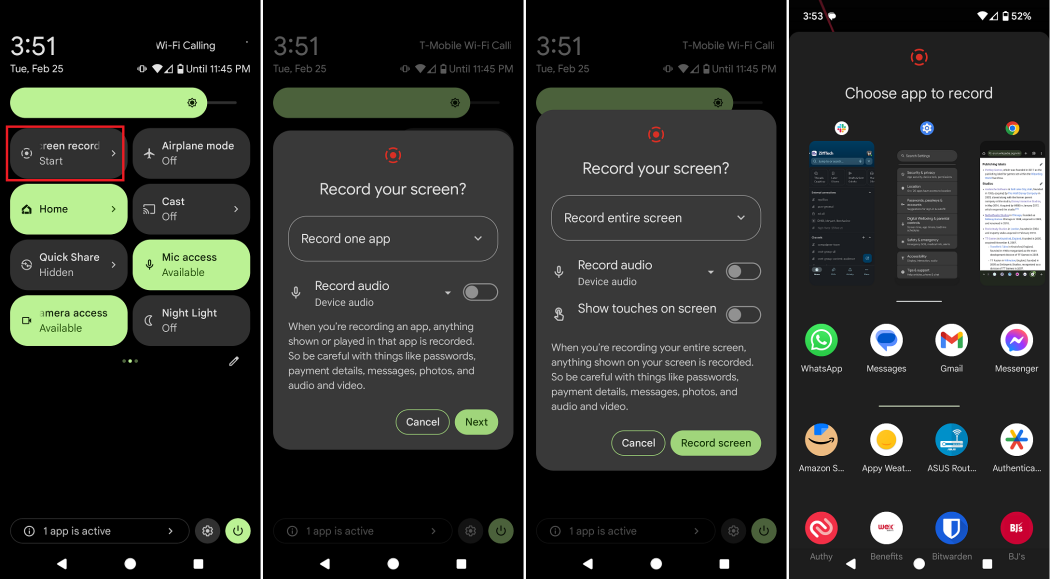

The differences between Android versions 14 and 15, along with the various OEM skins like Pixel, Samsung’s One UI, MIUI, and OxygenOS, are significant for users seeking to maximize their device’s potential. Understanding these variations helps users navigate their devices efficiently and utilize features specific to their devices. This exploration includes how these variations affect user experience and functionality, thus guiding users in choosing the right settings without needing to root their devices. For those looking for a way to record their screens, this will also cover “Step-by-Step: The Easiest Ways to Record Your Screen on Android.”
How to Do It
Prerequisites
- OS / App Version Requirements: Ensure you are on Android 14 or 15, as options and features may vary between these versions.
- Risks: While most adjustments are safe, changes to settings can affect app behavior. Always back up your data before making significant changes.
Step-by-Step Instructions
- For Android 14/15 Native Screen Recording:
- Swipe down from the top of the screen to access the Quick Settings panel.
- Look for the Screen Record icon. If you don’t see it, tap on Edit (pencil icon) to add it to your Quick Settings.
- Tap on Screen Record and choose your recording settings (audio source, recording quality).
- Tap Start and your screen recording will begin.
Verify it worked: Look for a notification that indicates recording is in progress.
- Using Samsung One UI:
- Swipe down to open Quick Settings.
- Find and tap on the Screen Recorder tile.
- Choose your audio and video settings.
- Tap Start Recording.
Verify it worked: You’ll see a floating icon indicating that recording is underway.
- Using MIUI:
- Open the Notification shade by swiping down.
- Look for Record Screen. If it’s not visible, tap Edit to add it.
- Tap Record Screen, configure settings if needed, and start.
Verify it worked: Check for a red dot or notification that confirms recording.
- Using OxygenOS:
- Swipe down for Quick Settings.
- Locate Screen Recorder.
- Tap it, adjust settings, and start recording.
Verify it worked: Look for a notification about the recording status.
Best Practices, Tips & Pitfalls
- Ensure Enough Storage: Before starting a recording, check that you have sufficient storage space to avoid interruptions.
- Test Audio Settings: If recording audio, perform a quick test to ensure sound levels are appropriate.
- Close Unnecessary Apps: To enhance performance, close background apps before starting the recording.
- Use Do Not Disturb Mode: To prevent notifications from disrupting your recording, enable Do Not Disturb mode.
- Familiarize Yourself with Editing Options: After recording, explore any built-in editing tools to enhance your video.
- Regularly Update Your Device: Keeping your OS and apps updated ensures access to the latest features and security patches.
Alternatives & Comparisons
If the built-in screen recording options don’t suit your needs, several third-party apps offer robust features. Here are a few popular alternatives:
| Option | Best for | Trade-offs |
|---|---|---|
| AZ Screen Recorder | High-quality recordings with editing features | Ads in free version, no internal audio recording without root |
| Mobizen Screen Recorder | User-friendly interface | Watermark in free version |
| DU Recorder | Live streaming and video editing | Requires permissions that some users may find invasive |
Key Takeaways
- Android 14 and 15 offer built-in screen recording capabilities that differ slightly by OEM.
- Each OEM’s interface presents unique features and settings for recording.
- Always verify that your device has enough storage and that settings are configured before recording.
- Consider third-party applications if built-in options do not meet your needs.
- Maintain your device software to leverage the latest features and security enhancements.
FAQ
Can I record my screen without using third-party apps?
Yes, Android 14 and 15 provide built-in screen recording features that you can access through the Quick Settings panel.
Is screen recording available on all Android devices?
Screen recording is available on devices running Android 10 and later, but the feature’s accessibility may vary by OEM.
What should I do if my screen recorder is not working?
Ensure that your device software is up to date and check app permissions. Restarting the device can also resolve minor issues.
