


Understanding the differences between Android 14 and 15, alongside various OEM skins like Pixel, Samsung’s One UI, MIUI, and OxygenOS, is crucial for anyone using Android devices. This knowledge empowers users to optimize their experience, ensuring they unlock convenience in daily tasks. “Unlocking Convenience: Top Methods for Transferring Files from Android to Your PC” is an excellent entry point, as it enhances efficiency in managing data between devices. In this guide, we will explore key functionalities, differences, and non-root methods to customize your Android experience while emphasizing the unique elements of each OEM interface.
How to Do It
Prerequisites
- Ensure your device is running Android 14 or 15.
- Familiarity with your OEM skin (Pixel, One UI, MIUI, OxygenOS) is beneficial.
- Backup your data regularly to prevent loss during modifications.
Step-by-Step Instructions
-
Accessing Settings: Navigate to your device’s settings.
Settings → System → About PhoneVerify the Android version to ensure compatibility with features discussed.
-
Customizing the Home Screen: Long-press an empty space on the home screen.
Home Screen → WidgetsSelect widgets to enhance your interface. Verify by checking if your chosen widgets appear correctly.
-
Managing Notifications: Access notifications settings for customization.
Settings → Apps & notifications → NotificationsToggle options to manage which apps can send notifications.
-
Using Digital Wellbeing: Monitor and control usage.
Settings → Digital Wellbeing & parental controlsSet timers for apps to manage screen time effectively. Verify by checking the dashboard for tracking.
-
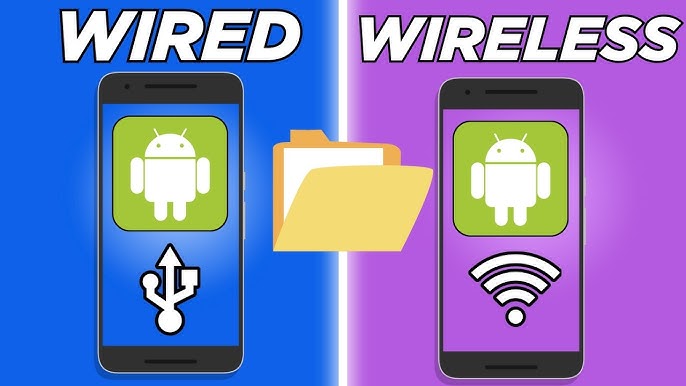
File Transfer to PC: Use USB or wireless methods to transfer files.
Settings → Connected devices → Connection preferences → USB > File TransferVerify successful connection by checking the PC’s file explorer for device recognition.
-
Customizing Privacy Settings: Adjust privacy settings to enhance security.
Settings → Privacy → Permission managerReview permissions for each app. Verify changes by checking app permissions again.
Best Practices, Tips & Pitfalls
- Regularly update your device to enjoy new features and security patches.
- Explore settings thoroughly; some features may be hidden under less obvious menus.
- Utilize built-in help or community forums for troubleshooting.
- Consider using third-party apps cautiously; check permissions and reviews.
- Be mindful of battery usage with customization; always check the battery status after changes.
- Keep a backup before making significant changes to settings or apps.
Alternatives & Comparisons
Each OEM offers unique features. Below is a brief comparison of some notable differences between Pixel, Samsung One UI, MIUI, and OxygenOS:
| OEM | Best for | Trade-offs |
|---|---|---|
| Pixel | Stock Android experience | Limited customization options |
| Samsung One UI | Feature-rich interface | Can feel bloated |
| MIUI | Customization and themes | Ads in some apps |
| OxygenOS | Balanced performance and customization | Limited support for non-OnePlus devices |
Key Takeaways
- Familiarize yourself with the settings for your specific OEM.
- Regular updates are essential for performance and security.
- Backup your device before implementing significant adjustments or customizations.
- Explore the full range of features your Android device offers beyond the basics.
- Consider the trade-offs of each OEM interface when choosing a device or customizing your experience.
FAQ
What is the difference between Android 14 and 15?
Android 15 introduces enhanced features such as improved privacy settings, updated UI elements, and new customization options compared to Android 14.
How can I transfer files without rooting my device?
You can transfer files using USB connection or cloud services like Google Drive, Dropbox, or OneDrive without needing root access.
What should I do if an app is crashing after an update?
Try clearing the app cache through Settings → Apps → [App Name] → Storage → Clear Cache. If the problem persists, consider uninstalling and reinstalling the app.
