


- Table of Contents
- 1. Understanding Streaming Services
- 2. Latest Streaming Devices
- 3. Streaming Formats and Features
- 4. Subscription Pricing and Plans
- 5. Setting Up and Troubleshooting Devices
- 6. Offline Viewing and Data Management
- 7. Improving Streaming Quality
- 8. VPNs and Geo-Restrictions
- 9. Parental Controls and Privacy
- 10. Creating Watchlists and Managing Profiles
- 11. Conclusion
As we step into 2025, the streaming landscape continues to evolve, offering an ever-expanding array of services, devices, and features. This guide aims to provide you with a comprehensive overview of how to reset your streaming devices, navigate the latest streaming services, understand subscription pricing, and enhance your streaming experience. Whether you’re a newcomer or a seasoned user, this guide will equip you with the knowledge you need to maximize your streaming potential.
Table of Contents
- Understanding Streaming Services
- Latest Streaming Devices
- Streaming Formats and Features
- Subscription Pricing and Plans
- Setting Up and Troubleshooting Devices
- Offline Viewing and Data Management
- Improving Streaming Quality
- VPNs and Geo-Restrictions
- Parental Controls and Privacy
- Creating Watchlists and Managing Profiles
- Conclusion
1. Understanding Streaming Services
Current Major Streaming Services
Netflix: The pioneer of streaming continues to dominate with an extensive library of films, original series, and documentaries. Netflix has expanded its offering to include interactive content, allowing viewers to influence storylines.
Disney+: With its vast collection of Disney, Pixar, Marvel, Star Wars, and National Geographic content, Disney+ has quickly become a favorite among families. Exclusive releases like “The Mandalorian” and “WandaVision” have bolstered its appeal.
HBO Max: Now rebranded to Max, this service boasts premium content, including HBO originals and Warner Bros. films. The platform has pioneered the same-day release strategy for films, attracting a diverse audience.
Amazon Prime Video: This service offers a mix of movies, TV shows, and original content, often bundled with Amazon Prime subscriptions. Its growing library of exclusives like “The Boys” and “The Marvelous Mrs. Maisel” has made it a worthy competitor.
Apple TV+: With a focus on original programming, Apple TV+ has made waves with series like “Ted Lasso” and “The Morning Show,” appealing to those who seek high-quality storytelling.
Hulu: Known for its vast collection of current and past TV shows, Hulu has also embraced original content, making it a go-to for binge-watchers. Its live TV option is a significant draw for cord-cutters.
Emerging Services
New players are continuously entering the streaming landscape, such as Peacock, Paramount+, and Crunchyroll, further diversifying your viewing options.
2. Latest Streaming Devices
Popular Streaming Devices
-
Amazon Fire Stick: Known for its affordability and Alexa integration, the Fire Stick supports 4K streaming and offers a user-friendly interface with access to various streaming apps.
-
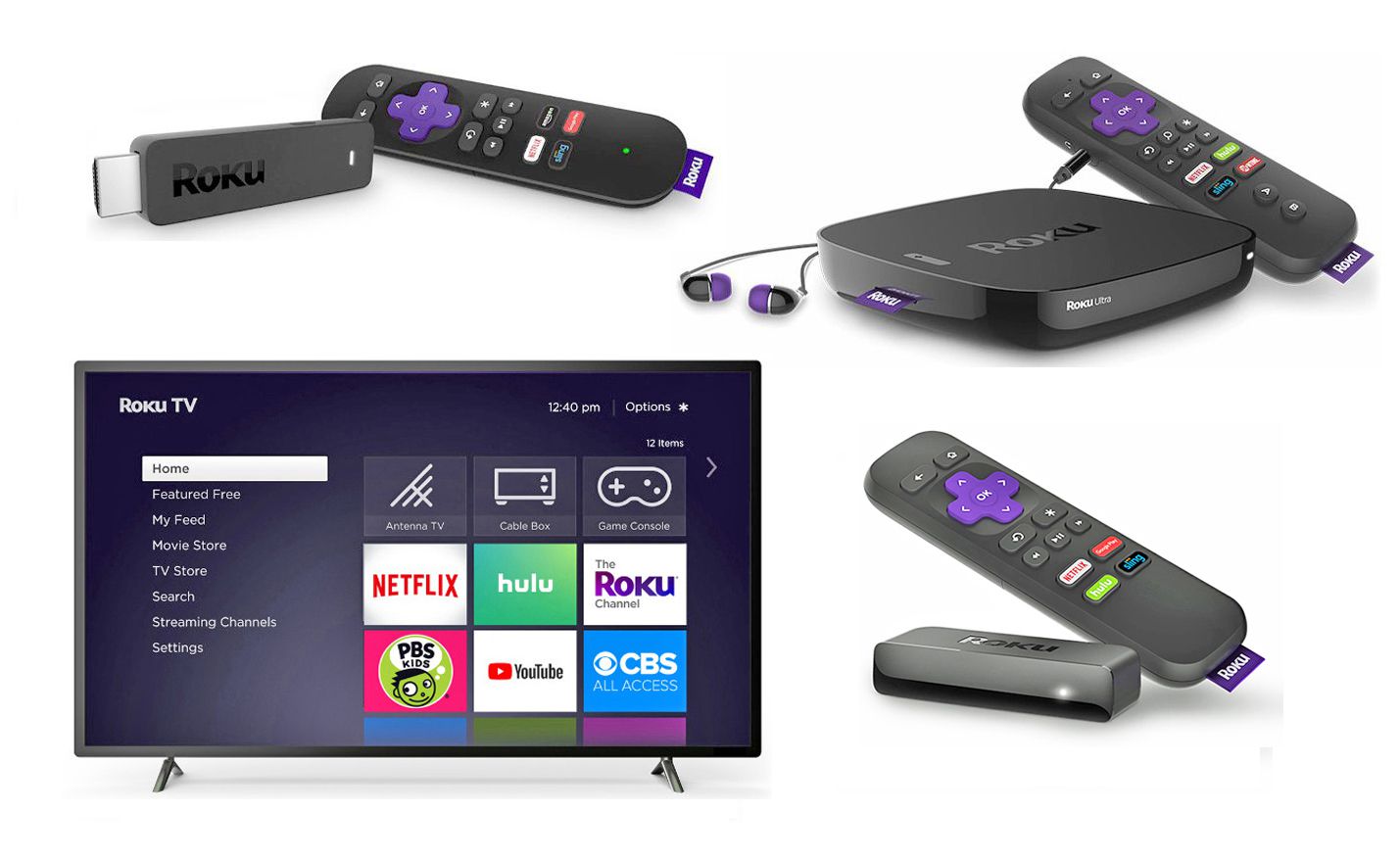
Roku: Roku devices are versatile, offering a broad range of models from budget-friendly to 4K solutions. The Roku Channel offers free content, making it an attractive option.
-
Google Chromecast: Chromecast allows you to cast content from your mobile device to your TV. The latest version supports 4K and integrates with Google TV for a robust interface.
-
Apple TV: With a sleek design and a focus on premium content, Apple TV provides access to Apple TV+, and its integration with the Apple ecosystem enhances the user experience.
-
Smart TVs: Many modern TVs come with built-in streaming capabilities, allowing you to access apps directly without the need for additional devices. Brands like LG, Samsung, and Sony offer high-quality displays with advanced features.
3. Streaming Formats and Features
Key Formats
-
4K Streaming: Offers four times the resolution of 1080p, providing an incredibly sharp picture. Most major platforms support 4K content.
-
HDR (High Dynamic Range): Enhances contrast and color, making images appear more vibrant. Look for HDR10 or Dolby Vision compatibility for the best experience.
-
Dolby Atmos: This audio format provides a three-dimensional sound experience, making you feel like you’re in the middle of the action.
Features to Look For
-
Voice Control: Many devices now come with voice control features, allowing for hands-free navigation.
-
Screen Mirroring: Most modern devices support screen mirroring, enabling you to share content from your phone or tablet directly to your TV.
4. Subscription Pricing and Plans
Current Pricing Overview
- Netflix: Ranges from $9.99 (Basic) to $19.99 (Premium) per month.
- Disney+: Priced at $7.99 per month, with a bundle option available that includes Hulu and ESPN+.
- Max: Pricing starts at $15.99 for ad-free streaming.
- Amazon Prime Video: Available as a standalone service for $8.99 per month or bundled with Amazon Prime at $14.99 per month.
- Apple TV+: Priced at $9.99 per month, with a free trial for new users.
- Hulu: Offers a basic plan for $7.99 with ads, and an ad-free version for $14.99.
Deals and Free Trials
Most streaming services offer free trials ranging from 7 to 30 days, allowing you to explore content without commitment. Look out for promotional bundles, especially during holidays, which can provide significant savings.
5. Setting Up and Troubleshooting Devices
Step-by-Step Setup Instructions
Amazon Fire Stick
- Connect the Fire Stick to your TV’s HDMI port.
- Plug in the power adapter and turn on your TV.
- Select the HDMI input where the Fire Stick is connected.
- Follow the on-screen instructions to connect to Wi-Fi and sign in to your Amazon account.
Roku
- Connect the Roku device to your TV’s HDMI port.
- Plug in the power adapter and turn on your TV.
- Select the HDMI input for Roku.
- Follow the instructions on-screen to connect to Wi-Fi and create or sign in to your Roku account.
Google Chromecast
- Connect the Chromecast to your TV’s HDMI port.
- Plug in the power adapter and turn on your TV.
- Download the Google Home app on your mobile device.
- Follow the app’s instructions to set up Chromecast.
Apple TV
- Connect Apple TV to your TV’s HDMI port.
- Plug in the power adapter and turn on your TV.
- Select the HDMI input for Apple TV.
- Follow the on-screen prompts to connect to Wi-Fi and sign in with your Apple ID.
Troubleshooting Tips
- Device Not Responding: Try rebooting the device by unplugging it and plugging it back in.
- Streaming Issues: Check your internet connection and restart your router if necessary.
- Update Your Device: Ensure your device’s software is up to date for the best performance.
6. Offline Viewing and Data Management
How to Watch Offline
Most streaming services now offer the option to download content for offline viewing. Here’s how:
- Netflix: Tap the download icon next to the title.
- Disney+: Select the download option on the movie or series page.
- Amazon Prime Video: Click on the download button available next to the episode or movie.
Managing Data Usage
If you’re concerned about data usage:
- Adjust Streaming Quality: Lower the quality settings in the app’s preferences.
- Download Content on Wi-Fi: Always download content while connected to Wi-Fi to save mobile data.
7. Improving Streaming Quality
To enhance your streaming experience:
- Use a Wired Connection: If possible, connect your streaming device to the router using an Ethernet cable for a more stable connection.
- Close Background Apps: Ensure that other devices or applications are not using bandwidth.
- Optimize Wi-Fi: Place your router in a central location, and consider upgrading to a dual-band router for better performance.
8. VPNs and Geo-Restrictions
Understanding VPNs
VPNs (Virtual Private Networks) can help you access geo-restricted content by masking your IP address. Here are some tips:
- Choose a Reliable VPN: Look for services that offer high speeds and are known for unblocking streaming services.
- Check for Compatibility: Some platforms actively block VPN traffic, so it’s crucial to choose a service that can bypass these restrictions.
9. Parental Controls and Privacy
Setting Up Parental Controls
Most streaming services offer parental control options:
- Netflix: Go to “Account” > “Parental Controls” to set restrictions.
- Disney+: Use “Profiles” to create a kid’s account with filtered content.
- HBO Max: Access the “Manage Profiles” section to enforce content restrictions.
Privacy and Security Considerations
- Review Privacy Settings: Regularly check the privacy settings of your streaming accounts.
- Use Strong Passwords: Ensure your accounts are secure by using strong, unique passwords.
10. Creating Watchlists and Managing Profiles
How to Create Watchlists
Creating watchlists can streamline your viewing experience:
- Netflix: Click on the “+” icon to add titles to your list.
- Hulu: Use the “Add to My Stuff” function for easy access.
- Disney+: Simply click the “+” icon to save titles for later.
Managing Profiles
Most services allow multiple profiles under one account:
- Netflix: Go to “Manage Profiles” to create or edit profiles.
- Hulu: Access “Account” to manage profiles, each with personalized recommendations.
11. Conclusion
The streaming domain in 2025 presents an exciting and diverse array of options for viewers. With advancements in technology and the continuous emergence of new content, it’s essential to stay informed about the latest devices, services, and features. Whether you’re resetting your streaming device or exploring new shows, this comprehensive guide equips you with the tools and knowledge to enhance your streaming experience. Embrace the future of entertainment, and enjoy your favorite content like never before!
