


In our increasingly digital world, understanding how to optimize your device usage is essential. This article, “Data-Saving Secrets: How to Keep Your iPhone Usage in Check,” explores effective strategies to manage your iPhone data and maintain performance without sacrificing essential features. By implementing these methods, you can enhance your experience, prolong battery life, and safeguard your privacy.
How to Do It
Prerequisites
- Ensure your iPhone is running iOS 16 or later. Some features may vary with iOS updates.
- Before making significant changes, back up your data using Settings → [Your Name] → iCloud → iCloud Backup → Back Up Now.
- Understand that some adjustments may impact app performance or functionality temporarily. You can always revert changes by following the same paths.
Step-by-Step Instructions
- To reduce data usage on mobile networks, navigate to Settings → Cellular → Cellular Data Options → Low Data Mode. Enable Low Data Mode to minimize background data usage.
- Verify it worked by observing a decrease in data usage under Settings → Cellular → Cellular Data Usage.
- If you want to limit background app refresh, go to Settings → General → Background App Refresh and select “Off” or “Wi-Fi.”
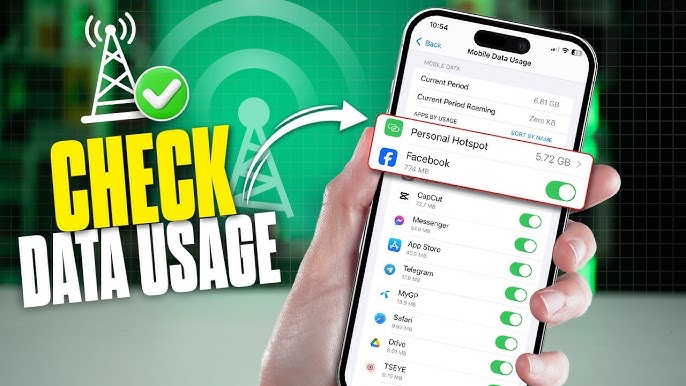
- Check which apps are using the most data by heading to Settings → Cellular. Scroll down to view data usage by specific apps.
- For privacy and security, you can restrict location services by going to Settings → Privacy & Security → Location Services and adjusting permissions for each app.
- To remove apps that consume significant data, press and hold the app icon on your home screen until a menu appears. Select Remove App → Delete App.
- To further enhance privacy, consider enabling Settings → Privacy & Security → Tracking → Allow Apps to Request to Track and disable it.
- For an added security measure, enable two-factor authentication for your Apple ID by navigating to Settings → [Your Name] → Password & Security → Two-Factor Authentication.
- To undo any changes, revisit the same paths and toggle settings back to their original state.
Best Practices, Tips & Pitfalls
- Regularly check your data usage statistics to identify apps that may need adjustments.
- Keep your iPhone updated to benefit from the latest privacy features and bug fixes.
- Use Wi-Fi whenever possible for updates and downloads to minimize cellular data consumption.
- Be cautious when granting location access; opt for “While Using the App” where applicable.
- Consider using a VPN for an extra layer of privacy when accessing public networks.
- Common errors include failing to enable Low Data Mode; double-check that the setting is active.
Alternatives & Comparisons
While iOS provides robust settings for data management, there are third-party alternatives worth considering:
| Option | Best for | Trade-offs |
|---|---|---|
| Data Saver App A | Comprehensive data tracking | May require app access to personal data |
| Data Saver App B | Automated settings adjustments | Subscription fees may apply |
Key Takeaways
- Reduce data use by enabling Low Data Mode and restricting background app refresh.
- Regularly monitor data usage through your settings to identify potential savings.
- Be mindful of app permissions and adjust them to enhance privacy and security.
- Keep your iPhone updated to take advantage of the latest features and security patches.
FAQ
How can I check my current data usage?
You can check your data usage by navigating to Settings → Cellular → Cellular Data Usage.
Can I undo changes made to data-saving settings?
Yes, you can revert any changes by going back to the same settings and toggling them off or to their original state.
What is Low Data Mode, and how does it help?
Low Data Mode reduces background activity and data usage, which can be beneficial for managing limited data plans.
