


- Table of Contents
- 1. Introduction
- 2. Understanding Force Quit
- 3. Latest macOS Features and Innovations
- 4. Hardware Innovations for 2025
- 5. Best Practices for Force Quitting Apps
- 5.1. Using the Apple Menu
- 5.2. Using the Keyboard Shortcut
- 5.3. Using Activity Monitor
- 5.4. Terminal Commands
- 6. Performance Optimization
- 6.1. Regular Software Updates
- 6.2. Manage Startup Items
- 6.3. Disk Cleanup
- 6.4. Monitor System Resources
- 7. Security Settings
- 7.1. Enable FileVault
- 7.2. Use a Strong Password
- 7.3. Regularly Update Your Software
- 7.4. Firewall Settings
- 8. Software Compatibility
- 8.1. Check Compatibility Before Upgrading
- 8.2. Virtualization Software
- 8.3. Utilize Compatibility Mode
- 9. Troubleshooting Techniques
- 10. Conclusion
In the dynamic world of technology, Macs continue to evolve with cutting-edge hardware and robust software offerings. As we step into 2025, users find themselves equipped with increasingly powerful devices running the latest macOS versions, which come packed with features aimed at enhancing user experience. One critical aspect of maintaining that experience is knowing how to effectively manage applications, particularly when they become unresponsive. This guide will delve into the nuances of force quitting apps on Mac, explore the latest macOS features, discuss hardware innovations, and provide valuable best practices for performance optimization, security settings, software compatibility, and troubleshooting.
Table of Contents
- Introduction
- Understanding Force Quit
- Latest macOS Features and Innovations
- Hardware Innovations for 2025
- Best Practices for Force Quitting Apps
- 5.1. Using the Apple Menu
- 5.2. Using the Keyboard Shortcut
- 5.3. Using Activity Monitor
- 5.4. Terminal Commands
- Performance Optimization
- Security Settings
- Software Compatibility
- Troubleshooting Techniques
- Conclusion
1. Introduction
As a Mac user, you may encounter situations where an application freezes or becomes unresponsive. This can be frustrating, especially during critical work. Learning how to force quit applications effectively is essential for maintaining productivity and device performance. In this article, we will explore various methods for force quitting apps, including the latest features and innovations from Apple that enhance user experience.
2. Understanding Force Quit
Force quitting an application is a way to close a program that has stopped responding. Unlike a regular quit, which allows the application to save changes and close gracefully, force quitting can lead to data loss for unsaved work. Therefore, it should be used as a last resort when an app refuses to close.
When to Force Quit
- Application is frozen: When you cannot interact with the interface.
- System performance issues: When an application consumes excessive resources.
- Unresponsive menus or windows: When you cannot access the app’s functions.
3. Latest macOS Features and Innovations
As of 2025, macOS has introduced a variety of new features that enhance user experience and app management. Some notable features include:
3.1. Improved App Management
- Enhanced App Switcher: The App Switcher now incorporates a more intuitive interface, making it easier to identify and navigate between open applications.
- App Grouping: Users can group apps into folders in the App Switcher, allowing for better organization.
3.2. Enhanced Security Measures
- Privacy Dashboard: This feature provides users with a comprehensive overview of app permissions, allowing you to control which apps have access to sensitive data.
- Sandboxing Improvements: Apps are more secure than ever, reducing the risk of data breaches and system vulnerabilities.
3.3. Performance Optimization Features
- Automatic Resource Management: macOS now includes algorithms that automatically allocate system resources based on usage patterns, significantly improving performance.
- Background App Refresh Control: Users can manage which apps are allowed to refresh in the background, conserving energy and system resources.
4. Hardware Innovations for 2025
Apple has made significant strides in hardware innovation, making the Mac lineup more powerful and efficient. Key innovations include:
4.1. Apple Silicon Enhancements
- M3 Chip: The latest M3 chip offers better performance and energy efficiency, making multitasking smoother and enabling demanding applications to run without lag.
- Unified Memory Architecture: This architecture allows for faster data transfer between the CPU and GPU, which is especially beneficial for graphic-intensive applications.
4.2. Display Technologies
- Liquid Retina XDR Displays: With higher brightness and contrast ratios, these displays offer an unparalleled visual experience, making it easier to work on detailed graphics or video projects.
4.3. Connectivity Options
- Thunderbolt 5: This new standard allows for faster data transfer and enhanced connectivity options with multiple devices, making it easier to expand your Mac’s capabilities.
5. Best Practices for Force Quitting Apps
Knowing how to force quit apps effectively can save time and frustration. Here are the main methods:
5.1. Using the Apple Menu
- Click on the Apple logo in the top-left corner of your screen.
- Select Force Quit from the dropdown menu.
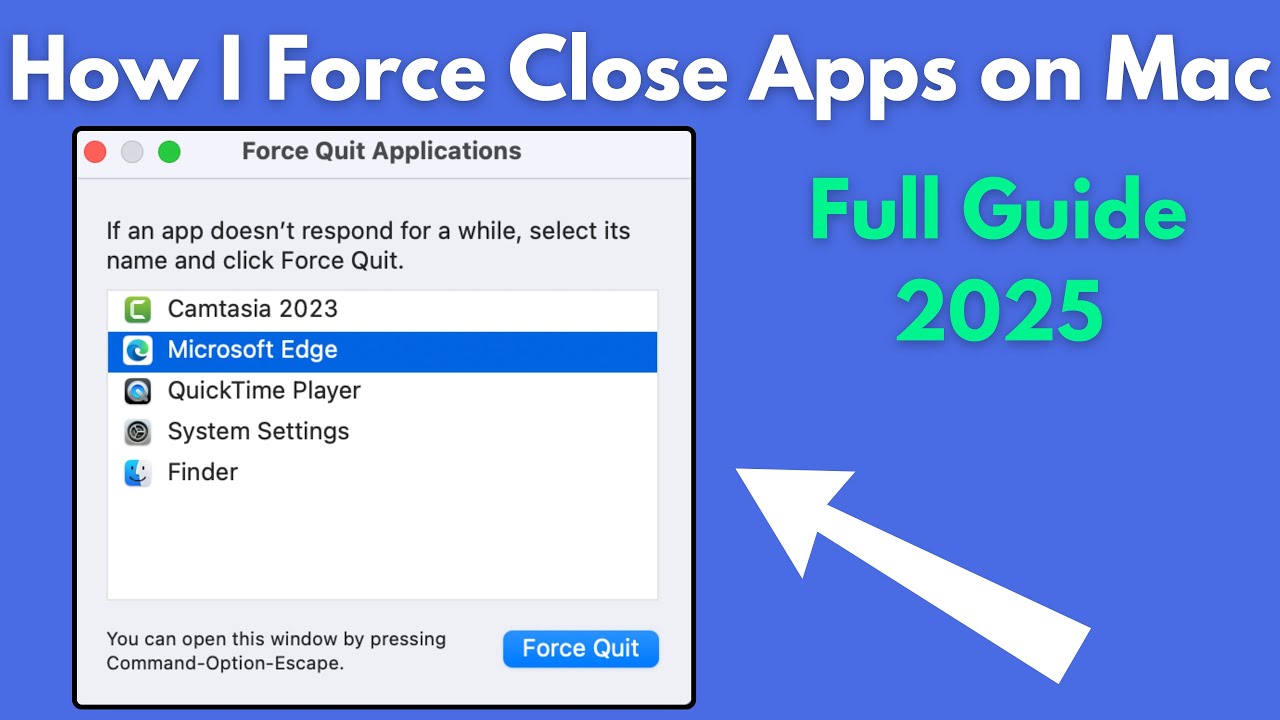
- A window will appear listing all open applications. Click on the app you wish to close.
- Click the Force Quit button to terminate the application.
5.2. Using the Keyboard Shortcut
- Press Command (⌘) + Option (⌥) + Esc simultaneously.
- This will bring up the Force Quit Applications window.
- Select the unresponsive application and click Force Quit.
5.3. Using Activity Monitor
Activity Monitor provides a detailed view of all running applications and their resource usage. Here’s how to use it:
- Open Activity Monitor (found in Applications > Utilities).
- In the CPU tab, identify the application you want to close.
- Select the application and click the X button in the top-left corner of the window.
- Choose Force Quit when prompted.
5.4. Terminal Commands
For users comfortable with the command line, you can also force quit applications through Terminal:
- Open Terminal (found in Applications > Utilities).
- Type the command
ps -axand hit Enter to list all running processes. - Identify the application’s PID (Process ID).
- Type
kill [PID](replace[PID]with the actual PID number) and hit Enter to terminate the application. - If it does not quit, type
kill -9 [PID]as a last resort.
6. Performance Optimization
To ensure your Mac runs smoothly, consider the following optimization tips:
6.1. Regular Software Updates
Always keep your macOS and applications up to date. Updates often include performance enhancements and bug fixes.
6.2. Manage Startup Items
Reducing the number of applications that launch at startup can significantly enhance boot times:
- Go to System Preferences > Users & Groups.
- Select your user account and click on Login Items.
- Remove unnecessary applications from the list.
6.3. Disk Cleanup
Regularly clean up your disk to free up space:
- Use Finder to delete unwanted files and applications.
- Empty your Trash to reclaim space.
- Utilize macOS’s built-in storage management tool by going to About This Mac > Storage > Manage.
6.4. Monitor System Resources
Keep an eye on your system’s resource usage through Activity Monitor. Regularly check which applications consume excessive CPU or memory and take appropriate action.
7. Security Settings
As new threats emerge, ensuring your Mac is secure is paramount. Follow these best practices:
7.1. Enable FileVault
FileVault encrypts your disk, protecting your data:
- Go to System Preferences > Security & Privacy.
- Click on the FileVault tab and turn it on.
7.2. Use a Strong Password
Always use a strong, unique password for your Mac account and enable two-factor authentication for added security.
7.3. Regularly Update Your Software
Software updates patch security vulnerabilities, so it’s crucial to keep your macOS and applications updated.
7.4. Firewall Settings
Enable the built-in firewall to prevent unauthorized access:
- Go to System Preferences > Security & Privacy.
- Click on the Firewall tab and turn it on.
8. Software Compatibility
With the constant updates in the macOS ecosystem, ensuring software compatibility is essential:
8.1. Check Compatibility Before Upgrading
Before upgrading to a new macOS version, check that your essential applications are compatible. Visit the developer’s website for the latest information.
8.2. Virtualization Software
If you need to run older applications, consider using virtualization software like Parallels Desktop or VMware Fusion to run previous macOS versions.
8.3. Utilize Compatibility Mode
Some applications may have compatibility mode settings that allow them to run optimally on newer macOS versions.
9. Troubleshooting Techniques
If you encounter persistent issues with applications, consider these troubleshooting steps:
9.1. Safe Mode
Boot your Mac in Safe Mode to see if the issue persists:
- Restart your Mac and hold down the Shift key until you see the login window.
- Safe Mode runs checks and prevents certain software from loading.
9.2. Create a New User Account
Create a new user account to determine if the issue is account-specific:
- Go to System Preferences > Users & Groups.
- Click the Add (+) button to create a new account.
9.3. Reset NVRAM/PRAM
Resetting NVRAM can resolve issues related to settings:
- Shut down your Mac, then turn it on and immediately hold Option + Command + P + R.
- Keep holding these keys for about 20 seconds.
9.4. Reinstall macOS
If issues persist, a fresh installation of macOS may be necessary. Backup your data before proceeding:
- Restart your Mac and hold Command + R to enter Recovery Mode.
- Select Reinstall macOS and follow the prompts.
10. Conclusion
Mastering the technique of force quitting applications on your Mac is essential for maintaining a seamless user experience, especially with the advancements in macOS and hardware as of 2025. By understanding the different methods of force quitting, utilizing the latest features, and adhering to best practices for optimization, security, and troubleshooting, you can ensure that your Mac remains a reliable tool for productivity. Embrace the latest innovations, and keep your system running smoothly for an exceptional computing experience.
This guide provides a thorough understanding of managing applications on a Mac, particularly focusing on force quitting techniques, which are fundamental for every user. By keeping abreast of the latest developments and implementing best practices, you can harness the full potential of your Mac in 2025 and beyond.
