


The ability to effectively use Remote Desktop Protocol (RDP) can enhance productivity and streamline remote work. In this article, titled “Top 10 RDP Fixes: Reclaim Your Remote Desktop Experience Today,” we will explore essential methods to troubleshoot common RDP issues encountered by users. RDP allows users to connect to another computer over a network and control it as if they were physically present. This capability is invaluable for remote work, technical support, and accessing network resources. By addressing these fixes, users can ensure a smoother and more reliable remote desktop experience.
How to Do It
Prerequisites
- Ensure you are using Windows 10 or Windows 11, as RDP features may vary slightly. Windows 10 typically has version 1903 or later; Windows 11 is recommended.
- Backup your system settings to avoid data loss. Use Control Panel → System and Security → Backup and Restore for a backup.
<h3>Step-by-Step Instructions</h3>

<ol>

  <li>Check your network connection to ensure that both computers are connected to the same network or the Internet. You can test this by pinging the remote machine. Open <kbd>Command Prompt → type `ping [IP address]`</kbd> and press Enter.</li>

  <li>Enable RDP on the host machine. Go to <kbd>Settings → System → Remote Desktop</kbd> and toggle the switch to enable Remote Desktop.</li>

  <li>Confirm that your firewall settings allow RDP traffic. Navigate to <kbd>Control Panel → System and Security → Windows Defender Firewall → Allow an app or feature through Windows Defender Firewall</kbd>. Ensure that "Remote Desktop" is checked.</li>

  <li>Remember to note the IP address and computer name of the host machine. Use <kbd>Settings → System → About</kbd> to find the device name.</li>

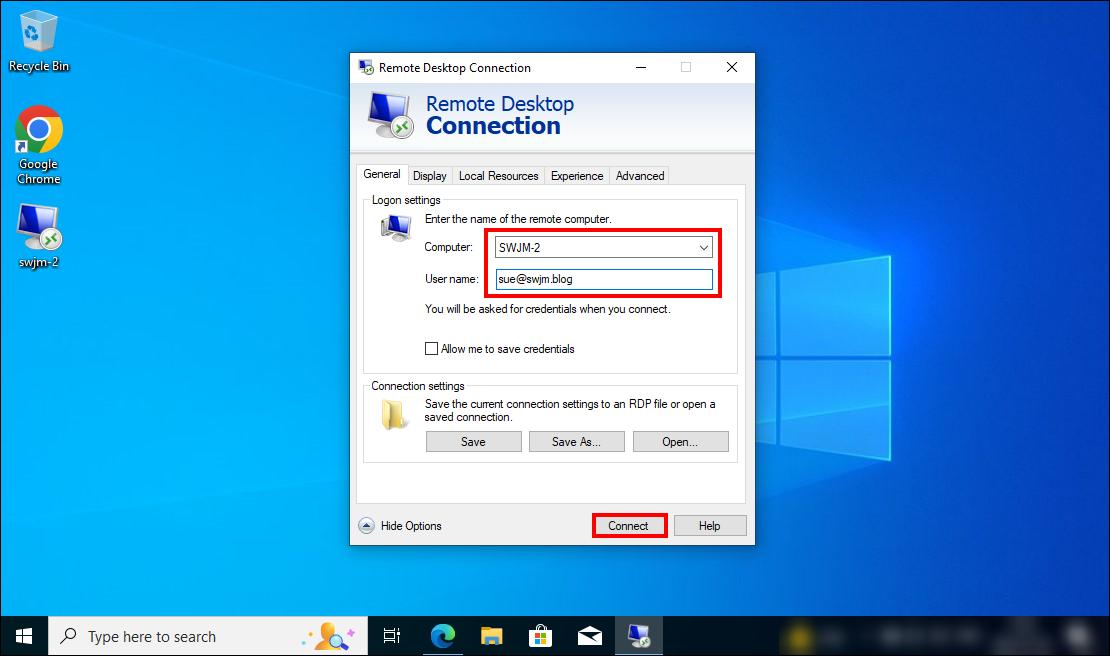
  <li>On the client machine, open the Remote Desktop Connection application. You can access it by searching for "Remote Desktop Connection" in the Start menu.</li>

  <li>Enter the IP address or the device name of the host machine and click “Connect.”</li>

  <li>If prompted, enter the username and password of the remote machine.</li>

  <li>Once connected, you can adjust display settings by navigating to the options in the Remote Desktop Connection window before clicking Connect. Here you can optimize the experience by selecting different display settings.</li>

  <li>Verify it worked: Ensure that you can access the desktop of the remote machine. If you see the desktop, you’ve successfully connected.</li>

</ol>
Best Practices, Tips & Pitfalls
- Regularly update your operating system to ensure all security patches and RDP enhancements are installed.
- Use a strong password for your remote sessions to prevent unauthorized access.
- Consider using a VPN for added security when accessing the remote machine over the Internet.
- Monitor your network bandwidth to ensure that a stable connection is maintained during remote sessions.
- Be cautious when providing access to others; only grant permissions to trusted individuals.
- Common error: If you receive an error stating “Remote Desktop can’t connect to the remote computer,” double-check your network settings and firewall configurations.
Alternatives & Comparisons
If RDP does not meet your needs, consider these alternatives for remote desktop access:
| Option | Best for | Trade-offs |
|---|---|---|
| TeamViewer | Remote support and collaboration | Free for personal use, but requires internet access |
| AnyDesk | Fast performance and low latency | Limited features in free version |
| Chrome Remote Desktop | Simple and browser-based access | Requires Google account; limited features compared to others |
Key Takeaways
- Ensure your RDP settings are configured correctly to avoid connectivity issues.
- Use a secure password and consider additional security measures like VPNs.
- Regularly back up your settings and configurations to prevent data loss.
- Monitor your network connection for optimal performance during remote sessions.
- Evaluate alternative solutions if RDP does not meet your specific needs.
FAQ
What should I do if I can’t connect to the remote desktop?
Check your network connection, firewall settings, and ensure that RDP is enabled on the host machine.
Can I access my remote desktop from a tablet or smartphone?
Yes, you can use the Microsoft Remote Desktop app available for both iOS and Android.
Is RDP secure enough for business use?
While RDP is generally secure, it is recommended to use additional security measures such as VPN and strong passwords to enhance safety.
