

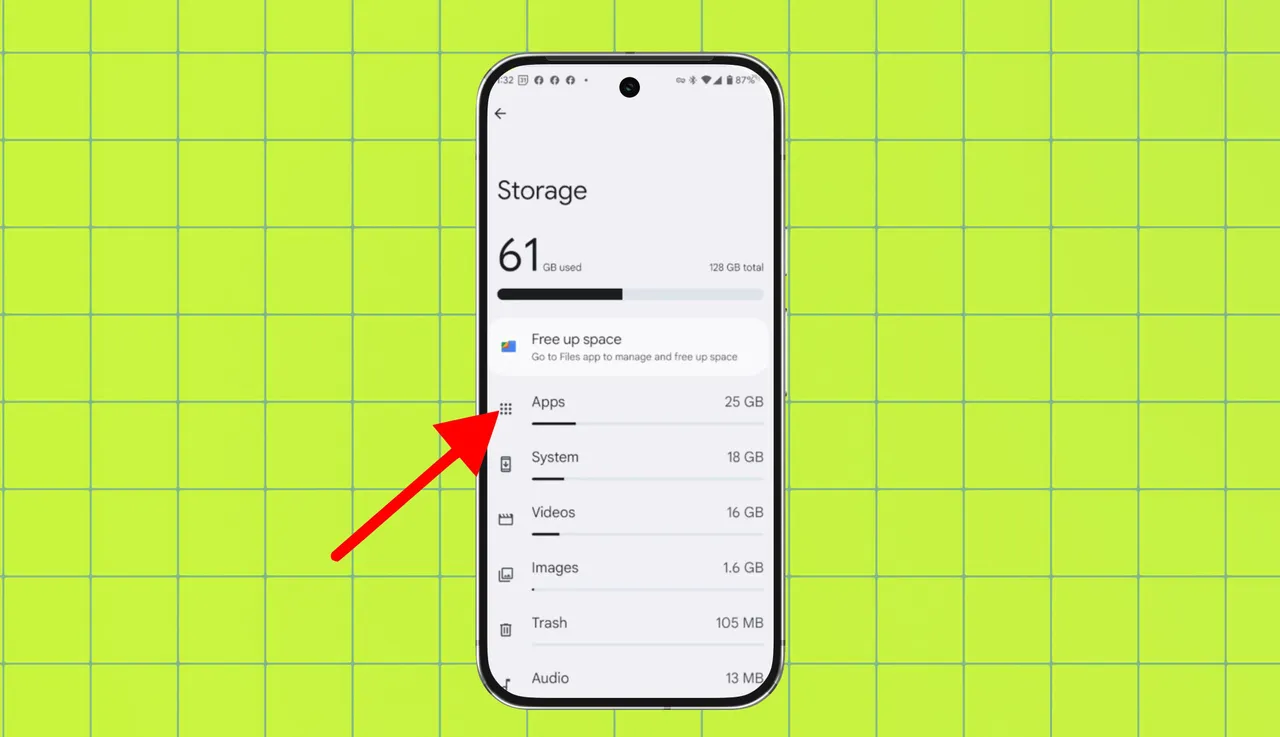

Understanding the differences between Android 14 and 15, along with OEM variations, is essential for users who want to optimize their devices. Is Your Android Slowing Down? Here’s How to Clear the Cache Effectively! Knowing how to manage system resources can significantly enhance your device’s performance. Each OEM, from Google’s Pixel to Samsung’s One UI, has unique interfaces and features that affect how users interact with their devices.
In this guide, we will explore these differences and provide step-by-step instructions for cache clearing and other optimizations, ensuring you have the most relevant and practical information to enhance your Android experience.
How to Do It
Prerequisites
- Ensure your device is running Android 14 or 15. Check by navigating to Settings → About phone → Software information.
- Backup important data before making significant changes. This can be done through Settings → System → Backup.
- Some settings may vary by OEM, so be ready for slight differences in menus.
Step-by-Step Instructions
- To clear the cache of individual apps:
- Open Settings.
- Navigate to Apps.
- Select the app you want to clear the cache for.
- Tap on Storage.
- Tap Clear Cache.
Verify it worked by rechecking the cache size in the same Storage section.
- To clear the entire cache partition (if supported):
- Power off your device.
- Press and hold the Power and Volume Up buttons simultaneously until the logo appears.
- Use the volume buttons to navigate to Recovery mode and select it with the Power button.
- Select Wipe cache partition using volume buttons and confirm with Power.
Verify it worked by booting back into the system and observing improved performance.
- To optimize storage:
- Open Settings.
- Go to Storage.
- Review the categories of storage used. Tap on Manage storage to find options for clearing unused files.
- Select Free up space to see recommendations.
Verify it worked by checking the new available space in Storage.
Best Practices, Tips & Pitfalls
- Regularly clear app caches to keep your device responsive.
- Make use of built-in storage management tools found in Settings → Storage → Free up space.
- Be cautious when clearing app data; this may reset app settings and require a re-login.
- Consider uninstalling apps that are rarely used instead of just clearing cache.
- If you experience performance issues, check for software updates under Settings → System → System update.
Alternatives & Comparisons
Several Android skins offer unique features and optimizations. Here’s a brief comparison of notable OEM variations:
| OEM | Best for | Trade-offs |
|---|---|---|
| Pixel | Stock Android experience, timely updates | Fewer customization options |
| Samsung One UI | Rich feature set, extensive customization | Can be resource-heavy |
| MIUI | Customizability, integrated features | Ads in some apps, learning curve |
| OxygenOS | Smooth performance, clean UI | Limited in-built features compared to others |
Each OEM has its strengths and weaknesses, so choosing the right one depends on user preferences and needs.
Key Takeaways
- Clearing caches regularly can keep your Android device performing well.
- Familiarize yourself with your device’s settings to optimize performance.
- Each OEM presents unique features and interfaces—choose one that suits your style.
- Backing up data is crucial before making significant changes.
- Explore built-in management tools for a smoother experience.
FAQ
How often should I clear my cache?
It’s generally a good idea to clear your cache every few weeks or whenever you notice performance degradation.
Will clearing the cache delete my personal data?
No, clearing the cache does not delete personal data; it only removes temporary files.
What if my device is still slow after clearing the cache?
If performance issues persist, consider checking for software updates or performing a factory reset as a last resort.
