

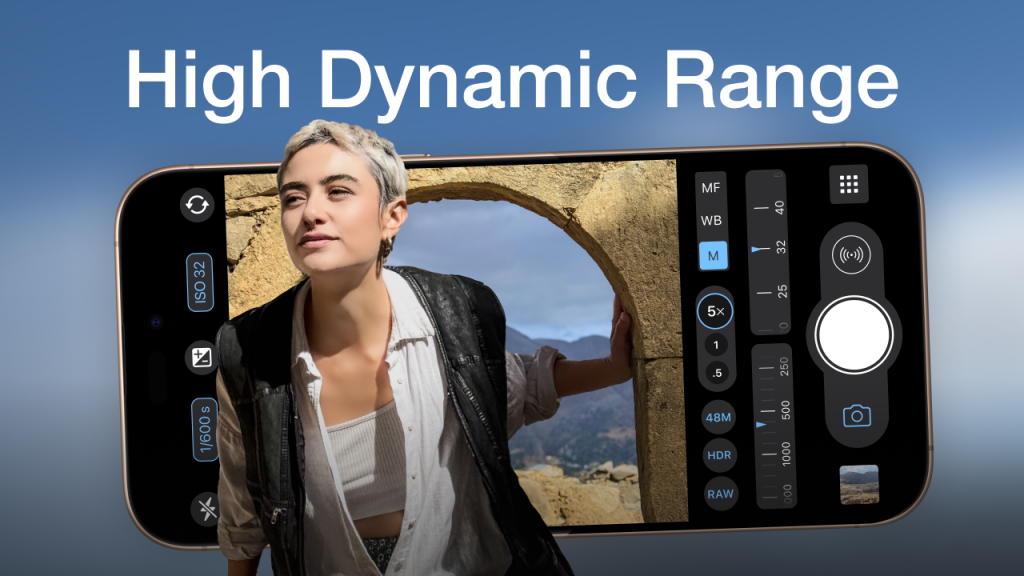

In today’s world of vibrant visuals and high-definition content, understanding how to enable HDR on your iPhone can significantly enhance your viewing experience. This guide, titled “Experience True Colors: Enable HDR on Your iPhone in Simple Steps,” is designed for both casual users and tech enthusiasts eager to unlock the full potential of their device’s display. HDR, or High Dynamic Range, allows your photos and videos to capture a broader spectrum of colors and brightness levels, making them more realistic and immersive. By mastering HDR settings, you can elevate your media consumption and photography skills.
How to Do It
Prerequisites
- Ensure your iPhone is updated to at least iOS 14 or later, as HDR support varies by version.
- HDR functionality may depend on your iPhone model; iPhone 8 and later support HDR video playback.
- Consider backing up your device using Settings → [Your Name] → iCloud → iCloud Backup → Back Up Now to avoid any data loss.
Step-by-Step Instructions
- Open your Settings app.
- Scroll down and select Camera.
- Tap on Record Video.
- Toggle on the HDR Video option to enable HDR recording.
- To verify it worked, open the Camera app and check for the HDR icon in the top-right corner during video recording.
For still photography, follow these steps:
- In the Settings app, scroll to Photos.
- Enable Smart HDR to automatically apply HDR techniques to your photos.
- To verify, open the Camera app and check if the HDR icon appears when you take a photo.
Using HDR in Photos App
- Open the Photos app and select an HDR photo.
- Tap Edit in the upper-right corner.
- Adjust settings and save changes to enhance the HDR effect.
- Verify the enhancements by comparing edited and original versions.
Best Practices, Tips & Pitfalls
- Always check your lighting conditions; HDR works best in well-lit environments.
- Consider using a tripod or stable surface for capturing stationary objects to reduce motion blur.
- Review your HDR settings periodically to ensure they meet your preferences, especially after software updates.
- If HDR photos appear overly bright or unnatural, go back to Settings → Camera → Smart HDR and toggle it off, then retake the photo.
- Disable HDR if you are in low-light conditions, as it may produce grainy images.
Alternatives & Comparisons
While HDR on iPhone offers impressive results, there are alternative methods and devices worth considering. Here are a few options:
| Option | Best for | Trade-offs |
|---|---|---|
| Google Pixel | Breathtaking photography | Less intuitive interface |
| Samsung Galaxy | Versatile camera options | More complex settings |
Key Takeaways
- Enabling HDR on your iPhone enhances photos and videos by capturing a wider range of colors and brightness.
- Ensure your device is updated and meets the necessary hardware requirements for HDR support.
- Check your HDR settings regularly to maintain optimal performance and quality in your media.
- Be aware of lighting conditions, as they significantly impact HDR effectiveness.
- Consider alternatives if you seek different features or camera capabilities.
FAQ
What is HDR?
HDR stands for High Dynamic Range, a technology that enhances the contrast and color of images, allowing for more vibrant and realistic visuals.
Do all iPhone models support HDR?
No, HDR support starts with the iPhone 8 and later models. Check your specific model for compatibility.
How can I undo HDR settings if I don’t like them?
You can easily disable HDR by navigating to Settings → Camera and toggling off the HDR options.
