


- 1. Understanding the Importance of Keyboard Shortcuts
- 2. Keyboard Shortcuts in Popular Productivity Tools
- 2.1 Microsoft Office Suite
- 2.2 Google Workspace
- 2.3 Project Management Software
- 2.4 Time Management Apps
- 3. Productivity Methodologies and Keyboard Shortcuts
- 4. Time Management Techniques
- 5. Remote Work and Collaboration Tools
- 6. Workspace Setup for Maximum Productivity
- 7. Conclusion: The Future of Productivity
In the fast-paced digital landscape of 2025, mastering keyboard shortcuts has become an essential skill for professionals seeking to maximize their productivity. Keyboard shortcuts not only save time but also streamline workflows, allowing individuals and teams to focus on what truly matters. This comprehensive guide will explore tips for utilizing keyboard shortcuts across various productivity tools, time management techniques, project management software, and modern productivity methodologies, all aimed at enhancing your productivity.
1. Understanding the Importance of Keyboard Shortcuts
1.1 Why Keyboard Shortcuts Matter
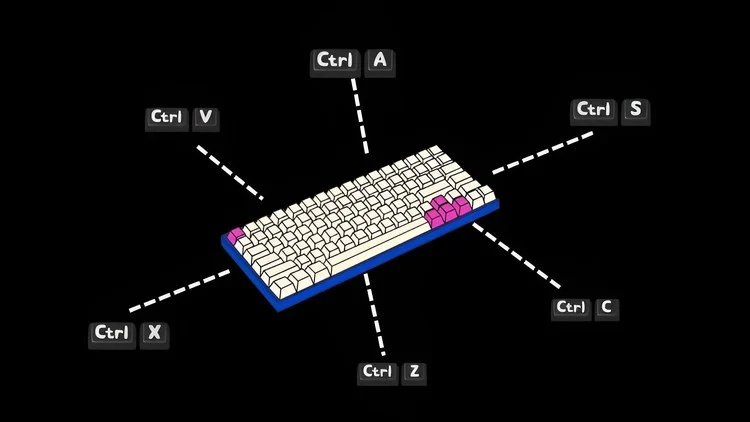
Keyboard shortcuts allow users to perform tasks quickly without relying on a mouse or trackpad. This efficiency is crucial in an era where multitasking and rapid execution of tasks are the norms. By incorporating shortcuts into your daily routine, you can:
- Increase Efficiency: Reduce the time spent navigating menus.
- Minimize Distractions: Focus more on the task at hand rather than the tools.
- Enhance Comfort: Reduce repetitive strain injuries by minimizing mouse use.
1.2 The Science Behind Productivity
Research indicates that keyboard shortcuts can significantly improve cognitive load management. When users rely on shortcuts, they can perform complex tasks more effortlessly, thereby improving overall productivity. The combination of muscle memory and cognitive efficiency results in a smoother workflow.
2. Keyboard Shortcuts in Popular Productivity Tools
In 2025, numerous productivity tools have integrated advanced features, making keyboard shortcuts more critical than ever. Below are some popular tools and their key shortcuts:
2.1 Microsoft Office Suite
2.1.1 Word
- Bold Text:
Ctrl + B - Italicize Text:
Ctrl + I - Create a Hyperlink:
Ctrl + K
Expert Insight: Use Ctrl + Shift + N to apply the Normal style quickly, ensuring consistency in your document formatting.
2.1.2 Excel
- Insert New Worksheet:
Shift + F11 - Open Format Cells Dialog:
Ctrl + 1
Example: Utilize the combination of Ctrl + Arrow Key to navigate across cells quickly, making data analysis more efficient.
2.2 Google Workspace
2.2.1 Google Docs
- Comment:
Ctrl + Alt + M - Insert Page Break:
Ctrl + Enter
Step-by-Step Guidance: Use Ctrl + Shift + C to copy formatting, then Ctrl + Shift + V to paste it. This helps maintain a consistent look across your document.
2.2.2 Google Sheets
- Add a New Row:
Ctrl + Alt + Shift + =
Tip: Combine Ctrl + Arrow Key with Shift to select a range of cells quickly.
2.3 Project Management Software
2.3.1 Asana
- Quick Add Task:
Tab + Q
Collaboration Insight: Use Tab + A to assign tasks to team members directly from the keyboard.
2.3.2 Trello
- Add Card:
N - Edit Card:
E
Workflow Improvement: Create a new card with a single keystroke and edit it instantly, enhancing your project management flow.
2.4 Time Management Apps
2.4.1 Todoist
- Add Task:
Ctrl + Q
Example: Use natural language input, like “Meeting tomorrow at 10 AM,” to quickly add tasks without clicking through menus.
2.4.2 Clockify
- Start Timer:
Ctrl + T
Pro Tip: Use Ctrl + Shift + L to quickly log time for a specific task, ensuring accurate time tracking.
3. Productivity Methodologies and Keyboard Shortcuts
Modern productivity methodologies such as Pomodoro, GTD (Getting Things Done), Kanban, and OKR (Objectives and Key Results) have their own best practices for using keyboard shortcuts effectively.
3.1 Pomodoro Technique
The Pomodoro Technique encourages working in focused bursts followed by short breaks. Here’s how to integrate shortcuts:
- Focus Timer: Use software like Focus@Will or Tomato Timer. Create keyboard shortcuts to start and stop timers quickly.
Example: Set a shortcut to start a 25-minute timer, allowing you to jump into focused work without distractions.
3.2 Getting Things Done (GTD)
GTD emphasizes task management and organization. Utilize shortcuts to stay organized:
- Task Management Tools: Apps like Notion or Evernote support keyboard shortcuts for quick task entry.
Step-by-Step Guidance:
- Press
Nto create a new note/task. - Use
Ctrl + Shift + Tto tag notes for better organization.
3.3 Kanban
For Kanban boards (e.g., using Trello or ClickUp), keyboard shortcuts streamline task management:
- Move Cards: Use keyboard shortcuts to quickly drag and drop cards between columns.
Pro Tip: Set up your workspace to allow keyboard navigation, reducing reliance on the mouse.
3.4 OKR
OKR focuses on defining and tracking objectives. Use keyboard shortcuts in your project management tools to keep track of these goals efficiently.
- Shortcut to Update Progress: Many tools allow you to assign custom shortcuts for updating OKRs quickly.
4. Time Management Techniques
Effective time management is essential for productivity. Here are popular techniques and how keyboard shortcuts enhance them.
4.1 Time Blocking
Time blocking involves scheduling specific blocks of time for different tasks. Use calendar apps like Google Calendar:
- Create Event:
C
Example: Set time blocks for different projects, minimizing distractions during these periods.
4.2 Eisenhower Matrix
The Eisenhower Matrix helps prioritize tasks. Use spreadsheet software to create a matrix:
- Quick Navigation: Use keyboard shortcuts to move between cells and categorize tasks efficiently.
4.3 The Two-Minute Rule
If a task takes less than two minutes, do it immediately. Use your task management app’s shortcut to add a quick task:
- Quick Add:
Ctrl + Q(in apps like Todoist).
5. Remote Work and Collaboration Tools
Remote work has become the norm, necessitating effective collaboration and communication tools. Here’s how to utilize keyboard shortcuts effectively.
5.1 Communication Tools
5.1.1 Slack
- Quick Switch Channels:
Ctrl + K - Start a New Message:
Ctrl + N
Expert Insight: Use Ctrl + Shift + K to quickly access your direct messages.
5.1.2 Microsoft Teams
- Search:
Ctrl + E - Start a New Chat:
Ctrl + N
Example: Use Ctrl + Shift + M to mute or unmute yourself during calls, allowing seamless communication.
5.2 File Sharing and Collaboration
5.2.1 Google Drive
- New File:
Shift + Tfor document,Shift + Pfor presentation.
Pro Tip: Use Z to quickly move files to a specific folder.
5.2.2 Dropbox
- Upload Files:
Ctrl + U
Step-by-Step Guidance: Create a shortcut to share files with collaborators, enhancing team efficiency.
6. Workspace Setup for Maximum Productivity
A well-organized workspace can significantly affect productivity. Here are tips for setting up your workspace with keyboard shortcuts in mind.
6.1 Physical Setup
- Ergonomics: Invest in an ergonomic keyboard that supports shortcut use without discomfort.
Expert Insight: Maintain a clutter-free desk to minimize distractions while using keyboard shortcuts.
6.2 Digital Setup
- Desktop Organization: Group frequently used folders and applications for quick access.
Example: Use shortcuts to launch applications, reducing the time spent searching.
7. Conclusion: The Future of Productivity
As we move further into 2025, the importance of keyboard shortcuts in enhancing productivity will only increase. By integrating these shortcuts into your daily activities across various tools, methodologies, and collaboration platforms, you can significantly improve your efficiency.
In this digital age, the ability to navigate tools swiftly and seamlessly will set you apart. Embrace the power of keyboard shortcuts, and watch your productivity soar.
Final Tips
- Practice: Regularly practice using shortcuts to build muscle memory.
- Customization: Explore customizing shortcuts in applications to fit your workflow.
- Stay Updated: Keep abreast of new tools and features that may introduce additional shortcuts to enhance productivity.
By incorporating these practices, you’ll be well on your way to mastering keyboard shortcuts, making 2025 your most productive year yet.
