


Understanding the differences between Android 14 and Android 15, especially in terms of OEM variations, is essential for anyone looking to optimize their smartphone experience. Brands like Google’s Pixel, Samsung’s One UI, Xiaomi’s MIUI, and OnePlus’s OxygenOS each offer unique interfaces and functionalities. This knowledge is particularly beneficial when trying to troubleshoot common issues, such as “Fix Connectivity Issues: The Complete Guide to Resetting Network Settings on Android.” By recognizing the nuances in each version and skin, users can make informed decisions about settings adjustments and optimizations.
How to Do It
Prerequisites
- Android version: Ensure your device is running Android 14 or 15. Features may vary between these versions.
- Backup: Always back up your data before making changes. Use Settings → System → Backup to enable Google Drive backups.
- Risks: Resetting network settings usually resolves connectivity issues, but it will erase saved Wi-Fi networks and Bluetooth pairings.
Step-by-Step Instructions
- Open Settings: Navigate to Settings → Network & Internet.
- Access Reset Options: Scroll down and select Advanced → Reset Options.
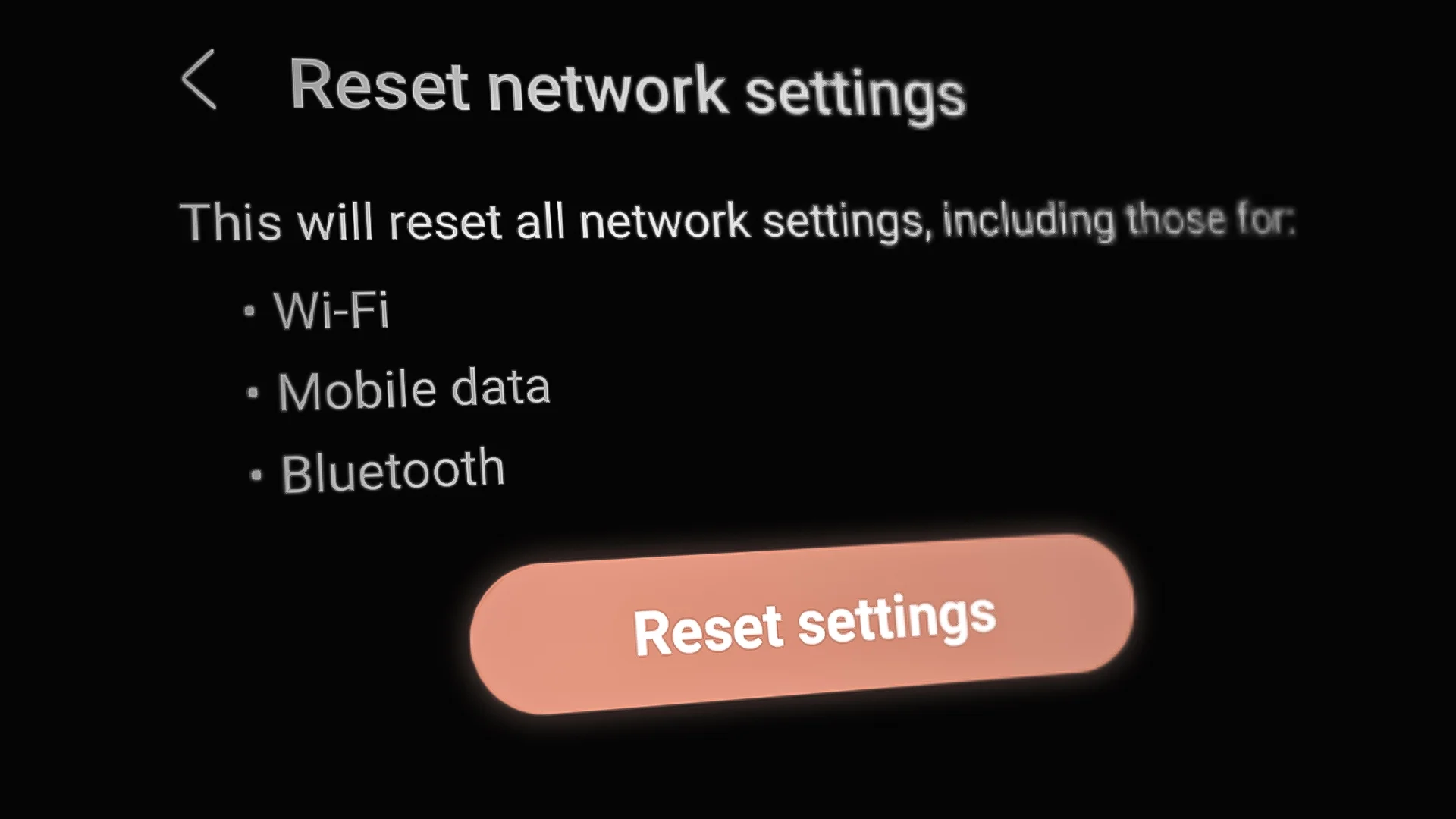
- Reset Network Settings: Tap on Reset Wi-Fi, mobile & Bluetooth. Confirm by selecting Reset Settings.
- Verify it Worked: Check if your device reconnects to Wi-Fi networks or Bluetooth devices.
Best Practices, Tips & Pitfalls
- Always ensure that your device is plugged in or charged during resets to avoid interruptions.
- Note down Wi-Fi passwords before resetting to simplify reconnections.
- Perform a soft reset of your device after network settings restoration for optimal performance.
- Keep your software updated to fix bugs and improve connectivity features.
- Common error: If Wi-Fi networks aren’t appearing after a reset, toggle airplane mode on and off.
Alternatives & Comparisons
While resetting network settings is often effective, users may also consider other options for troubleshooting connectivity issues. Here are some alternatives:
| Option | Best for | Trade-offs |
|---|---|---|
| Network Diagnostic Tool | Identifying specific connectivity problems | Requires more advanced knowledge |
| Factory Reset | Severe software issues | Erases all data; be sure to back up |
Key Takeaways
- Resetting network settings is a straightforward process found under Settings → Network & Internet → Advanced → Reset Options.
- Always back up your device to prevent data loss before proceeding with resets.
- Keep your device updated to benefit from the latest connectivity features and bug fixes.
- Consider alternatives such as network diagnostic tools for specific issues.
FAQ
What happens when I reset network settings?
Resetting network settings will erase all saved Wi-Fi networks, Bluetooth connections, and mobile data settings, restoring them to default.
Will resetting network settings improve connectivity?
Yes, it can resolve many connectivity issues by clearing outdated configurations and allowing your device to establish fresh connections.
How do I back up my data before resetting?
You can back up your data through Settings → System → Backup, ensuring that your important files are saved to Google Drive.
