

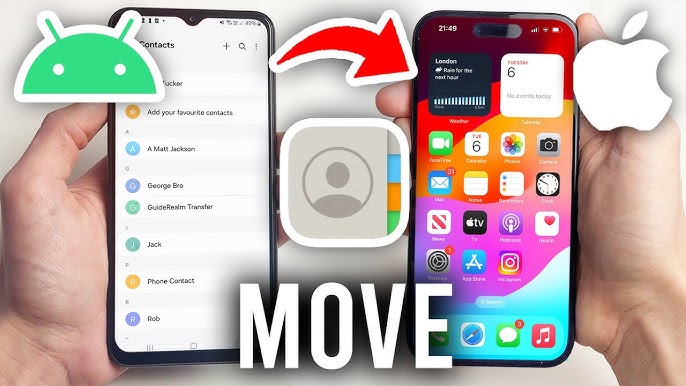

In an increasingly mobile world, the ability to seamlessly switch between devices is essential. “How to Import Contacts from Android to iPhone: A Comprehensive Guide” aims to provide a clear understanding of the methods available for moving your contacts. This is particularly beneficial for those transitioning from Android devices to iPhones, ensuring that important connections remain intact. Whether you’re a tech novice or an experienced user, this guide will help you navigate the process with ease.
How to Do It
Prerequisites
- Ensure that both your Android device and iPhone are updated to the latest operating system versions. For Android, version 7.0 or later is recommended, and for iPhone, iOS 14 or newer is preferred.
- Backing up your contacts is essential before starting. On your Android device, you can do this by navigating to Settings → Accounts → Google → Account sync and ensuring that “Contacts” is toggled on.
- Be aware of potential data loss during the transfer process. It’s wise to have a backup through Google Drive or a similar app.
Step-by-Step Instructions
- Using the Move to iOS App:
- On your iPhone, select the option to transfer data during the setup process. Choose Apps & Data → Move Data from Android.
- On your Android device, download the Move to iOS app from the Google Play Store.
- Open the app and follow the prompts until you receive a code on your iPhone. Enter this code into the Move to iOS app on your Android.
- Select “Contacts” to initiate the transfer, then complete the process on your iPhone.
Verify it worked: Check your Contacts app on the iPhone to see if your Android contacts appear.
- Using Google Account:
- On your Android device, back up contacts to your Google account by going to Settings → Accounts → Google → Account sync.
- On your iPhone, go to Settings → Mail → Accounts → Add Account and select Google.
- Log in with your Google account credentials and enable “Contacts” to sync.
Verify it worked: Open the Contacts app on your iPhone to check for the imported contacts.
- Manual Transfer via VCF File:
- On your Android device, open the Contacts app, then navigate to Menu → Settings → Export to save your contacts as a VCF file.
- Email the VCF file to yourself.
- On your iPhone, access your email and open the VCF file to import your contacts.
Verify it worked: Check in the Contacts app to ensure the new entries are present.
Best Practices, Tips & Pitfalls
- Always ensure both devices are sufficiently charged before starting the transfer process.
- Double-check your backup settings on the Android device to prevent accidental loss of contacts.
- If using the Move to iOS app, make sure both devices are connected to Wi-Fi to avoid interruptions.
- Be aware that some apps or services may not support transferring specific contact fields, such as photos or custom ringtones.
- If you encounter issues, restarting both devices can often resolve minor glitches.
Alternatives & Comparisons
If the methods above don’t suit your needs, consider these alternatives:
| Option | Best for | Trade-offs |
|---|---|---|
| Copy My Data | Users looking for a straightforward app-based solution | May have limited functionality compared to other methods |
| Third-party apps | Users with complex needs | Potential privacy concerns with data handling |
Key Takeaways
- Always backup your contacts before initiating any transfer process.
- Utilize the Move to iOS app for a seamless transfer if you’re setting up your iPhone for the first time.
- Syncing through your Google account is a reliable method if you already have your contacts backed up.
- For manual options, exporting as a VCF file can be an effective alternative.
FAQ
Can I transfer my contacts without an internet connection?
Yes, using the manual transfer method with a VCF file does not require an internet connection.
What do I do if some contacts did not transfer?
Check your backup settings on Android, or try re-exporting the contacts and importing them again.
Are there limits to how many contacts I can import?
Most methods do not impose strict limits, but very large numbers of contacts may cause issues in slower connections.
