

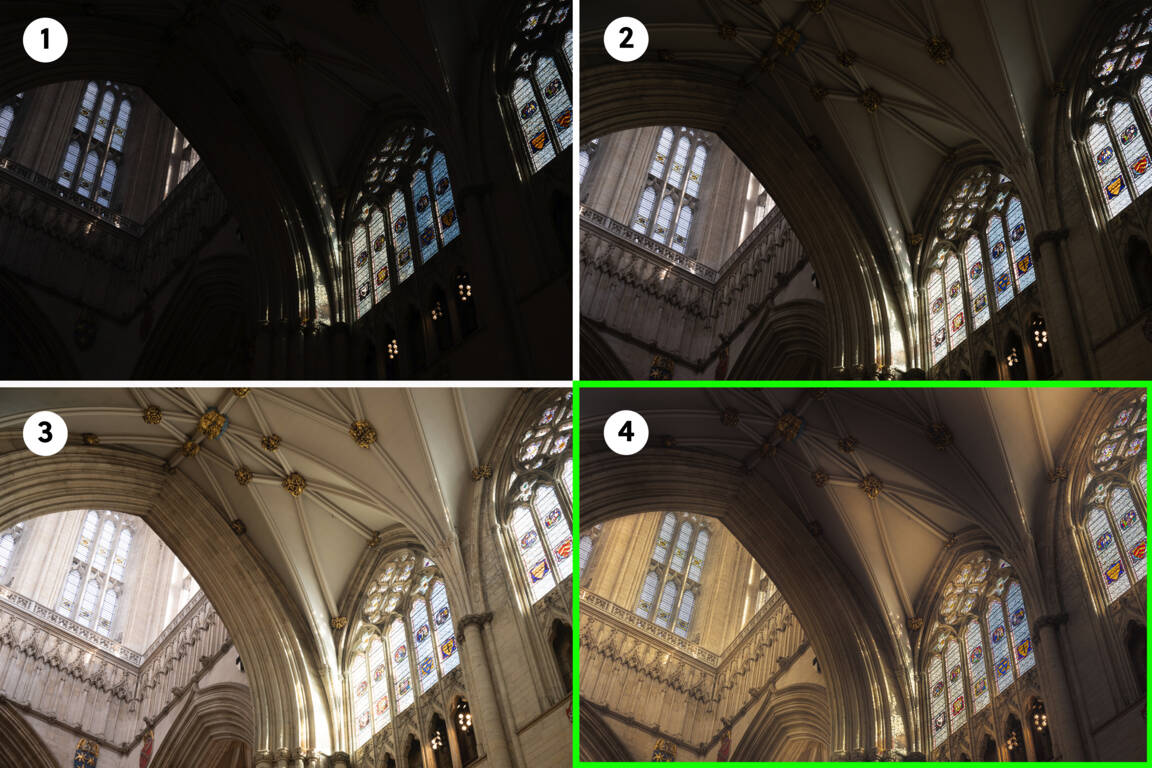

In today’s digital landscape, visuals play a crucial role in our experiences, whether we are gaming, watching movies, or creating content. “Unlocking Brilliance: How to Fix Auto HDR for Stunning Visuals” is a topic that resonates with gamers and content creators alike. High Dynamic Range (HDR) enhances the visual quality of displays, making colors more vibrant and details more pronounced. However, many users encounter issues with Auto HDR, leading to frustrating experiences. Understanding how to troubleshoot and fix these issues can significantly elevate your viewing experience.
How to Do It
Prerequisites
- Operating System: Ensure you are using Windows 10 version 1903 or later, or Windows 11 for optimal HDR support.
- Graphics Card: Ensure you have a compatible GPU, such as NVIDIA RTX series or AMD RX series that supports HDR.
- Display: Use a monitor that supports HDR. Check your display settings to verify.
- Risks: Adjusting display settings may lead to unexpected visual output; consider backing up your current settings.
Step-by-Step Instructions
- Enable HDR in Windows:
- Open Settings → System → Display.
- Scroll down to “Windows HD Color” and toggle on Use HDR.
Verify it worked: Check if the toggle remains enabled after closing Settings.
- Adjust Graphics Settings:
- Right-click on the Desktop and select NVIDIA Control Panel or AMD Radeon Settings.
- Navigate to Display settings and ensure HDR settings are enabled.
Verify it worked: Check for any visual enhancements in HDR-supported games or videos.
- Update Graphics Drivers:
Get-WindowsUpdateRun this PowerShell command to check for and install updates to your graphics drivers.
Verify it worked: After installation, restart your computer and check if HDR functionally improves.
- Configure Game Settings:
- Open your game and navigate to the settings menu.
- Look for Graphics or Display options and enable HDR.
Verify it worked: Check the visual quality and ensure that HDR features are active.
Best Practices, Tips & Pitfalls
- Ensure your HDMI or DisplayPort cable supports HDR. Low-quality cables may lead to issues.
- Keep your graphics drivers up to date. Regular updates ensure compatibility and performance improvements.
- Calibrate your display settings for optimal HDR performance. Use built-in calibration tools if available.
- Be aware of common errors such as flickering or color distortion, often caused by incompatible settings. Always revert to default settings before making changes.
- Test HDR functionality with various content types—games, videos, images—to ensure comprehensive support.
Alternatives & Comparisons
While Auto HDR offers a significant upgrade in visual quality, you may want to explore alternative methods for enhancing your visual experience. Below is a brief comparison of some viable alternatives.
| Option | Best for | Trade-offs |
|---|---|---|
| Manual HDR Calibration | Users seeking precise control over their display settings | Time-consuming; requires knowledge of calibration techniques |
| Third-Party Software | Advanced users wanting additional features | May introduce compatibility issues; not all software supports HDR |
Key Takeaways
- Ensure your hardware is compatible with HDR to unlock its potential.
- Follow the steps outlined to enable and configure Auto HDR effectively.
- Regular updates and proper calibration of settings are crucial for optimal performance.
- Be aware of common pitfalls and how to avoid them for a seamless experience.
- Explore alternative methods if Auto HDR does not meet your needs or expectations.
FAQ
What is HDR?
High Dynamic Range (HDR) is a technology that improves the contrast and color range of images, making visuals appear more realistic and vibrant.
How do I know if my monitor supports HDR?
Check your monitor’s specifications or settings under Settings → System → Display to see if HDR options are available.
What should I do if HDR is not working?
Ensure your graphics drivers are up to date and verify that HDR is enabled in both Windows settings and your graphics card settings.
