

WordPress continues to evolve, making it a leading platform for website creation globally. As we move into 2025, understanding how to effectively install and utilize plugins is essential for anyone looking to enhance their WordPress site. This article will cover the latest trends and best practices involving plugins, themes, security, performance optimization, SEO, and user experience.
- 1. Understanding WordPress Plugins
- 2. Step-by-Step Guide to Installing Plugins
- Method 1: Installing from the WordPress Dashboard
- Method 2: Uploading via ZIP File
- Method 3: Manual Installation via FTP
- 3. Choosing the Right Plugins
- 4. Best Practices for Plugin Management
- 5. Performance Optimization
- 6. SEO and User Experience
- 7. Security Considerations
- 8. Conclusion
1. Understanding WordPress Plugins
What are Plugins?
A WordPress plugin is a package of code that adds specific features or functionalities to your WordPress site. They can be anything from a simple contact form to complex e-commerce systems. The beauty of plugins lies in their ability to extend the core functionality of WordPress without the need for coding.
Importance of Plugins
Plugins are essential for:
-
- Customization: They allow users to tailor their sites to fit specific needs.
-
- Functionality: They can add features that enhance user interaction and site management.
-
- Efficiency: With the right plugins, you can automate tasks that would otherwise take a lot of time.
Current Trends in WordPress Plugins (2025)
In 2025, several trends have emerged in the WordPress plugin ecosystem:
-
- AI-Powered Plugins: These plugins use artificial intelligence to enhance user experience and automate tasks.
-
- Performance Optimization: Plugins focusing on speed and performance are gaining prominence.
-
- Security Enhancements: With rising cyber threats, security-focused plugins are more critical than ever.
-
- Headless WordPress: Integrations that allow WordPress to serve as a backend for various front-end frameworks are becoming popular.
2. Step-by-Step Guide to Installing Plugins
Method 1: Installing from the WordPress Dashboard
-
- Log into Your WordPress Admin Dashboard:
Navigate toyourdomain.com/wp-admin.
- Log into Your WordPress Admin Dashboard:
-
- Go to the Plugins Menu:
On the left sidebar, click on “Plugins” and then “Add New.”
- Go to the Plugins Menu:
-
- Search for the Plugin:
Use the search bar to find the specific plugin you want to install.
- Search for the Plugin:
-
- Install the Plugin:
Click the “Install Now” button next to the plugin you want to add.
- Install the Plugin:
-
- Activate the Plugin:
After installation, click the “Activate” button to start using the plugin.
- Activate the Plugin:
Method 2: Uploading via ZIP File
-
- Download the Plugin:
Go to the plugin’s official website or repository and download the ZIP file.
- Download the Plugin:
-
- Log into Your WordPress Admin Dashboard:
Navigate toyourdomain.com/wp-admin.
- Log into Your WordPress Admin Dashboard:
-
- Go to the Plugins Menu:
Click on “Plugins” and select “Add New.”
- Go to the Plugins Menu:
-
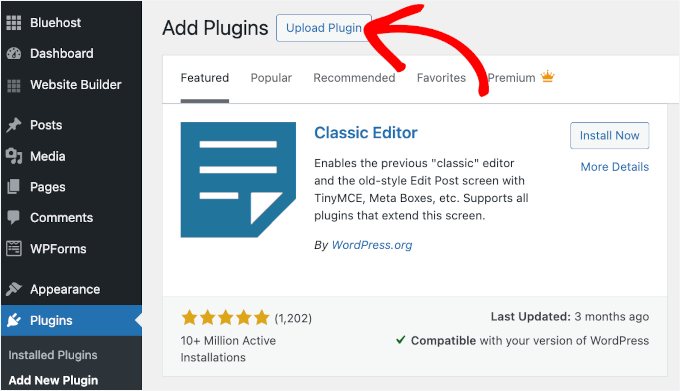
- Upload the ZIP File:
Click on the “Upload Plugin” button, then choose the ZIP file from your computer.
- Upload the ZIP File:
-
- Install and Activate:
Click “Install Now,” and once the installation is complete, click “Activate.”
- Install and Activate:
Method 3: Manual Installation via FTP
-
- Download the Plugin:
Download the plugin as a ZIP file from its source.
- Download the Plugin:
-
- Extract the ZIP File:
Unzip the file on your computer.
- Extract the ZIP File:
-
- Connect to Your Server via FTP:
Use an FTP client like FileZilla and connect to your web server.
- Connect to Your Server via FTP:
-
- Upload the Plugin Folder:
Navigate to the/wp-content/plugins/directory on your server and upload the extracted folder.
- Upload the Plugin Folder:
-
- Activate the Plugin:
Log into your WordPress admin dashboard, go to “Plugins,” find your uploaded plugin, and click “Activate.”
- Activate the Plugin:
3. Choosing the Right Plugins
Evaluating Plugin Quality
When selecting plugins, consider the following criteria:
-
- Reviews and Ratings: Check user reviews and ratings on the WordPress repository.
-
- Last Updated: Ensure the plugin is regularly updated to ensure compatibility with the latest WordPress version.
-
- Support: Look for plugins with active support forums or documentation.
Essential Plugins for 2025
Here are some recommended plugins for various use cases:
-
- Security: Wordfence Security, Sucuri Security
-
- SEO: Yoast SEO, Rank Math
-
- Performance: WP Rocket, Autoptimize
-
- Backup: UpdraftPlus, BackupBuddy
-
- E-commerce: WooCommerce, Easy Digital Downloads
Recommendations Based on Use Cases
-
- Blogging: Consider plugins for social sharing, SEO, and performance optimization.
-
- E-commerce: Focus on payment gateways, inventory management, and customer support plugins.
-
- Portfolio: Use galleries, sliders, and performance-enhancing plugins.
4. Best Practices for Plugin Management
Regular Updates
Keeping your plugins updated is crucial for security and functionality. Set a schedule to check for updates or enable automatic updates in your settings.
Compatibility Checks
Before updating any plugin, ensure it’s compatible with your current WordPress version and other plugins. You can do this by checking the plugin’s changelog and support forums.
Backing Up Your Site
Always back up your site before installing or updating plugins. Use backup plugins like UpdraftPlus or cloud services to safeguard your data.
5. Performance Optimization
Caching Plugins
Utilize caching plugins like WP Rocket or W3 Total Cache to speed up your site by serving cached versions of your pages.
Image Optimization
Use plugins like Smush or ShortPixel to compress images without losing quality, which is crucial for performance.
Database Cleanup Plugins
Over time, your database can accumulate unnecessary data. Use plugins like WP-Optimize to clean up your database regularly.
6. SEO and User Experience
SEO Plugins and Their Importance
SEO plugins are vital for optimizing your content and improving search engine rankings. Yoast SEO and Rank Math are popular choices that offer features like:
-
- Keyword optimization
-
- Readability analysis
-
- XML sitemap creation
Enhancing User Experience with Plugins
Focus on plugins that enhance the user experience, such as:
-
- Contact forms (e.g., Contact Form 7)
-
- Live chat (e.g., WP Live Chat Support)
-
- Analytics (e.g., MonsterInsights)
7. Security Considerations
Best Security Plugins
Security is a top priority. Use security plugins such as:
-
- Wordfence Security: Offers firewall protection and malware scanning.
-
- iThemes Security: Provides various security features, including brute force protection.
Common Vulnerabilities
Be aware of common vulnerabilities, like outdated plugins and themes, and ensure regular updates and security scans.
Keeping Your Site Secure
Implement best security practices such as:
-
- Regular backups
-
- Strong passwords
-
- Two-factor authentication
8. Conclusion
The Future of WordPress Plugins
As WordPress continues to evolve, the future of plugins looks promising, with increased use of AI, better performance optimization, and enhanced security features. Staying updated with trends and best practices will ensure your WordPress site remains competitive.
Final Thoughts
Installing and managing plugins effectively is crucial for harnessing the full potential of WordPress. By following the guidelines and best practices outlined in this article, you can create a robust, secure, and user-friendly website. Embrace the continuous evolution of WordPress, adapt to new trends, and watch your website thrive in the digital landscape of 2025.
This article provides a thorough overview of how to install and manage plugins in WordPress, focusing on practical methods, current trends, and best practices to ensure a successful website. As the WordPress ecosystem continues to grow, staying informed and adaptable is essential for any site owner.