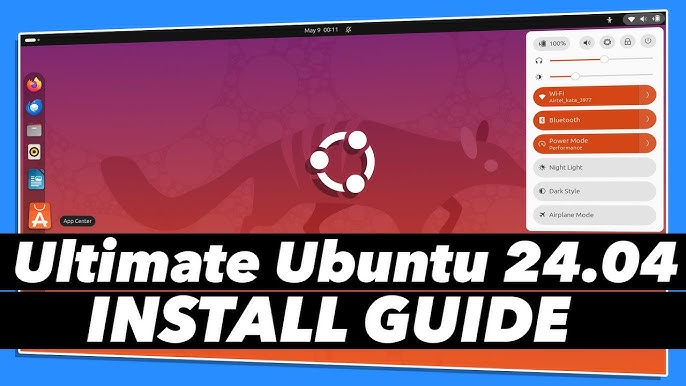
As the Linux ecosystem continues to evolve, Ubuntu remains one of the most popular distributions for both beginners and seasoned users. Ubuntu 24.04, the latest Long-Term Support (LTS) release, introduces new features, improved performance, and enhanced security. This guide offers a thorough walkthrough for installing Ubuntu 24.04, covering various installation methods, system administration, common commands, shell scripting, troubleshooting, and optimization strategies.
- 1. Introduction to Linux Distributions
- 2. Why Ubuntu?
- 3. Installation Methods
- 4. Step-by-Step Installation of Ubuntu 24.04
- Step 1: Boot into the Installer
- Step 2: Select Language and Keyboard Layout
- Step 3: Prepare Installation
- Step 4: Disk Setup
- Step 5: User Information
- Step 6: Installation Summary
- Step 7: Installation Progress
- Step 8: Restart
- 5. System Administration Basics
- 6. Common Linux Commands
- 7. Shell Scripting
- 8. Troubleshooting
- 9. Optimization
- 10. Security Practices
- 11. Package Management
- 12. Workflow Improvements
- 13. Tips for Beginners and Advanced Users
- 14. Conclusion
1. Introduction to Linux Distributions
Linux distributions (distros) are various operating systems built on the Linux kernel. Each distribution may have different features, package management systems, and default software. Popular distributions include:
-
- Ubuntu: User-friendly, great for beginners.
-
- Debian: Known for stability and reliability.
-
- Fedora: Focused on cutting-edge technology.
-
- Arch Linux: A rolling release model targeted at advanced users.
-
- CentOS: Enterprise-focused with long-term support.
Choosing the right distribution depends on your needs, experience level, and use case.
2. Why Ubuntu?
Ubuntu is known for its ease of use, extensive community support, and regular updates. Key features include:
-
- User-friendly interface: Ideal for newcomers.
-
- Extensive repositories: Provides a wide array of software packages.
-
- Strong community: Active forums and resources for troubleshooting and learning.
-
- Regular updates: LTS versions receive updates for five years, ensuring security and stability.
UBuntu 24.04, the latest LTS release, includes new features like improved hardware support, updated packages, and enhancements to system performance.
3. Installation Methods
3.1 Live USB Installation
Using a Live USB allows you to test Ubuntu without making changes to your system. You can also install it directly from the Live environment.
Requirements:
-
- USB drive (at least 4GB)
-
- Ubuntu 24.04 ISO file
-
- Etcher or Rufus (for creating bootable USB)
Steps:
-
- Download the ISO: Visit the Ubuntu website and download the ISO file.
-
- Create a Bootable USB:
-
- Open Etcher or Rufus.
-
- Select the ISO file and the target USB drive.
-
- Click on “Flash” or “Start” to create the bootable USB.
-
- Create a Bootable USB:
-
- Boot from USB:
-
- Insert the USB into your computer and restart it.
-
- Access the boot menu (usually F2, F12, or ESC).
-
- Select the USB drive.
-
- Boot from USB:
3.2 Network Installation
Network installation requires an internet connection and can be beneficial when you want to install the latest packages.
Requirements:
-
- Internet connection
-
- Minimal ISO or Netboot installer
Steps:
-
- Download the Minimal ISO: Get the Ubuntu minimal ISO from the official website.
-
- Boot from the ISO: Configure your BIOS to boot from the downloaded ISO.
-
- Follow the Installation Prompts: The installer will guide you through the process, downloading necessary packages from the internet.
3.3 Virtual Machine Installation
If you want to run Ubuntu alongside another operating system, using a virtual machine is a great option.
Requirements:
-
- VirtualBox or VMware
-
- Ubuntu 24.04 ISO file
Steps:
-
- Install VirtualBox: Download and install VirtualBox.
-
- Create a New VM:
-
- Open VirtualBox and click “New.”
-
- Assign RAM and create a virtual hard disk.
-
- Create a New VM:
-
- Load the ISO: In the VM settings, select the Ubuntu ISO as the boot device.
-
- Start the VM: Boot the virtual machine and follow the installation prompts.
4. Step-by-Step Installation of Ubuntu 24.04
Step 1: Boot into the Installer
After booting from your selected installation method, you’ll see the Ubuntu welcome screen. Choose “Install Ubuntu.”
Step 2: Select Language and Keyboard Layout
Select your preferred language and keyboard layout. Click “Continue.”
Step 3: Prepare Installation
Choose your installation type:
-
- Normal Installation: Recommended for most users.
-
- Minimal Installation: A more lightweight version.
Step 4: Disk Setup
You have the option to erase the disk and install Ubuntu or set up a dual-boot configuration. Choose the option that suits your needs.
Step 5: User Information
Enter your name, computer name, username, and password. Choose whether to log in automatically or require a password.
Step 6: Installation Summary
Review your installation choices. Click “Install Now” to begin the installation process.
Step 7: Installation Progress
The installer will now copy files and install Ubuntu. This process may take several minutes.
Step 8: Restart
Once the installation is complete, restart your computer. Remove the installation media when prompted.
5. System Administration Basics
System administration involves maintaining and managing the system to ensure smooth operation. Key tasks include:
-
- User Management: Add, delete, and modify users using
adduser,userdel, andusermodcommands.
- User Management: Add, delete, and modify users using
-
- File Permissions: Understand user permissions and modify them using
chmod,chown, andchgrp.
- File Permissions: Understand user permissions and modify them using
-
- System Services: Use
systemctlto manage system services.
- System Services: Use
-
- Logs: Monitor system logs located in
/var/logfor troubleshooting.
- Logs: Monitor system logs located in
6. Common Linux Commands
Familiarizing yourself with common commands enhances your efficiency in using Linux. Here are some essential commands:
-
- File Operations:
-
ls: List files in a directory.
-
cp: Copy files or directories.
-
mv: Move or rename files.
-
rm: Remove files or directories.
-
- File Operations:
-
- System Information:
-
df -h: Display disk space usage.
-
top: Show running processes.
-
uname -r: Display kernel version.
-
- System Information:
-
- Network Commands:
-
ping: Check connectivity to another host.
-
ifconfig: Display network interfaces.
-
- Network Commands:
7. Shell Scripting
Shell scripting allows you to automate tasks. Here’s a simple example:
Script to Backup a Directory:
bash
SOURCE=”/path/to/source”
DESTINATION=”/path/to/destination”
tar -czf $DESTINATION/backup_$(date +%Y%m%d).tar.gz $SOURCE
echo “Backup completed successfully!”
Steps to Create and Run a Script:
-
- Create a Script File:
bash
nano backup.sh
- Create a Script File:
-
- Paste the Script: Copy and paste the script above into the file.
- Paste the Script: Copy and paste the script above into the file.
-
- Make it Executable:
bash
chmod +x backup.sh
- Make it Executable:
-
- Run the Script:
bash
./backup.sh
- Run the Script:
8. Troubleshooting
Troubleshooting is an essential skill in system administration. Here are common troubleshooting steps:
-
- Check System Logs:
Logs located in/var/logcan provide insights into errors.
- Check System Logs:
-
- Use
dmesg:
Check kernel messages for hardware-related issues.
bash
dmesg | less
- Use
-
- Network Issues:
Verify connectivity usingpingand troubleshoot withifconfig.
- Network Issues:
-
- Package Issues:
If a package fails to install, use:
bash
sudo apt-get update
sudo apt-get upgrade
- Package Issues:
9. Optimization
Optimizing Ubuntu can lead to better performance. Consider the following tips:
-
- Disable Unused Services:
Usesystemctlto disable services not required at startup.
bash
sudo systemctl disable
- Disable Unused Services:
-
- Install Lightweight Alternatives:
Consider using lighter applications (e.g.,Xfceinstead ofGNOME).
- Install Lightweight Alternatives:
-
- Use SSDs:
If possible, install Ubuntu on an SSD for faster boot times and application launches.
- Use SSDs:
-
- Optimize Swappiness:
Adjust the swappiness setting to reduce the amount of swap used.
bash
sudo sysctl vm.swappiness=10
- Optimize Swappiness:
10. Security Practices
Security is paramount in the Linux ecosystem. Here are essential practices:
-
- Regular Updates:
Keep your system updated.
bash
sudo apt-get update && sudo apt-get upgrade
- Regular Updates:
-
- Firewall Configuration:
Useufwfor firewall management.
bash
sudo ufw enable
- Firewall Configuration:
-
- SSH Security:
Change the default SSH port and disable root login.
- SSH Security:
-
- Use Strong Passwords:
Implement strong password policies for user accounts.
- Use Strong Passwords:
11. Package Management
Ubuntu utilizes the APT package management system. Here’s a quick overview of package management commands:
-
- Install a Package:
bash
sudo apt-get install
- Install a Package:
-
- Remove a Package:
bash
sudo apt-get remove
- Remove a Package:
-
- Search for a Package:
bash
apt-cache search
- Search for a Package:
-
- Update Package List:
bash
sudo apt-get update
- Update Package List:
12. Workflow Improvements
Improving your workflow on Ubuntu can enhance productivity. Here are some suggestions:
-
- Customize Keyboard Shortcuts:
Use Settings to configure keyboard shortcuts for frequently used actions.
- Customize Keyboard Shortcuts:
-
- Use Terminal Multiplexers:
Tools liketmuxorscreenallow you to manage multiple terminal sessions.
- Use Terminal Multiplexers:
-
- Automate with Cron Jobs:
Schedule scripts or commands with cron jobs.
bash
crontab -e
- Automate with Cron Jobs:
-
- Personalize Your Environment:
Customize your shell prompt and aliases for quicker access to commands.
- Personalize Your Environment:
13. Tips for Beginners and Advanced Users
For Beginners:
-
- Start with the GUI: Get comfortable with Ubuntu’s graphical interface before diving into the terminal.
-
- Explore the Community: Utilize forums and online resources like Ask Ubuntu for help.
-
- Practice Regularly: Familiarity comes with practice. Use your Ubuntu system daily.
For Advanced Users:
-
- Contribute to Open Source: Engage with the community by contributing to projects on GitHub.
-
- Learn Scripting: Automate tasks and processes using shell scripting.
-
- Explore Advanced Networking: Understand networking concepts and configurations.
14. Conclusion
Installing and using Ubuntu 24.04 in 2025 provides an excellent opportunity to explore the Linux ecosystem. With a variety of installation methods, system administration basics, and optimization strategies, this guide equips both beginners and advanced users with the skills needed to navigate the world of Linux confidently.
As you delve into Ubuntu, remember that the community is vast and supportive. Whether you are troubleshooting an issue, scripting an automation task, or optimizing your workflow, the resources available will help you thrive in the world of Linux. Happy computing!