


Introduction
- Introduction
- 1. Understanding Trackpad Gestures
- 2. Latest macOS Features for Trackpad Gestures
- 3. Hardware Innovations Impacting Trackpad Use
- 4. Best Practices for 2025
- 5. Step-by-Step Instructions for Common Gestures
- 6. Expert Insights on Gestures
- 7. Troubleshooting Trackpad Gestures
- 8. Conclusion
In the ever-evolving landscape of technology, the Mac ecosystem continues to thrive, offering users a seamless experience through intuitive gestures. As we step into 2025, Apple’s focus on enhancing user interaction through trackpad gestures remains strong. This article delves deep into the latest macOS features, hardware innovations, and best practices for optimizing your experience with trackpad gestures. By the end, you’ll be equipped with step-by-step instructions, examples, expert insights, and troubleshooting techniques to make the most of your Mac’s capabilities.
1. Understanding Trackpad Gestures
1.1 What are Trackpad Gestures?
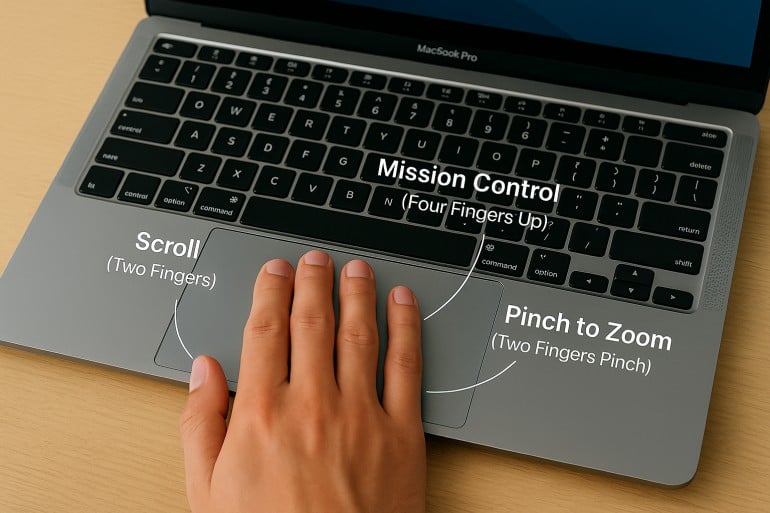
Trackpad gestures are multi-finger movements on the trackpad surface that allow users to control their Mac efficiently. These gestures simplify navigation, enhance productivity, and improve overall user experience.
1.2 Importance of Trackpad Gestures in macOS
Trackpad gestures reduce the reliance on keyboard shortcuts and mouse clicks, enabling smoother interactions with the operating system and applications. They play a crucial role in multitasking, window management, and software navigation.
2. Latest macOS Features for Trackpad Gestures
2.1 macOS Ventura and Beyond
With the introduction of macOS Ventura, Apple brought several enhancements to trackpad functionalities. Features like Stage Manager, enhanced Mission Control, and new multitasking capabilities utilize trackpad gestures more intuitively than ever.
2.2 New Gestures Introduced
Recent updates have introduced gestures like:
-
- Three-Finger Drag: For easier window management.
-
- Pinch to Zoom: Enhanced for applications like Photos and Safari.
-
- Swipe Between Full-Screen Apps: A smoother transition with a four-finger swipe.
3. Hardware Innovations Impacting Trackpad Use
3.1 The Newest Mac Models
The latest MacBook Pro and MacBook Air models come equipped with larger, more responsive trackpads that offer haptic feedback. These innovations improve gesture recognition and responsiveness.
3.2 Trackpad Design and Sensitivity
The design of the trackpad has evolved, with larger surfaces allowing for more comfortable and expansive gestures. The pressure sensitivity has also improved, providing a more tactile experience.
4. Best Practices for 2025
4.1 Performance Optimization
To ensure optimal performance while using trackpad gestures:
-
- Update macOS Regularly: Always run the latest version of macOS to benefit from performance improvements and bug fixes.
-
- Manage Background Processes: Close unnecessary applications to free up resources.
4.2 Security Settings
Security is paramount. Here are some settings to consider:
-
- Enable FileVault: Encrypt your data to protect it from unauthorized access.
-
- Use Firewall Settings: Ensure your Mac is protected from unwanted connections.
4.3 Software Compatibility
Be mindful of software updates for applications that utilize trackpad gestures. Check for compatibility issues before upgrading macOS.
5. Step-by-Step Instructions for Common Gestures
5.1 Navigating with Gestures
Basic Gestures
-
- Click: Tap once with one finger.
-
- Right-click: Tap with two fingers or click the bottom right corner.
Scrolling
-
- Scroll: Use two fingers to swipe up or down on the trackpad.
Zooming
-
- Pinch to Zoom: Place two fingers on the trackpad and pinch in or out.
5.2 Customizing Gestures
-
- Open System Preferences:
-
- Click on the Apple logo in the top-left corner.
-
- Select “System Preferences.”
-
- Open System Preferences:
-
- Go to Trackpad:
-
- Click on the “Trackpad” icon.
-
- Go to Trackpad:
-
- Adjust Settings:
-
- Enable or disable gestures according to your preference.
-
- Explore the “Point & Click,” “Scroll & Zoom,” and “More Gestures” tabs for additional options.
-
- Adjust Settings:
6. Expert Insights on Gestures
6.1 Tips from Mac Professionals
-
- Learn the Gestures: Familiarize yourself with gestures in the Trackpad settings.
-
- Practice Makes Perfect: Spend time practicing gestures until they become second nature.
6.2 User Experiences
Many users report that mastering trackpad gestures significantly boosts productivity. They find that gestures reduce the need to shift between the keyboard and trackpad, streamlining workflows.
7. Troubleshooting Trackpad Gestures
7.1 Common Issues and Solutions
Issue: Trackpad Not Responding
-
- Solution: Check for obstructions on the trackpad. Restart your Mac if the problem persists.
Issue: Gestures Not Recognized
-
- Solution: Ensure that gestures are enabled in System Preferences under the Trackpad settings.
7.2 Advanced Troubleshooting Techniques
-
- Reset SMC: If gestures are still unresponsive, resetting the System Management Controller (SMC) can resolve hardware-related issues.
-
- Safe Mode: Boot your Mac in Safe Mode to diagnose whether a third-party application is causing the problem.
8. Conclusion
As we explore the features and capabilities of trackpad gestures within the Mac ecosystem, it’s clear that they play a crucial role in enhancing user experience. With continual innovations in hardware and software from Apple, mastering these gestures will empower users to navigate their Macs more efficiently than ever. By following the best practices, step-by-step instructions, and troubleshooting techniques outlined in this guide, you’ll be well-equipped to make the most of your trackpad in 2025 and beyond.
Embrace the power of trackpad gestures, and transform your Mac experience into a fluid, dynamic interaction that enhances your productivity and enjoyment.
