


How to Do It
Prerequisites
-
- Ensure your device is running Android 14 or 15. Many features may vary depending on the OEM’s customization.
-
- It’s advisable to back up your data before making any significant changes. Use Settings → System → Backup to ensure everything is saved properly.
-
- Understand that some features may not be available without root access, but non-root alternatives usually suffice.
Step-by-Step Instructions
-
- To access the Do Not Disturb settings on a Pixel device running Android 14 or 15, navigate to
Settings → Sound & vibration → Do Not Disturb.
Here, you can configure the feature to activate during specific hours.
Verify it worked: Look for the schedule settings to confirm the times are set correctly.
- To access the Do Not Disturb settings on a Pixel device running Android 14 or 15, navigate to
-
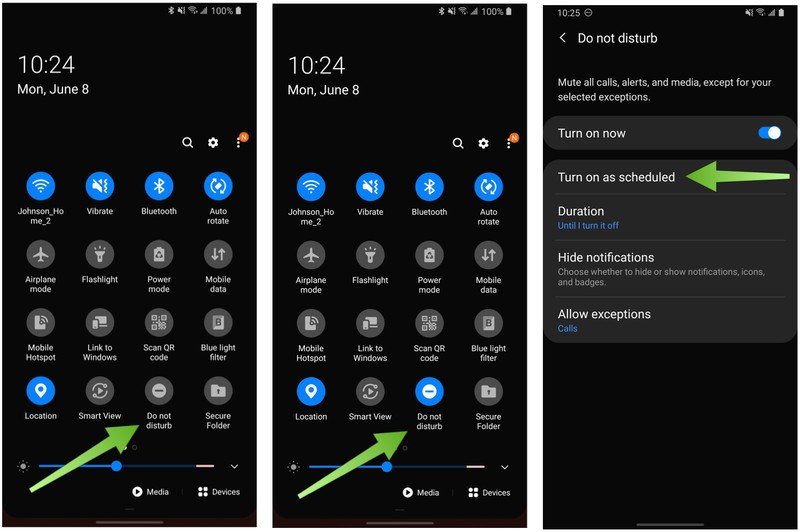
- For Samsung One UI, the path is slightly different:
Settings → Notifications → Do Not Disturb.
Samsung offers additional options for customizing which notifications are allowed during this time.
Verify it worked: Check the custom notifications setting to ensure it’s set up according to your preferences.
- For Samsung One UI, the path is slightly different:
-
- If you’re using MIUI, access it through
Settings → Sound & vibration → Do Not Disturb.
MIUI allows for granular control over which apps can send notifications while the feature is enabled.
Verify it worked: Confirm the app settings match your desired list.
- If you’re using MIUI, access it through
-
- In OxygenOS, the journey starts at
Settings → Buttons & gestures → Do Not Disturb.
Here, you can set a schedule and manage exceptions quickly.
Verify it worked: Make sure your schedule aligns with your preferences.
- In OxygenOS, the journey starts at
Best Practices, Tips & Pitfalls
-
- Always double-check your schedule after setting it. Users often forget to save their settings, leading to unexpected notifications.
-
- Utilize the exception settings to allow critical contacts to reach you during Do Not Disturb hours, ensuring you don’t miss important calls or messages.
-
- Regularly update your device. OEMs frequently release updates that can enhance features or fix bugs related to Do Not Disturb.
-
- Be aware of third-party apps. Some apps may override Do Not Disturb settings, leading to notifications that disrupt your silence.
-
- Consider using automation apps like Tasker to create more complex rules around Do Not Disturb settings. This can provide additional flexibility without requiring root access.
Alternatives & Comparisons
While native Android settings for Do Not Disturb are quite effective, there are alternatives that may offer enhanced functionality or better integration with specific workflows. Below is a comparison of some alternatives:
| Option | Best for | Trade-offs |
|---|---|---|
| Tasker | Automation and customization | Steep learning curve; may require more configuration |
| Sleep as Android | Sleep tracking with Do Not Disturb | Limited free version; specific to sleep context |
Key Takeaways
-
- Each OEM has its unique implementation of Do Not Disturb, affecting how you manage notifications.
-
- Always verify that your settings are saved to avoid missing important communications.
-
- Utilize exception settings to customize the experience based on your needs.
-
- Regularly update your device to take advantage of new features or bug fixes.
-
- Consider third-party automation tools for advanced functionality without rooting your device.
FAQ
Can I schedule Do Not Disturb mode on all Android devices?
Yes, most modern Android devices running version 14 or 15 allow you to schedule Do Not Disturb mode.
What happens to my calls when Do Not Disturb is on?
This depends on your settings. You can allow calls from specific contacts or silence all calls during this period.
Do I need to root my device to access advanced Do Not Disturb features?
No, most advanced features can be accessed without rooting your device, particularly through OEM settings or automation applications.
