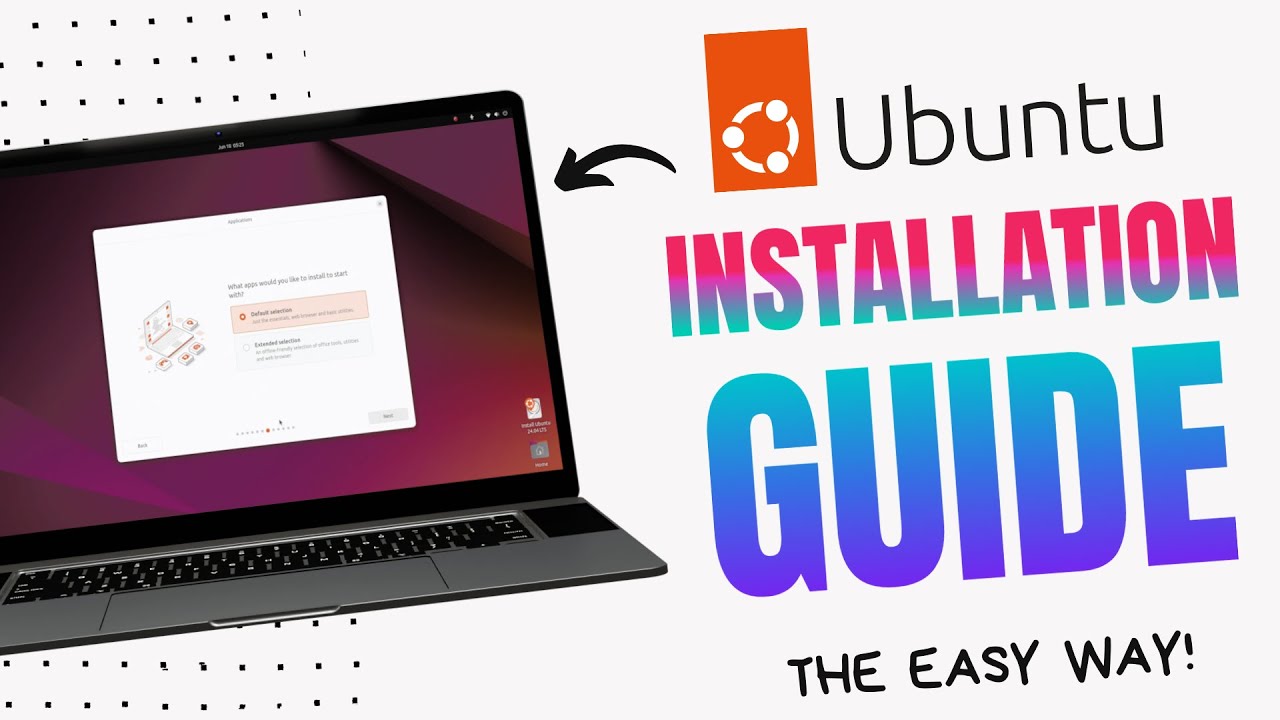
- Table of Contents
- 1. Introduction to Disk Partitioning
- 2. Understanding Linux Distributions
- 3. Installation Methods
- 4. Basic Disk Partitioning Concepts
- 5. Common Commands for Disk Management
- 6. Shell Scripting for Disk Management
- 7. Troubleshooting Partition Issues
- 8. Optimization Techniques
- 9. Security Practices
- 10. Package Management
- 11. Workflow Improvements
- 12. Conclusion
Linux disk partitioning is a crucial aspect of system administration, impacting performance, security, and usability. With numerous Linux distributions available and evolving methods of installation, understanding partitioning is essential for both beginners and advanced users. This article provides an in-depth look into Linux disk partitioning, covering installation methods, system administration practices, common commands, shell scripting, troubleshooting, optimization tips, and security practices.
Table of Contents
- Introduction to Disk Partitioning
- Understanding Linux Distributions
- Installation Methods
- Basic Disk Partitioning Concepts
- Common Commands for Disk Management
- Shell Scripting for Disk Management
- Troubleshooting Partition Issues
- Optimization Techniques
- Security Practices
- Package Management
- Workflow Improvements
- Conclusion
1. Introduction to Disk Partitioning
Disk partitioning involves dividing a physical disk into separate sections, each of which can be formatted and used independently. This is crucial for organizing data, improving performance, and managing multiple operating systems. Proper partitioning can also enhance security by isolating sensitive data.
Why Partition?
- Organization: Keep system files separate from user data.
- Performance: Reduce seek time by placing data closer to the beginning of the disk.
- Multi-boot Systems: Allow multiple operating systems to coexist.
- Backup and Recovery: Easier to back up and restore specific partitions.
2. Understanding Linux Distributions
Linux comes in various distributions (distros), each catering to different user needs. Popular distributions for both beginners and advanced users include:
- Ubuntu: User-friendly, ideal for beginners.
- Debian: Stable and versatile, great for servers.
- Fedora: Cutting-edge features, suitable for developers.
- Arch Linux: For advanced users who want complete control over their system.
- CentOS/RHEL: Focused on enterprise environments with long-term support.
Each distribution may have specific tools and methods for partitioning, which will be discussed in detail.
3. Installation Methods
3.1. Live USB/CD Installation
One of the most common methods to install Linux is using a Live USB or CD. This method allows users to try the OS without making changes to the hard drive.
Steps to Create a Live USB:
- Download the ISO: Obtain the desired Linux distribution ISO file.
- Use a USB Creation Tool: Tools like
Rufus,UNetbootin, orEtchercan convert the ISO into a bootable USB. - Boot from USB: Restart the computer and select the USB from the boot menu.
3.2. Installing via Network
For environments where multiple installations are required, a network installation may be more efficient. This method involves booting from a minimal installer and downloading the necessary files over the network.
3.3. Installation via Virtual Machines
Using virtualization software (e.g., VirtualBox, VMware), you can install Linux on a virtual machine. This is particularly useful for testing configurations without affecting the host system.
4. Basic Disk Partitioning Concepts
4.1. Partition Types
- Primary Partitions: Up to four primary partitions can exist on a disk. They can contain a file system directly.
- Extended Partitions: Allows more than four partitions by containing logical partitions.
- Logical Partitions: Can be created inside an extended partition.
4.2. File Systems
Different file systems cater to different needs. Commonly used file systems in Linux include:
- ext4: Default file system for many Linux distributions, offering journaling and good performance.
- XFS: High-performance file system, suitable for large files and databases.
- Btrfs: Advanced file system with features like snapshots and dynamic allocation.
4.3. Mount Points
A mount point is a directory in the filesystem where a partition is accessed. For example, the root partition is mounted at /, while a separate data partition might be mounted at /data.
5. Common Commands for Disk Management
Linux provides several powerful command-line tools for disk management. Here are some essential commands:
5.1. fdisk
Used for partitioning disks. It allows the creation, deletion, and manipulation of partitions.
bash
sudo fdisk /dev/sda
m: Helpn: Create a new partitiond: Delete a partitionw: Write changes
5.2. mkfs
Used to create a file system on a partition.
bash
sudo mkfs.ext4 /dev/sda1
5.3. mount
Mount a file system to a directory.
bash
sudo mount /dev/sda1 /mnt
5.4. df
Show disk space usage.
bash
df -h
5.5. lsblk
List block devices.
bash
lsblk
5.6. parted
A more advanced tool for partitioning that supports GPT.
bash
sudo parted /dev/sda
6. Shell Scripting for Disk Management
Shell scripting can automate disk management tasks. Below is a simple script that checks disk usage and sends an alert if usage exceeds a specified threshold.
Example Disk Usage Monitoring Script
bash
THRESHOLD=80
USAGE=$(df / | grep / | awk ‘{ print $5 }’ | sed ‘s/%//g’)
if [ “$USAGE” -gt “$THRESHOLD” ]; then
echo “Disk usage is above $THRESHOLD%: Current usage is ${USAGE}%”
fi
Steps to Create and Run the Script
-
Create the Script:
bash
nano disk_monitor.shPaste the script above.
-
Make it Executable:
bash
chmod +x disk_monitor.sh -
Run the Script:
bash
./disk_monitor.sh
7. Troubleshooting Partition Issues
7.1. Common Issues
- Partition Not Recognized: Ensure correct partition type and file system.
- Disk Full: Check for large files or logs consuming space.
- File System Corruption: Use
fsckto check and repair.
7.2. Using fsck
The fsck command is used to check and repair Linux file systems.
bash
sudo fsck /dev/sda1
7.3. Recovering Deleted Partitions
If you accidentally delete a partition, tools like TestDisk can help recover it.
-
Install
TestDisk:bash
sudo apt install testdisk -
Run TestDisk:
bash
sudo testdisk
Follow the on-screen prompts to attempt recovery.
8. Optimization Techniques
Optimizing your disk partitions can lead to improved performance and reliability.
8.1. Align Partitions
Ensure partitions are aligned to improve performance, especially for SSDs.
8.2. Use Separate Partitions for Critical Data
Isolate system files from user data, and consider separate partitions for /home, /var, and /tmp.
8.3. Regular Backups
Implement a backup strategy using tools like rsync or tar.
bash
rsync -av –delete /source/ /destination/
9. Security Practices
Security is paramount in system administration.
9.1. Encrypting Partitions
Use tools like LUKS to encrypt partitions.
bash
sudo cryptsetup luksFormat /dev/sda1
9.2. Limiting Access
Set appropriate permissions on sensitive directories.
bash
sudo chmod 700 /sensitive_directory
9.3. Regular Updates
Keep your system and packages updated.
bash
sudo apt update && sudo apt upgrade
10. Package Management
Managing software packages is vital for maintaining system integrity.
10.1. Debian-based Systems
For Debian-based systems, use apt.
-
Install a Package:
bash
sudo apt install package_name -
Remove a Package:
bash
sudo apt remove package_name
10.2. Red Hat-based Systems
For Red Hat-based systems, use yum or dnf.
-
Install a Package:
bash
sudo dnf install package_name
10.3. Managing Repositories
Adding third-party repositories can be beneficial for accessing additional software.
bash
sudo add-apt-repository ppa:repository_name
11. Workflow Improvements
Improving workflow can enhance productivity.
11.1. Use Aliases
Create aliases for frequently used commands to save time.
bash
alias ll=’ls -la’
11.2. System Monitoring Tools
Use tools like htop, iotop, and glances for monitoring system performance.
11.3. Automate Regular Tasks
Utilize cron jobs to automate tasks.
bash
crontab -e
Add a line to schedule a daily backup:
0 2 * /path/to/backup_script.sh
12. Conclusion
Understanding Linux disk partitioning is vital for effective system administration. From choosing the right distribution to mastering commands and scripting, the knowledge gained will enhance your ability to manage Linux systems efficiently. Always prioritize security, optimize your workflows, and continuously learn to keep up with the evolving landscape of Linux in 2025 and beyond.
By incorporating these practices, both beginners and advanced users can maximize the potential of their Linux installations. Happy partitioning!