


Troubleshooting Tips: How to Fix Common Background App Issues is essential reading for anyone navigating the complexities of modern operating systems. As background applications play a crucial role in enhancing productivity and user experience, knowing how to address common problems can save time and reduce frustration. In this article, we will explore the nature of background apps, their significance, and the common issues users might face, all while breaking down solutions into manageable steps.
How to Do It
Prerequisites
- Ensure your operating system is up-to-date (Windows 10 or 11). Check under Settings → Update & Security → Windows Update.
- Back up your important data using Windows Backup or a third-party solution to prevent data loss.
<h3>Step-by-Step Instructions</h3>

<ol>

  <li>Identify the problematic app. Open <kbd>Task Manager</kbd> by right-clicking the Taskbar and selecting <kbd>Task Manager</kbd>. Look for apps that are consuming high resources.</li>

  <li>Terminate a non-responsive app. In <kbd>Task Manager</kbd>, right-click the app and choose <kbd>End task</kbd> to close it.</li>

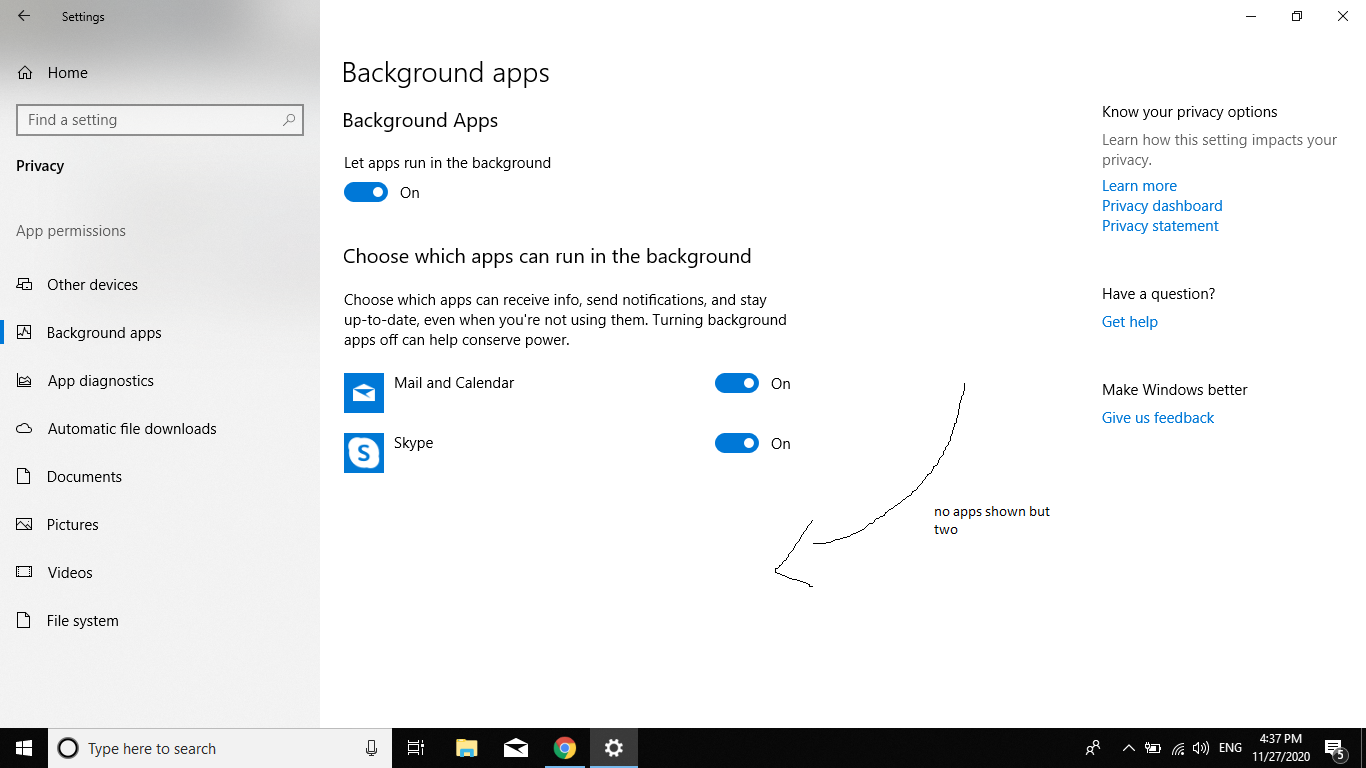
  <li>Check app permissions. Go to <kbd>Settings → Privacy → Background apps</kbd>. Ensure that the app in question has permission to run in the background.</li>

  <li>Reset the app. Navigate to <kbd>Settings → Apps → Apps & features</kbd>, select the app, and click on <kbd>Advanced options</kbd>. Here, you can choose <kbd>Reset</kbd>.</li>

  <li>Run the Windows Store Apps Troubleshooter. Open <kbd>Settings → Update & Security → Troubleshoot → Additional troubleshooters</kbd>, and find the <kbd>Windows Store Apps</kbd> troubleshooter. Follow the prompts.</li>

  <li>Reinstall the problematic app. Use <kbd>Settings → Apps → Apps & features</kbd>, select the app, click <kbd>Uninstall</kbd>, and then reinstall it from the Microsoft Store.</li>

  <li>If using PowerShell is preferable, open it as an administrator and run the following command to uninstall an app:

    <pre><code>Get-AppxPackage *AppName* | Remove-AppxPackage</code></pre>

    Replace <code>AppName</code> with the actual name of the app. Verify it worked by attempting to launch the app again.</li>

</ol>
Best Practices, Tips & Pitfalls
- Regularly update your apps to benefit from the latest features and security patches.
- Limit the number of background apps running simultaneously to enhance system performance.
- Always check the permissions of an app after an update, as settings may revert.
- Document any changes made for future reference, especially if you encounter problems again.
- Be mindful of system resources; excessively high CPU or memory usage can indicate problems.
- In case of errors, note the error codes and messages; they can be extremely helpful for further troubleshooting.
Alternatives & Comparisons
While Windows has built-in tools for managing background apps, alternative solutions can also be effective. Below is a brief comparison of two popular options:
| Option | Best for | Trade-offs |
|---|---|---|
| Process Explorer | Advanced users needing detailed insights | More complex interface |
| CCleaner | System optimization and cleanup | Some features require purchase |
Key Takeaways
- Identifying and managing problematic background apps can significantly improve system performance.
- Always verify permissions and settings after app installations or updates.
- Utilize built-in troubleshooting tools provided by Windows to diagnose and fix issues.
- Consider third-party tools for detailed management and optimization.
- Keep a regular backup routine to safeguard important data against unexpected app failures.
FAQ
What are background apps?
Background apps are programs that run behind the scenes, often performing tasks without direct user interaction. They help keep your services and notifications up to date.
<h3>Why do background apps sometimes cause issues?</h3>

<p>Background apps can lead to performance issues if they consume excessive system resources or if there are conflicts with other software or system processes.</p>
<h3>Can I disable all background apps?</h3>

<p>Yes, you can disable background apps through <kbd>Settings → Privacy → Background apps</kbd>. However, disabling them might impact the functionality of certain apps.</p>
