

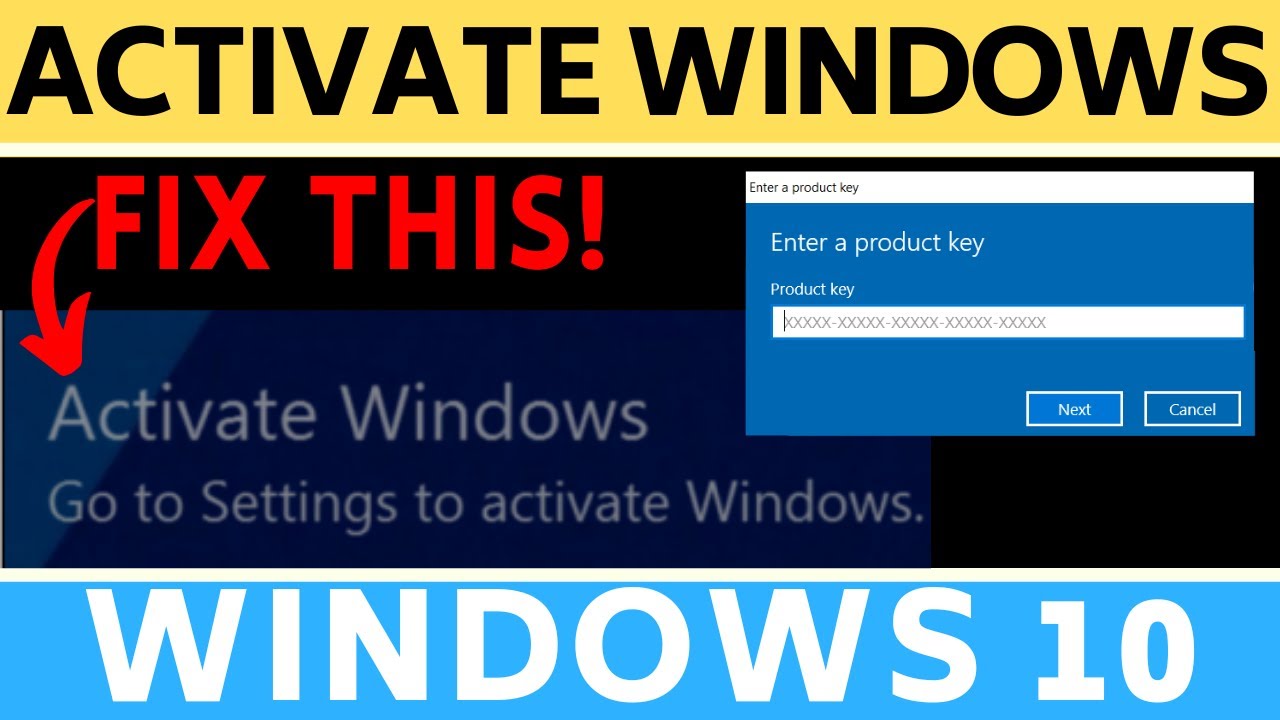

Activating your Windows 10 license is essential for ensuring that you have access to the full range of features and updates offered by Microsoft. In this guide, “Step-by-Step: How to Activate Your Windows 10 License,” we will walk you through the activation process, ensuring that both new users and tech-savvy individuals understand the essential steps. Proper activation not only secures your system but also guarantees that you receive the security updates and support you need. Windows activation is the process of validating that your copy of Windows is genuine and has been purchased legally. This guide will simplify the activation process for you.
How to Do It
Prerequisites
- Ensure that you are running a genuine copy of Windows 10. Activation methods may differ slightly based on whether you are using Windows 10 Home, Pro, or Enterprise.
- Backup your important files in case any issues arise during the activation process. Create a restore point by going to Control Panel → System and Security → System → System Protection and selecting Create.
Step-by-Step Instructions
- Open Settings by clicking on the Start menu and selecting Settings.
- In the Settings window, navigate to Update & Security → Activation.
- If your Windows 10 is not activated, you will see an option to enter a product key. Click on Change product key.
- Enter your 25-character product key in the field provided. Click Next to proceed.
- Follow the on-screen prompts to complete the activation. Once activated, a message will confirm that Windows is activated.
- To verify it worked, return to the Update & Security → Activation page and ensure it states “Windows is activated.”
For additional verification, open PowerShell as an administrator by right-clicking the Start menu and selecting Windows PowerShell (Admin). Type the following command:
slmgr /xprThis command will display a message indicating whether your Windows license is activated.
Best Practices, Tips & Pitfalls
- Always keep your product key in a safe place. If you lose it, retrieving it can be difficult.
- Ensure your system is fully updated before attempting activation. Go to Settings → Update & Security → Windows Update to check for updates.
- If you encounter an error during activation, note the error code and search for troubleshooting steps specific to that code.
- Consider using a digital license linked to your Microsoft account for easier future activations on the same device.
- Do not attempt to activate Windows using unofficial methods, as this may lead to system instability and legal issues.
- In case of hardware changes, such as replacing the motherboard, you may need to reactivate Windows. Be prepared with your product key.
Alternatives & Comparisons
While activating Windows 10 via a product key is the most common method, there are alternatives available. Below is a brief comparison of activation options:
| Option | Best for | Trade-offs |
|---|---|---|
| Digital License | Users with a Microsoft account | Linking to an account means easier reactivation but requires internet access. |
| Phone Activation | Users without internet access | Manual process; can be time-consuming. |
| Volume Activation | Businesses and organizations | Requires specific licenses; not for individual users. |
Key Takeaways
- Activating Windows 10 ensures access to essential features and updates.
- Follow step-by-step instructions carefully for smooth activation.
- Backup your data and keep your product key secure.
- Understand different activation methods available for various needs.
- Stay informed about potential troubleshooting steps for activation errors.
FAQ
What should I do if my activation key does not work?
Make sure you are entering the key correctly, and check if it is valid for your version of Windows. If issues persist, consider contacting Microsoft support.
Can I activate Windows 10 without a product key?
You can use Windows 10 without activation; however, some features may be restricted, and you will see a watermark on your desktop.
How can I check if my Windows 10 is activated?
Go to Settings → Update & Security → Activation, where you will see the activation status.
