


- What is Cache and Why Should You Clear It?
- Latest macOS Features and Their Impact on Cache Management
- 1. Apple Silicon Optimization
- 2. Enhanced Security Settings
- 3. Improved Storage Management Tools
- 4. Universal Control and Continuity Features
- Step-by-Step Instructions for Clearing Cache on Mac
- Clearing Browser Cache
- Clearing System Cache
- Clearing Application Cache
- Using Terminal to Clear Cache
- Using Third-Party Applications
- Best Practices for Performance Optimization in 2025
- Conclusion
As we step further into 2025, Apple continues to innovate both its macOS environment and hardware. With every update, users face the critical task of maintaining optimal system performance, security, and software compatibility. One crucial yet often overlooked task is managing cache files. This guide will delve deep into understanding cache on a Mac, the importance of clearing it, latest macOS features, hardware innovations, and best practices for performance optimization.
What is Cache and Why Should You Clear It?
Understanding Cache
Cache files are temporary storage areas that store frequently accessed data, allowing for quicker access and enhanced performance. When you open applications or browse the web, your Mac creates cache files to help speed up these processes. This data can include:
- Browser Cache: Stores web pages, images, and scripts for faster loading.
- System Cache: Contains files used by macOS and installed applications for quicker access.
- Application Cache: Specific to individual applications, it stores data to improve app performance.
Reasons to Clear Cache
-
Performance Improvement: Over time, cache files can accumulate and take up significant storage, potentially slowing down your Mac.
-
Troubleshooting Issues: If an application is behaving erratically, clearing the cache can often resolve these issues.
-
Privacy Protection: Cached files may include sensitive data that you may want to remove, especially when using shared or public systems.
-
Updating Applications: When software is updated, old cache files may interfere with the new version, causing compatibility issues.
Latest macOS Features and Their Impact on Cache Management
As of 2025, macOS continues to evolve with features that enhance user experience and system performance. Some significant updates include:
1. Apple Silicon Optimization
With the M1 and M2 chips, Apple has redefined performance. These processors manage cache more effectively, but users should still periodically clear cache to prevent any degradation in performance over time.
2. Enhanced Security Settings
macOS now includes advanced privacy features, allowing users more control over which applications can access their data. As a result, managing cache files is becoming increasingly important to maintain privacy.
3. Improved Storage Management Tools
macOS includes built-in tools to help manage storage, including recommendations for clearing cache files. This tool scans your system and suggests files you can delete, including caches.
4. Universal Control and Continuity Features
These features allow seamless transitions between devices but may create more cache files as data is shared. Regularly managing cache can help keep your systems running smoothly.
Step-by-Step Instructions for Clearing Cache on Mac
Clearing Browser Cache
For Safari:
- Open Safari.
- Click on “Safari” in the menu bar, then select “Preferences.”
- Navigate to the “Privacy” tab.
- Click on “Manage Website Data.”
- Select “Remove All” to clear all stored cache.
For Chrome:
- Open Chrome.
- Click on the three dots in the top right corner, then select “Settings.”
- Scroll down and click on “Privacy and Security.”
- Select “Clear browsing data.”
- Choose “Cached images and files” and hit “Clear Data.”
For Firefox:
- Open Firefox.
- Click on the three horizontal lines in the top right corner, select “Options.”
- Go to “Privacy & Security.”
- Under “Cookies and Site Data,” click “Clear Data.”
- Ensure “Cached Web Content” is checked and click “Clear.”
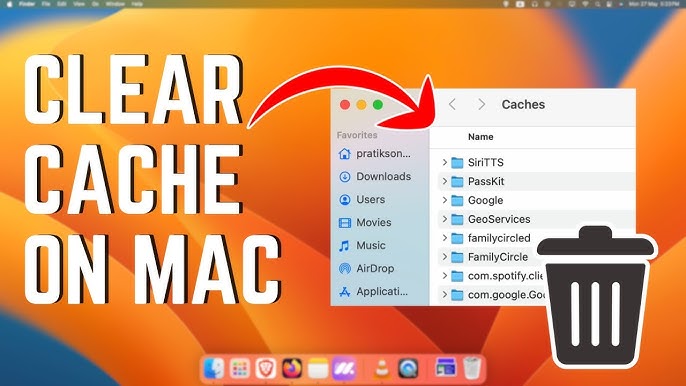
Clearing System Cache
- Open Finder.
- Press Command + Shift + G to open the “Go to Folder” dialogue.
- Type
~/Library/Cachesand hit Enter. - Delete the contents of the folders; you can select all and move them to Trash.
- Repeat the process for
/Library/Caches(System cache); however, be cautious as this may affect system operations.
Clearing Application Cache
- Open Finder.
- Navigate to Applications.
- Right-click on the application whose cache you want to clear, select “Show Package Contents.”
- Go to the Contents folder, then Caches, and delete relevant cache files.
Using Terminal to Clear Cache
For advanced users, Terminal offers a quick way to clear cache:
-
Open Terminal (found in Applications > Utilities).
-
Type the following command to clear user cache:
bash
rm -rf ~/Library/Caches/* -
To clear system cache, type:
bash
sudo rm -rf /Library/Caches/* -
Enter your password when prompted.
Using Third-Party Applications
Several third-party applications can simplify cache management:
- CCleaner: Automatically finds and removes cache files.
- CleanMyMac X: A comprehensive tool that can clear cache, optimize performance, and maintain privacy.
Best Practices for Performance Optimization in 2025
Regular Maintenance Routines
-
Scheduled Cache Clearing: Set reminders to clear cache monthly or as required based on usage.
-
Storage Management: Use macOS’s built-in storage management tool under About This Mac > Storage > Manage to identify large files, old applications, and cache files.
-
Backup Before Deleting: Always back up your system with Time Machine before making significant changes.
Security Settings
-
Privacy Settings: Review application permissions under System Preferences > Security & Privacy to limit data access.
-
Firewall and FileVault: Enable Firewall and FileVault for added security. This protects your data and helps in managing cache effectively.
-
Two-Factor Authentication: For Apple ID and other accounts, enable two-factor authentication for enhanced security.
Software Compatibility
-
Regular Updates: Keep macOS and applications updated to ensure all performance optimizations are in place.
-
Compatibility Checks: Before installing new software, ensure it is compatible with your macOS version to avoid cache-related issues.
Troubleshooting Techniques
-
Safe Mode: Boot into Safe Mode by holding the Shift key during startup. This can often clear cache issues affecting startup applications.
-
Activity Monitor: Use Activity Monitor to identify memory-heavy applications that may require cache clearing.
-
Reset SMC and NVRAM: If you experience persistent issues, resetting the SMC (System Management Controller) and NVRAM (Non-Volatile Random Access Memory) can resolve many performance problems.
Conclusion
As we move through 2025, maintaining a clean and efficient Mac is more important than ever. By understanding the nature of cache, utilizing the latest macOS features, and following best practices, users can optimize performance, enhance security, and ensure software compatibility. Regularly clearing cache files is a small yet impactful routine that can lead to a more responsive and reliable computing experience.
For users seeking to further enhance their Mac experience, keeping abreast of updates and innovations from Apple will ensure that their systems remain at the cutting edge of technology. Whether through built-in tools or third-party applications, effective cache management is essential in maximizing the lifespan and performance of your Mac.
