


- Table of Contents
- 1. Understanding Cache on Mac
- 2. Latest macOS Features (2025)
- 3. Hardware Innovations in 2025
- 4. Best Practices for Clearing Cache
- 4.1 Clearing Browser Cache
- 4.2 Clearing System Cache
- 4.3 Clearing Application Cache
- 4.4 Automating Cache Clearing
- 5. Performance Optimization Techniques
- 6. Security Settings and Cache Management
- 7. Software Compatibility
- 8. Troubleshooting Techniques
- Conclusion
Clearing the cache on a Mac is essential for maintaining optimal performance, ensuring security, and troubleshooting software issues. With the latest macOS updates and hardware innovations in 2025, understanding how to manage cache effectively is more important than ever. This guide will delve into the cache-clearing process, discuss the latest features in macOS, highlight best practices for performance optimization, and offer troubleshooting techniques.
Table of Contents
-
Understanding Cache on Mac
- 1.1 What is Cache?
- 1.2 Types of Cache
- 1.3 Benefits of Clearing Cache
-
Latest macOS Features (2025)
- 2.1 Overview of macOS Sonoma
- 2.2 New Performance Enhancements
- 2.3 Security Features
-
Hardware Innovations in 2025
- 3.1 Apple Silicon M3
- 3.2 Enhanced Storage Solutions
-
Best Practices for Clearing Cache
- 4.1 Clearing Browser Cache
- 4.2 Clearing System Cache
- 4.3 Clearing Application Cache
- 4.4 Automating Cache Clearing
-
Performance Optimization Techniques
- 5.1 Efficient Disk Management
- 5.2 System Preferences Settings
- 5.3 Monitoring System Performance
-
Security Settings and Cache Management
- 6.1 Importance of Cache in Security
- 6.2 Best Security Practices
-
Software Compatibility
- 7.1 Keeping Software Up-to-Date
- 7.2 Compatibility Issues and How to Address Them
-
Troubleshooting Techniques
- 8.1 Identifying Cache-Related Issues
- 8.2 Advanced Troubleshooting Tips
-
Conclusion
1. Understanding Cache on Mac
1.1 What is Cache?
Cache refers to a collection of temporary files stored by your operating system and applications to speed up processes. When you access a file, application, or webpage, the cache allows for quicker retrieval of data by storing frequently accessed information.
1.2 Types of Cache
- System Cache: Files stored by macOS to facilitate the operating system’s functioning.
- Application Cache: Temporary files created by individual applications like browsers, word processors, etc.
- Browser Cache: Data stored by web browsers to enhance loading speed and performance on frequently visited websites.
1.3 Benefits of Clearing Cache
- Improved Performance: Regularly clearing cache can free up valuable storage space and enhance system speed.
- Enhanced Security: Old cache files may contain sensitive information that could be exploited if not cleared.
- Troubleshooting: Many software issues can be resolved by clearing cache, as it helps eliminate corrupted or outdated files.
2. Latest macOS Features (2025)
2.1 Overview of macOS Sonoma
The latest version of macOS, Sonoma, was released in early 2025. This update brings a slew of features designed to enhance user experience, performance, and security.
2.2 New Performance Enhancements
- Optimized Resource Management: Sonoma utilizes machine learning algorithms to manage system resources more efficiently.
- Dynamic Memory Allocation: Applications can now allocate memory dynamically based on current needs, improving multitasking capabilities.
2.3 Security Features
- Enhanced Privacy Controls: New privacy settings provide users with granular control over data access for applications.
- Secure Boot Process: The boot process is now more secure, protecting against unauthorized alterations.
3. Hardware Innovations in 2025
3.1 Apple Silicon M3
Apple’s M3 chip offers significant advancements in processing power and efficiency. Integrated with a 10-core CPU and advanced neural engine, it delivers up to 20% better performance than the M2, particularly in handling graphics-intensive applications.
3.2 Enhanced Storage Solutions
The latest Macs offer SSDs with faster data transfer rates, which not only improve overall system performance but also reduce the time it takes to read and write cache data.
4. Best Practices for Clearing Cache
Maintaining your Mac’s performance often involves clearing various types of cache. Here’s how to do it effectively.
4.1 Clearing Browser Cache
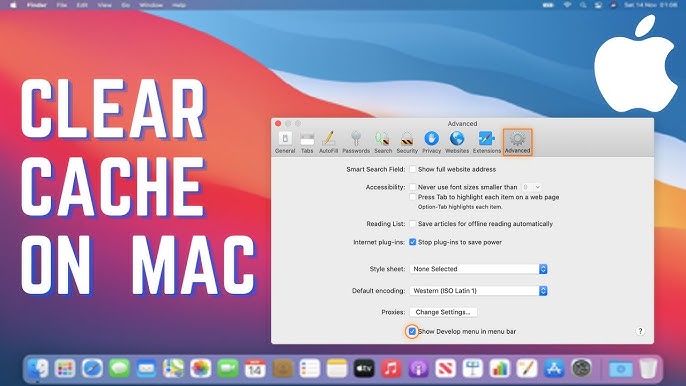
Step-by-Step Instructions for Safari:
- Open Safari.
- Click on Safari in the menu bar at the top left.
- Select Preferences.
- Navigate to the Privacy tab.
- Click on Manage Website Data.
- Click Remove All to clear all cache.
For Google Chrome:
- Open Google Chrome.
- Click on the three dots in the upper right corner.
- Go to More Tools > Clear Browsing Data.
- Select the time range (e.g., All time).
- Check Cached images and files.
- Click on Clear data.
4.2 Clearing System Cache
Manual Method:
- Open Finder.
- In the top menu, click on Go > Go to Folder.
- Type in
~/Library/Cachesand press Enter. - Select all files (Command + A) and move them to Trash.
- Empty the Trash.
4.3 Clearing Application Cache
Example for Applications like Microsoft Office:
- Open Finder.
- Go to Applications > Microsoft Office.
- Navigate to the Library folder.
- Open the Caches folder.
- Delete the relevant cache files.
4.4 Automating Cache Clearing
For advanced users, automating cache clearing can save time.
- Open the Automator app.
- Create a new Workflow.
- Select Utilities > Run Shell Script.
- Use a command like
rm -rf ~/Library/Caches/*. - Save the workflow and set it to run at scheduled intervals.
5. Performance Optimization Techniques
To get the most out of your Mac, consider these optimization techniques:
5.1 Efficient Disk Management
- Regularly check your disk space using About This Mac > Storage.
- Utilize tools like Disk Utility to identify and repair disk errors.
5.2 System Preferences Settings
Adjust settings for Energy Saver and Spotlight to optimize performance.
- Go to System Preferences > Energy Saver.
- Adjust settings to balance performance and energy consumption.
5.3 Monitoring System Performance
Use Activity Monitor to track CPU, memory, and disk usage.
- Open Activity Monitor from Applications > Utilities.
- Check for processes that use significant resources and close unnecessary applications.
6. Security Settings and Cache Management
6.1 Importance of Cache in Security
Cache files can store sensitive information. Regularly clearing cache mitigates risks of data breaches.
6.2 Best Security Practices
- Enable FileVault for full-disk encryption.
- Regularly update macOS and applications to patch vulnerabilities.
7. Software Compatibility
7.1 Keeping Software Up-to-Date
Regular updates ensure your software is compatible with the latest features and security patches.
- Go to System Preferences > Software Update.
- Enable automatic updates for macOS and apps.
7.2 Compatibility Issues and How to Address Them
If you encounter software issues post-update, clear cache and check application compatibility. Consider uninstalling and reinstalling problematic applications.
8. Troubleshooting Techniques
8.1 Identifying Cache-Related Issues
Common issues may include slow performance, application crashes, or unexpected behavior. If experiencing these, consider clearing cache.
8.2 Advanced Troubleshooting Tips
- Boot into Safe Mode to determine if issues persist.
- Use Console.app to check logs for error messages related to applications.
Conclusion
Clearing cache on your Mac is a fundamental practice for maintaining performance, enhancing security, and troubleshooting software issues. By understanding the types of cache, utilizing the features of the latest macOS, and applying best practices, you can ensure your Mac runs smoothly in 2025 and beyond. Regular maintenance, including cache clearing, contributes to a better computing experience, allowing you to focus on what matters most—your work and creativity.
