

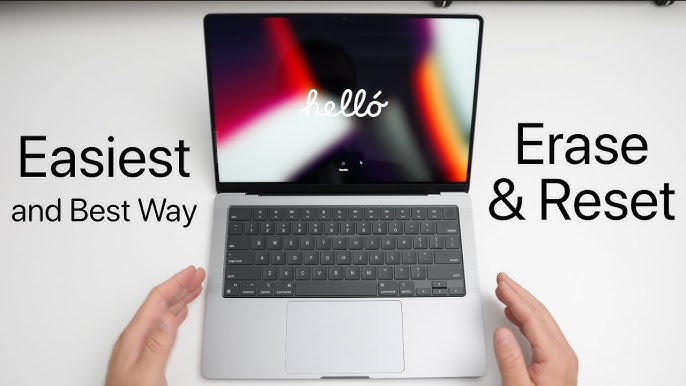

In the world of technology, maintaining optimal performance is crucial for both personal and professional use. One effective way to achieve this is through the process of resetting your device. “Refresh and Restart: How to Effectively Reset Your Mac” is a vital topic for anyone who wants to ensure their Mac runs smoothly. Resetting your Mac can resolve numerous issues, from slow performance to software glitches, and is something every user should understand. In this article, we will define key terms such as ‘reset’ and ‘refresh’, and explain the importance of this process.
How to Do It
Prerequisites
- Ensure your Mac is running macOS Catalina or later for the most effective reset options.
- Backup your important data using Time Machine or any other backup solution to avoid losing anything crucial during the reset process.
- Familiarize yourself with the potential risks of resetting, including losing applications or configurations that are not backed up.
Step-by-Step Instructions
- Begin by backing up your data. Go to Apple Menu → System Preferences → Time Machine → Back Up Now. Verify that your backup is complete before proceeding.
- To refresh your Mac without erasing data, you can reset the System Management Controller (SMC). Shut down your Mac and then turn it on while holding Shift + Control + Option + Power for a few seconds. Release the keys and power it on normally. Verify it worked by checking for improved performance.
- If issues persist, consider resetting PRAM/NVRAM. Shut down your Mac, then turn it on while holding Command + Option + P + R until you hear the startup sound twice. This reset often resolves sound, display, and other hardware-related issues. Confirm functionality by testing affected hardware features.
- For a more thorough reset, you might want to erase your Mac. Restart and hold Command + R to enter Recovery Mode. In the macOS Utilities window, select Disk Utility → Continue → Macintosh HD → Erase. Choose APFS as the format. After erasing, exit Disk Utility and select Reinstall macOS. Follow the instructions to install the latest version of macOS. Check for successful installation by logging into your user account.
Best Practices, Tips & Pitfalls
- Always back up your data before performing any reset procedures to prevent unexpected data loss.
- Keep your macOS updated to ensure you have access to the latest features and bug fixes that can enhance system performance.
- If you’re experiencing persistent issues, consider consulting Apple Support before resetting, as they may help troubleshoot the problem without erasing your setup.
- Be cautious when erasing your Mac; ensure you have a backup and understand that this process is irreversible without a backup.
- After resetting, take the time to reinstall applications selectively. This can help identify any problematic software.
Alternatives & Comparisons
While resetting your Mac is a powerful tool, there are alternatives that can be used depending on the situation. Below is a comparison of different methods to address performance issues:
| Option | Best for | Trade-offs |
|---|---|---|
| Resetting SMC | Hardware issues | Does not affect data, limited effectiveness for software problems |
| Resetting PRAM/NVRAM | Configuration issues | Quick fix; may not resolve deeper software issues |
| Full OS Reinstall | Severe software issues | Time-consuming, data loss without backup |
Key Takeaways
- Resetting your Mac can solve a variety of performance issues and enhance overall functionality.
- Always back up your data before any reset action to avoid data loss.
- Understand the differences between resetting SMC, PRAM/NVRAM, and performing a full OS reinstall to choose the best method for your needs.
FAQ
What is the difference between a refresh and a restart?
A refresh typically involves clearing temporary files and optimizing settings without erasing any data, while a restart means shutting down and turning on the computer again, which can help resolve minor issues.
Can I reset my Mac without losing files?
Yes, you can reset your Mac’s SMC or PRAM/NVRAM without losing files. A full reset will require a backup to prevent data loss.
How often should I reset my Mac?
There’s no set frequency for resetting your Mac; however, if you encounter persistent performance issues that standard troubleshooting cannot resolve, it may be time to consider a reset.
