

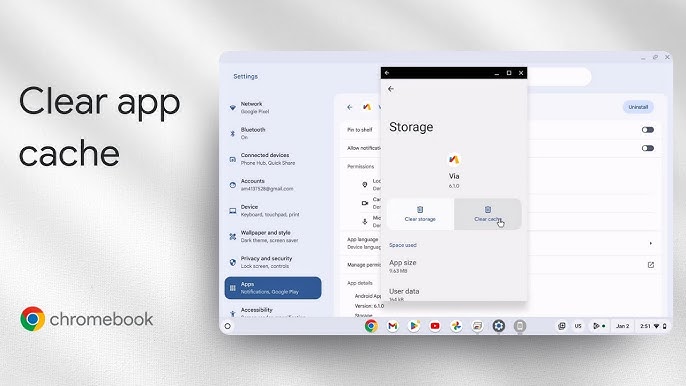

The cache is a storage area where browsers keep temporary files, like images and scripts, to speed up page loading times. However, over time, this cache can become bloated, causing sluggish performance. By routinely clearing your cache, you can help maintain optimal functionality and speed.
How to Do It
Prerequisites
-
- Ensure your Chromebook is running the latest version of Chrome OS. Go to Settings → About Chrome OS to check for updates.
-
- There are minimal risks involved in clearing the cache; however, you may lose saved login states and preferences for some websites. Consider backing up important information by noting down your passwords or saving them in a password manager.
Step-by-Step Instructions
-
- Open your Chromebook and launch the Chrome browser.
-
- Click on the three vertical dots in the upper-right corner of the screen to open the menu.
-
- Navigate to More Tools → Clear Browsing Data.
-
- In the dialog that appears, select the time range for which you want to clear the cache. For a more thorough clean, choose All time.
-
- Ensure that the checkbox next to Cached images and files is selected. You can also choose to clear cookies and other site data if desired.
-
- Click on the Clear data button to initiate the process.
-
- Once the process is complete, you will see a notification confirming that the cache has been cleared.
-
- To verify it worked, revisit a website that you frequently visit. You should notice improved loading times and responsiveness.
Best Practices, Tips & Pitfalls
-
- Clear your cache regularly, such as once a month, to maintain optimal performance.
-
- Consider using keyboard shortcuts like Ctrl + Shift + Delete to access the Clear Browsing Data dialog more quickly.
-
- Be selective about what you clear; you might want to keep cookies for sites where you log in frequently.
-
- After clearing your cache, restart your Chromebook to ensure all changes take effect.
-
- Keep an eye on your device’s storage space; if it’s running low, clearing cache can free up valuable space.
Common errors include unintentionally clearing saved passwords along with the cache. Always double-check what you are selecting in the Clear Browsing Data dialog to avoid losing important data.
Alternatives & Comparisons
While clearing cache manually is effective, there are alternative methods and tools available that can help automate this process. Below is a brief comparison of two viable options:
| Option | Best for | Trade-offs |
|---|---|---|
| Auto Clear Cache Extension | Users who often forget to clear cache manually | May require additional permissions and settings |
| CCleaner | Users looking for a comprehensive cleanup tool | Potentially overkill for basic cache clearing |
Key Takeaways
-
- Regularly clearing cache is essential for maintaining speed and performance on your Chromebook.
-
- Follow the step-by-step instructions to effectively clear your cache and improve browser performance.
-
- Implement best practices to streamline the process and avoid common pitfalls.
-
- Consider alternative methods if you want automated solutions for cache clearing.
FAQ
Why should I clear my cache regularly?
Clearing your cache helps to remove outdated files, which can slow down your browser and free up storage space, leading to improved performance.
Will clearing my cache log me out of websites?
Yes, clearing your cache can log you out of websites if you also clear cookies. Make sure to only select cached images and files if you want to maintain your login sessions.
How do I know if clearing cache helped my performance?
You can test your browser’s performance by visiting the same websites before and after clearing the cache. You should notice quicker loading times and improved responsiveness.
