


Caching is essential for modern web browsing, enhancing speed and performance by storing copies of web pages. However, accumulated cache can lead to problems like outdated content, privacy issues, and reduced performance. This guide explores how to clear cache in various browsers, discusses the latest features, performance optimizations, security enhancements, and privacy settings as of 2025, and provides troubleshooting tips and real-world examples to optimize your browsing experience.
Understanding Cache
What is Cache?
Cache is a temporary storage area that browsers use to save files, images, scripts, and other web content. This allows for quicker access when users revisit websites, reducing load times. However, over time, cache can grow large and cluttered, leading to potential issues such as:
- Outdated Content: Viewing an old version of a site.
- Performance Issues: Slower load times due to bloated cache.
- Privacy Risks: Sensitive data can remain stored longer than intended.
Why Clear Cache?
Benefits of Clearing Cache
- Updated Content: Ensures that you view the latest versions of web pages.
- Improved Performance: Can enhance browser speed and responsiveness.
- Resolved Errors: Fixes issues caused by corrupted cache files.
- Enhanced Privacy: Removes saved data that could be exploited.
Latest Browser Features (2025)
Google Chrome
- Enhanced Tab Management: Chrome now features group tabs and pinning capabilities, helping users organize their browsing.
- Improved Resource Management: With the release of Chrome 117, it implements an advanced memory-saving mode that frees up resources automatically.
- Privacy Sandbox: Chrome continues to evolve its Privacy Sandbox to minimize tracking while providing developers with tools to maintain ad revenues.
Mozilla Firefox
- Total Cookie Protection: Firefox has introduced stricter cookie policies, ensuring that third-party cookies are isolated, enhancing user privacy.
- Performance Enhancements: Firefox 100+ leverages WebRender to boost performance and reduce resource use, especially on lower-end devices.
- Picture-in-Picture Mode: An improved feature that allows users to watch videos while browsing other tabs.
Microsoft Edge
- Vertical Tabs: Edge has gained popularity with its vertical tabs feature, allowing for better management of multiple sites.
- Sleep Tabs: This feature automatically puts inactive tabs to sleep, significantly reducing memory usage.
- Integration with Microsoft 365: Edge now features enhanced tools for collaboration, integration with Teams, and OneNote.
Apple Safari
- Enhanced Intelligent Tracking Prevention: Safari now uses machine learning to prevent cross-site tracking.
- Redesigned Privacy Report: Users can easily access their privacy metrics and see how sites are tracking them.
- Web Extensions Support: Safari has expanded its support for extensions, allowing users to customize their browsing experience further.
Cross-Browser Comparison
| Feature | Chrome | Firefox | Edge | Safari |
|---|---|---|---|---|
| Tab Management | Group Tabs | Standard | Vertical Tabs | Standard |
| Memory Management | Improved | WebRender | Sleep Tabs | Standard |
| Privacy Features | Privacy Sandbox | Total Cookie Protection | Enhanced Tracking Prevention | Intelligent Tracking Prevention |
| Extension Support | Extensive | Extensive | Extensive | Limited |
| Integrated Collaboration Tools | Limited | Limited | Strong | Limited |
Step-by-Step Instructions to Clear Cache
Google Chrome
- Open Chrome: Launch the browser.
- Access Settings: Click on the three dots in the upper right corner, then select Settings.
- Privacy and Security: Navigate to Privacy and security on the left sidebar.
- Clear Browsing Data:
- Click on Clear browsing data.
- Choose the time range from the dropdown (e.g., Last hour, Last 24 hours, All time).
- Select Cached images and files (other options can be selected as needed).
- Clear Data: Click Clear data to finish.
Mozilla Firefox
- Open Firefox: Start the browser.
- Open Menu: Click on the three horizontal lines in the upper right corner.
- Settings: Select Settings.
- Privacy & Security: Click on Privacy & Security on the left.
- Cookies and Site Data:
- Click Clear Data.
- Ensure Cached Web Content is selected.
- Clear Data: Click Clear.
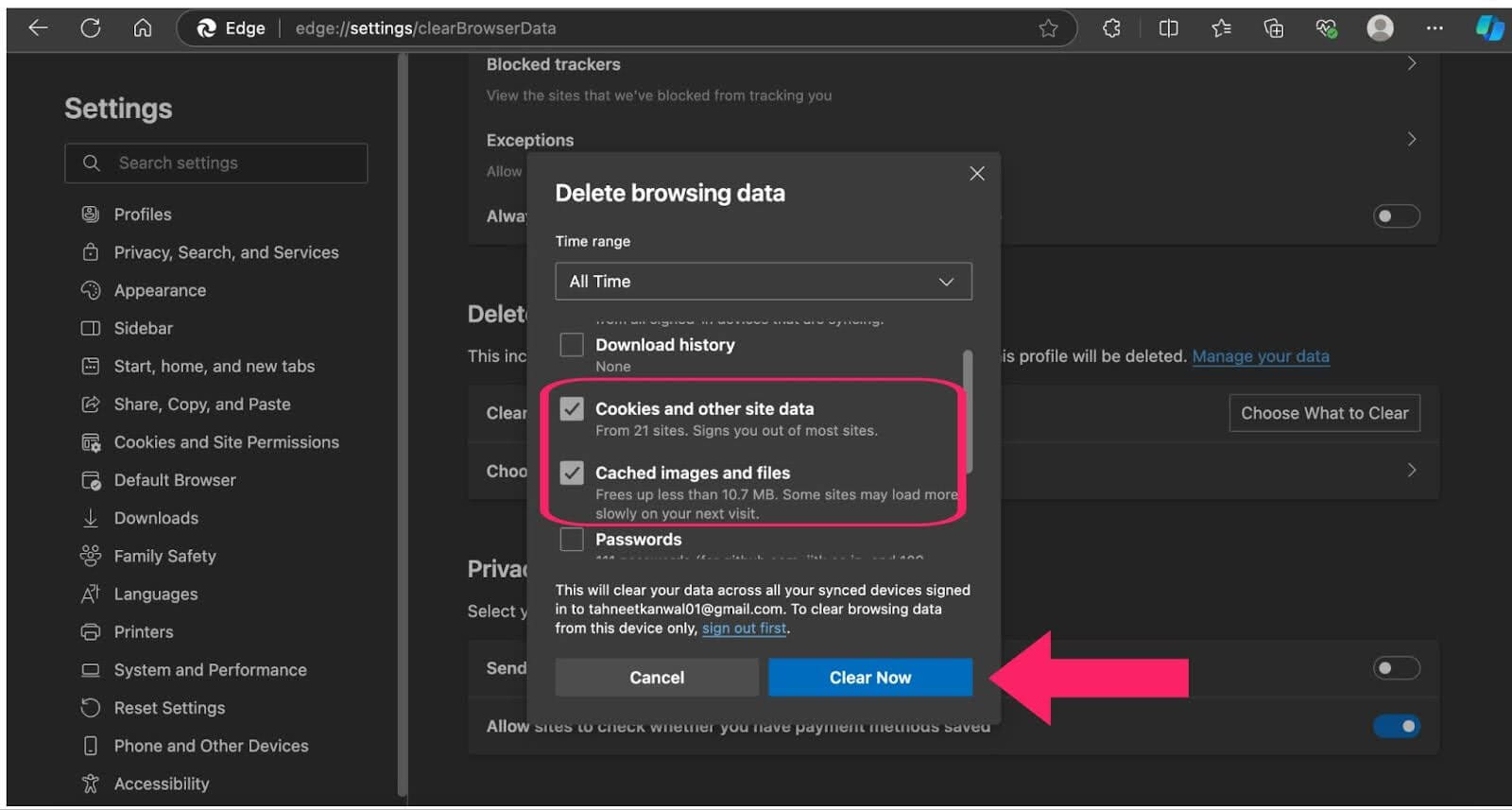
Microsoft Edge
- Open Edge: Start the browser.
- Settings: Click on the three dots in the upper right corner and select Settings.
- Privacy, Search, and Services: On the left sidebar, select this option.
- Clear Browsing Data:
- Click on Choose what to clear.
- Select the time range and check Cached images and files.
- Clear Now: Click on Clear now.
Apple Safari
- Open Safari: Launch the browser.
- Preferences: Click on Safari in the top menu and select Preferences.
- Privacy Tab: Navigate to the Privacy tab.
- Manage Website Data: Click on Manage Website Data.
- Remove All: Click on Remove All to clear cached data.
Opera
- Open Opera: Start the browser.
- Menu: Click on the Opera logo in the upper left corner, then select Settings.
- Privacy & Security: Click on Advanced and navigate to Privacy & Security.
- Clear Browsing Data:
- Click on Clear browsing data.
- Select the time range and check Cached images and files.
- Clear Data: Click Clear data.
Troubleshooting Cache-Related Issues
Common Problems
-
Website Still Not Loading Correctly:
- Ensure you cleared the cache for the specific time range.
- Try refreshing the page (Ctrl + F5) to bypass the cache.
-
Browser Slowing Down:
- If clearing cache doesn’t help, consider disabling excess extensions or increasing system RAM.
-
Privacy Concerns:
- Regularly check your privacy settings and consider using a VPN or privacy-focused browser like Firefox.
-
Site-Specific Cache Issues:
- If a particular site isn’t loading correctly, checking its settings or cookies can help. Clearing cache specifically for that site may be necessary.
Real-World Examples
Scenario 1: E-commerce Site Issues
A user attempts to load an e-commerce site but sees outdated prices and unavailable products. By clearing the cache, they can view the updated site with accurate pricing.
Scenario 2: Privacy on Public Wi-Fi
While using public Wi-Fi, a user clears cache and browsing data to prevent sensitive information from being stored, minimizing risks of data theft.
Scenario 3: Developer Testing
Web developers often need to see changes in their sites immediately. Regular clearing of cache helps ensure they view updated versions without old data affecting their work.
Expert Insights
Performance Optimization
-
Regularly Clearing Cache: Experts recommend clearing cache periodically rather than waiting for issues to manifest. This can prevent slowdowns before they happen.
-
Using Incognito/Private Mode: For temporary browsing, use incognito or private mode. This doesn’t save cache or cookies, ensuring a fresh experience without clutter.
Security Best Practices
-
Enable Browser Updates: Always keep your browser updated to benefit from the latest security features and performance enhancements.
-
Use Trusted Extensions: Be cautious with extensions; only install those from reliable sources to minimize security risks.
Privacy Protection
-
Consider Privacy-Focused Browsers: Browsers like Brave or Firefox offer enhanced privacy features that can be advantageous for users concerned about tracking.
-
Regularly Review Permissions: Regularly check which sites have access to your data and revoke permissions as needed.
Conclusion
Clearing cache is a vital practice for maintaining an optimal browsing experience in 2025. By understanding the steps required for each major browser, the latest features, and potential issues, users can significantly enhance their online experience. Regularly clearing cache not only boosts performance but also ensures that privacy and security are upheld, allowing for a smoother and safer internet journey.
As technology continues to advance, staying informed about the latest browsing tools and practices will empower users to take full control of their digital lives.
