

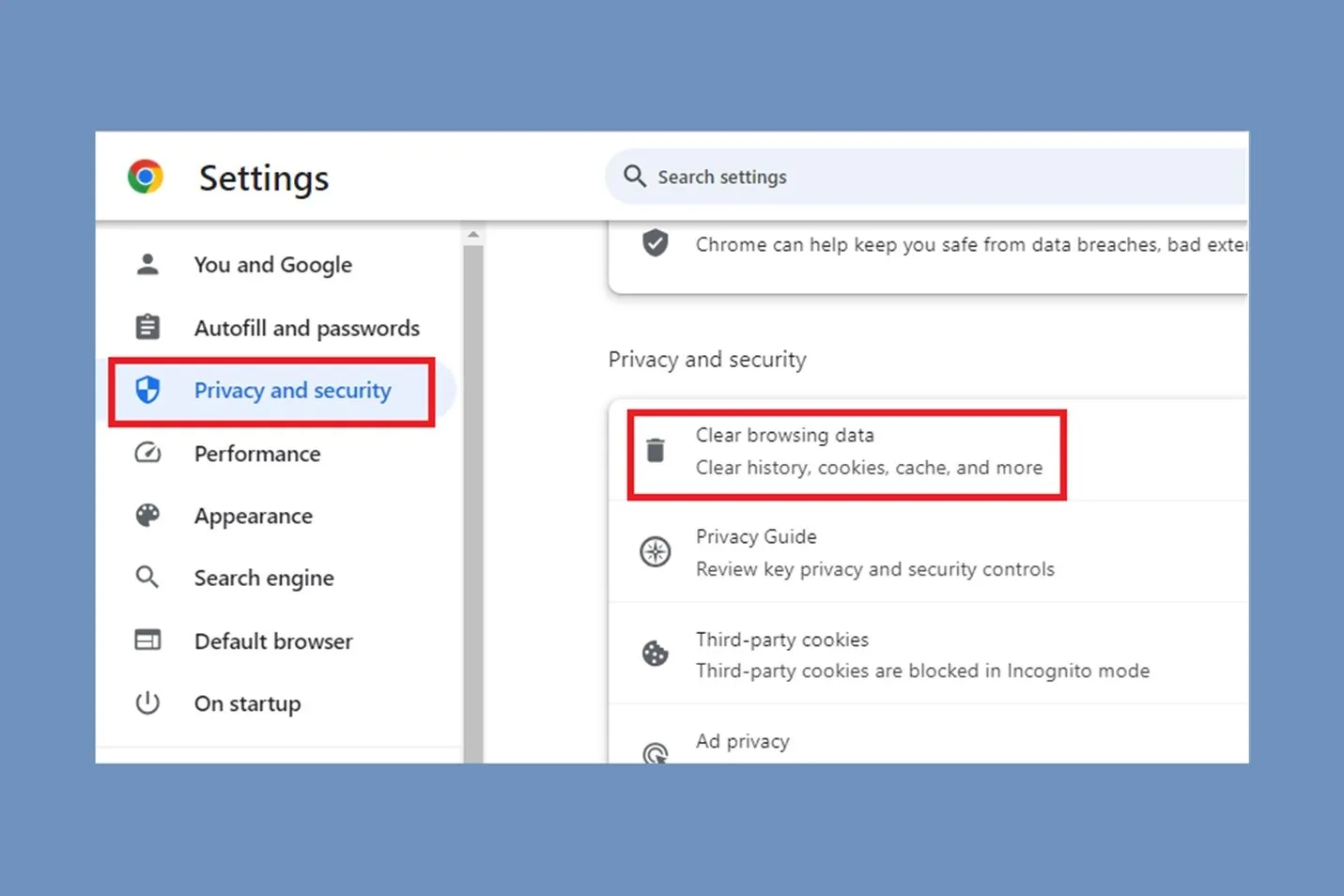

In the fast-evolving landscape of web browsing, managing your cache is crucial for ensuring optimal performance, security, and privacy. As we step into 2025, this comprehensive article will delve into the intricacies of clearing cache in Chrome and other popular browsers, examining the latest features, performance optimizations, security enhancements, and privacy settings. We will provide practical, step-by-step instructions, troubleshooting tips, and real-world examples to help you optimize your browsing experience.
Understanding Browser Cache
What is Browser Cache?
Browser cache is a mechanism for temporarily storing web page data, such as images, scripts, and stylesheets, on a user’s device. This allows for faster access to frequently visited sites, as the browser doesn’t have to re-download every element each time a page is loaded.
Why is Clearing Cache Important?
While cache can improve loading times, an overloaded cache can lead to performance issues, outdated content, and even security vulnerabilities. Regularly clearing your cache can help mitigate these issues and ensure a smoother browsing experience.
Latest Browser Features in 2025
Chrome
Chrome has continued to dominate the browser market, and 2025 has seen significant improvements:
-
- Tab Groups: Enhanced tab management features allow users to group tabs for easier navigation.
-
- Faster Loading Times: Google has optimized resource loading, reducing the time it takes to display web content.
-
- Integrated Password Manager: A more robust password manager has been implemented, offering better security and autofill features.
Firefox
Firefox remains a strong competitor with a focus on user privacy and customization:
-
- Enhanced Tracking Protection: Offers automatic blocking of trackers and third-party cookies by default.
-
- Vertical Tabs: A new vertical tab feature allows for better organization of open websites.
-
- Picture-in-Picture: Improved video playback capabilities for multitasking.
Microsoft Edge
Edge has made strides in integrating features that appeal to both casual and power users:
-
- Collection Feature: Allows users to gather and organize web content.
-
- Vertical Tabs: Similar to Firefox, Edge now supports vertical tabs for better space management.
-
- Performance Mode: This feature optimizes resource usage based on user activity.
Safari
Apple’s Safari has focused on enhancing user experience on macOS and iOS:
-
- Intelligent Tracking Prevention: Advanced AI-driven features to block unwanted tracking.
-
- Privacy Report: Users can see which trackers have been blocked.
-
- Enhanced Performance: Improved rendering speeds for a smoother browsing experience.
Opera
Opera continues to innovate with unique features:
-
- Built-In VPN: A free VPN service for enhanced privacy.
-
- Crypto Wallet: Integration for cryptocurrency management.
-
- Workspaces: A feature that allows users to create separate workspaces for different tasks.
Performance Optimizations
Speed Improvements
All major browsers have focused on speed improvements in 2025. Chrome, for instance, has reduced the average page load time by 20% through better resource prioritization and reduced JavaScript execution time.
Resource Management
Browsers now employ smarter resource management techniques. Microsoft Edge has introduced a feature that limits the resource usage of inactive tabs, significantly improving overall performance.
Security Enhancements
Safe Browsing Features
In 2025, Safe Browsing features have become standard across browsers. Chrome and Firefox provide warnings about potentially harmful sites, and Edge has integrated Microsoft Defender for additional security.
HTTPS and Secure Connections
Browsers now prioritize secure connections. Chrome and Firefox have made it a default requirement for all websites, marking non-HTTPS sites as “Not Secure” to protect user data.
Privacy Settings
Data Tracking and Cookies
Privacy settings have evolved to give users more control over their data. Browsers now provide detailed insights into data tracking and cookie usage, allowing users to make informed decisions.
Privacy Modes
All major browsers feature private browsing modes. In 2025, these modes have been enhanced to include more robust data protection features, such as automatically deleting cookies and cache once the session ends.
Cross-Browser Comparisons
User Interface
-
- Chrome: Minimalistic and user-friendly, focused on accessibility.
-
- Firefox: Highly customizable, allowing users to tailor their browsing experience.
-
- Edge: Combines aesthetics with functionality, offering various themes.
-
- Safari: Sleek and intuitive, particularly optimized for Apple devices.
-
- Opera: Innovative features with a vibrant interface.
Performance
While Chrome remains the fastest in most tests, Edge has made significant gains. Firefox, with its privacy-first approach, offers commendable performance, especially with ad-blocking features.
Features
All browsers offer unique features that cater to different user preferences, from privacy-focused settings in Firefox to the integrated VPN in Opera.
Step-by-Step Instructions to Clear Cache
Google Chrome
-
- Open Chrome: Launch the Google Chrome browser.
-
- Access Settings: Click on the three vertical dots in the upper-right corner.
-
- More Tools: Hover over “More Tools” and click on “Clear Browsing Data.”
-
- Select Time Range: Choose a time range from the dropdown menu.
-
- Select Data Types: Ensure “Cached images and files” is checked.
-
- Clear Data: Click the “Clear data” button.
Firefox
-
- Open Firefox: Launch the Firefox browser.
-
- Access Settings: Click on the three horizontal lines in the upper-right corner.
-
- Options: Click on “Options.”
-
- Privacy & Security: Navigate to the “Privacy & Security” tab.
-
- Cookies and Site Data: Click on “Clear Data.”
-
- Select Cached Data: Ensure that “Cached Web Content” is checked.
-
- Clear: Click “Clear.”
Microsoft Edge
-
- Open Edge: Launch Microsoft Edge.
-
- Access Settings: Click on the three horizontal dots in the upper-right corner.
-
- Privacy, Search, and Services: Navigate to this section.
-
- Choose What to Clear: Under “Clear browsing data,” click “Choose what to clear.”
-
- Select Data Types: Ensure “Cached images and files” is selected.
-
- Clear Now: Click the “Clear now” button.
Safari
-
- Open Safari: Launch the Safari browser.
-
- Preferences: Click “Safari” in the menu bar and select “Preferences.”
-
- Privacy Tab: Navigate to the “Privacy” tab.
-
- Manage Website Data: Click “Manage Website Data.”
-
- Remove All: Click “Remove All” to clear cached data.
Opera
-
- Open Opera: Launch the Opera browser.
-
- Access Settings: Click on the “O” logo in the upper left corner.
-
- Advanced: Navigate to “Advanced” and select “Privacy & security.”
-
- Clear Browsing Data: Click “Clear browsing data.”
-
- Select Data Types: Ensure “Cached images and files” is checked.
-
- Clear Data: Click “Clear data.”
Troubleshooting Common Issues
Cache Not Clearing
If you find that your cache isn’t clearing, ensure:
-
- The browser is up-to-date.
-
- You have selected the correct data types.
-
- Restart the browser after clearing the cache.
Browser Crashes
If your browser crashes frequently:
-
- Check for extensions that may be causing conflicts.
-
- Disable or remove unnecessary plugins.
-
- Ensure your device has sufficient resources available.
Slow Performance
To improve slow performance:
-
- Clear cache regularly.
-
- Disable unused extensions.
-
- Consider upgrading your device’s hardware if needed.
Real-World Examples
Before and After Clearing Cache
Scenario: A user experiences slow loading times on their favorite shopping website.
-
- Before Clearing Cache: Loading time is approximately 10 seconds.
-
- After Clearing Cache: Loading time drops to 4 seconds, and the user can navigate the site more smoothly.
Case Studies
-
- E-commerce Site Performance: A case study of an e-commerce site showed a 30% increase in loading speed after users cleared their caches, resulting in higher conversion rates.
- E-commerce Site Performance: A case study of an e-commerce site showed a 30% increase in loading speed after users cleared their caches, resulting in higher conversion rates.
-
- News Website User Engagement: After clearing cache, users reported improved loading times, leading to a 15% increase in user engagement metrics.
- News Website User Engagement: After clearing cache, users reported improved loading times, leading to a 15% increase in user engagement metrics.
Expert Insights
Future of Browsing and Cache Management
As technology continues to evolve, so too will the methods of cache management. Future browsers will likely integrate AI to manage cache intelligently, predicting what data is most relevant to users. Privacy will remain a focal point, with browsers incorporating more tools to protect user data from unauthorized access.
Conclusion
In 2025, clearing cache is an essential task for optimizing your browsing experience. By understanding the importance of cache management and following the steps outlined in this article, you can ensure that your browser remains fast, secure, and efficient. Regularly updating your browser and taking advantage of the latest features will further enhance your online experience.
