

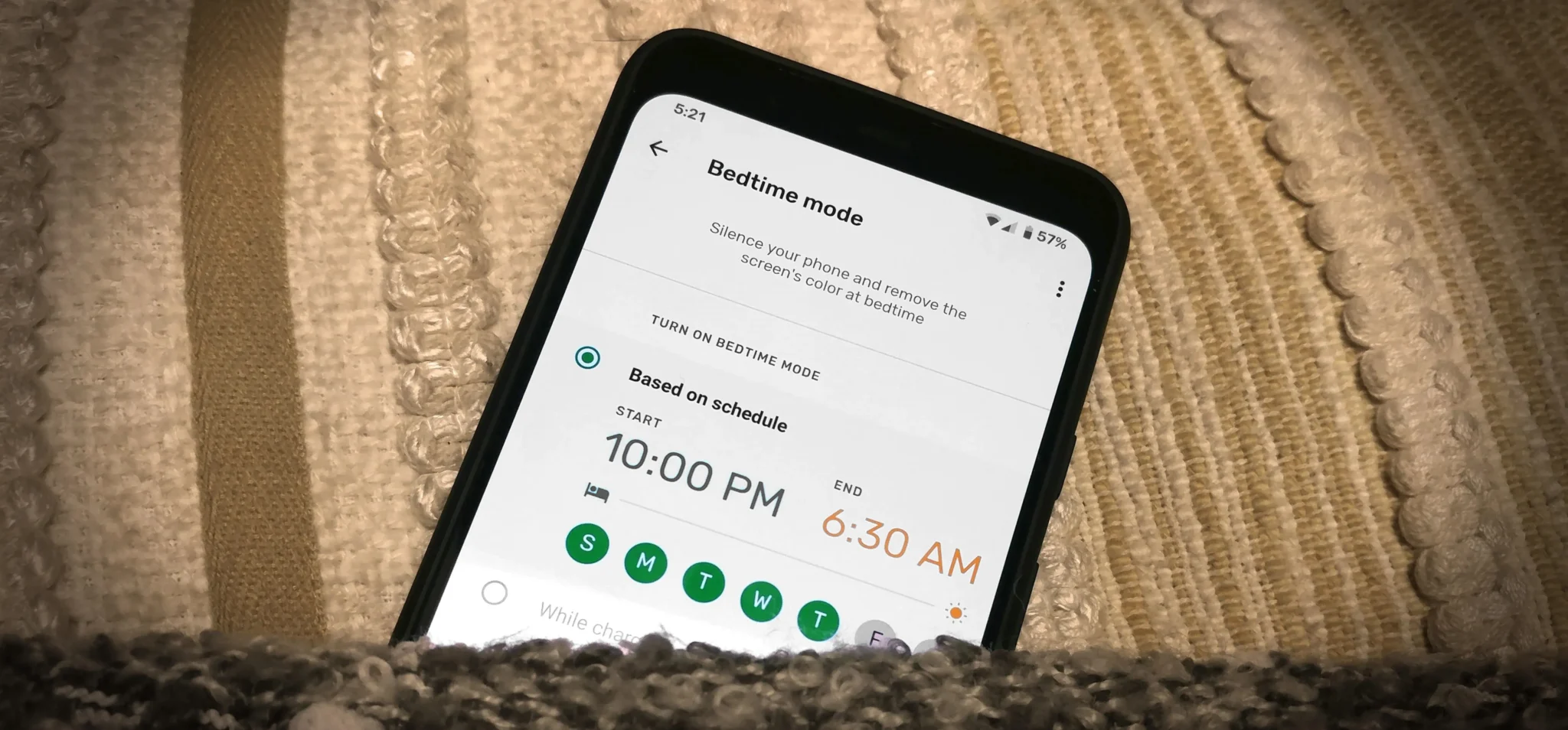

Bedtime Mode, aimed at minimizing disturbances during the night, is one feature that has evolved across Android versions. This guide will demystify the steps needed to enable this feature, discuss the differences across OEMs, and suggest alternatives that do not require rooting your device. By understanding these distinctions and settings, you can personalize your device for optimal rest.
How to Do It
Prerequisites
-
- Operating System: Ensure your device runs on Android 14 or 15. Check your version by going to Settings → About phone → Software information.
-
- Backing Up: Before making changes, it’s wise to back up your data. Use Settings → System → Backup to access backup options.
-
- Battery Considerations: Be aware that enabling certain features may affect battery life, particularly if you use third-party apps.
Step-by-Step Instructions
-
- Enable Bedtime Mode on Pixel Devices:
Settings → Digital Wellbeing & parental controls → Bedtime mode. Toggle the switch to enable Bedtime mode. You can customize the schedule under “Set a schedule.”Verify it worked by checking if the mode is active during your specified times.
- Enable Bedtime Mode on Pixel Devices:
-
- Enable Bedtime Mode on Samsung One UI:
Settings → Digital Wellbeing and Parental Controls → Bedtime mode. Select the days and times you wish to activate this feature.Verify by checking if the screen dims during the set hours.
- Enable Bedtime Mode on Samsung One UI:
-
- Enable Bedtime Mode on MIUI:
Settings → Digital Wellbeing → Sleep Mode. Enable and set your preferred timing.Verify it worked by observing the changes to notifications during the scheduled time.
- Enable Bedtime Mode on MIUI:
-
- Enable Bedtime Mode on OxygenOS:
Settings → Digital Wellbeing → Bedtime Mode. Activate it and choose your timing preferences.Verify by checking your Do Not Disturb settings during the scheduled time.
- Enable Bedtime Mode on OxygenOS:
Best Practices, Tips & Pitfalls
-
- Regularly update your device software to receive the latest features and security updates.
-
- Customize your Bedtime Mode notifications to prioritize essential alerts, ensuring you don’t miss critical information.
-
- Experiment with different sleep schedules to find what works best for you; it might take some time to adjust.
-
- Use Do Not Disturb features in conjunction with Bedtime Mode for an uninterrupted sleep experience.
-
- Common Errors: If Bedtime Mode doesn’t activate, check your scheduled times and ensure your device is not in power-saving mode.
Alternatives & Comparisons
If Bedtime Mode does not meet your needs, you might consider third-party sleep apps or features. Below is a brief comparison of a few popular options:
| Option | Best for | Trade-offs |
|---|---|---|
| Sleep Cycle | Detailed sleep tracking | Requires setup; some features are paid |
| Calm | Guided meditation for sleep | Subscription required for full access |
Key Takeaways
-
- Understand the differences between Android 14 and 15, particularly regarding Bedtime Mode functionalities.
-
- OEM skins like Samsung One UI and MIUI offer unique features and paths that may differ from stock Android.
-
- Backing up your data is essential before making changes to system settings.
-
- Combining Bedtime Mode with Do Not Disturb can enhance your sleep experience.
-
- Explore alternative sleep apps if the built-in options do not meet your needs.
FAQ
Question 1: Can I use Bedtime Mode without enabling Do Not Disturb?
Yes, Bedtime Mode can function independently, but using Do Not Disturb enhances its effectiveness by limiting notifications during sleep hours.
Question 2: Does Bedtime Mode automatically adjust for weekends?
It depends on the OEM. Some devices allow you to customize the schedule for different days of the week, including weekends.
Question 3: What if Bedtime Mode stops working?
Check your settings to ensure the mode is enabled and the scheduled times are set correctly. Restarting your device can also resolve minor glitches.
