

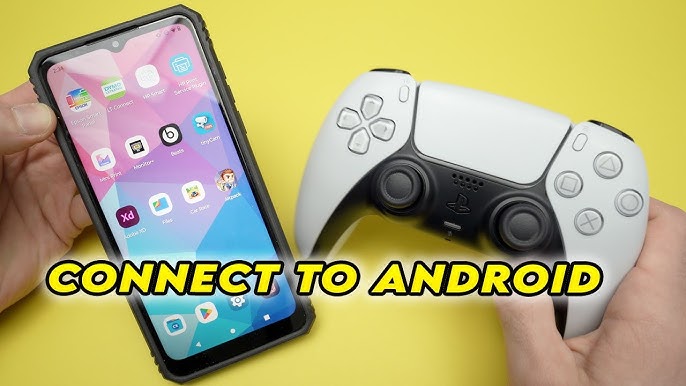

How to Do It
Prerequisites
-
- Operating System: Ensure your device is running Android 14 or 15, as there are some differences in Bluetooth settings and controller compatibility.
-
- Apps: Use the latest version of your gaming apps, as compatibility may vary with updates.
-
- Backup: Always back up your data before making changes. You can do this via Settings → System → Backup.
-
- Risks: Connecting controllers may lead to unexpected app behavior, especially with older or less popular titles.
Step-by-Step Instructions
-
- Turn on your game controller and put it into pairing mode. This usually involves holding down a specific button (often the Xbox button or PlayStation button) until a light flashes.
-
- Open your Android device’s Bluetooth settings: Settings → Connected devices → Connection preferences → Bluetooth.
-
- Toggle Bluetooth on if it isn’t already. Wait for your controller to appear in the list of available devices.
-
- Select your controller from the list. If prompted, confirm the pairing by tapping Pair.
-
- Once connected, verify the connection by launching a game that supports controller input. Navigate to the game settings to confirm if the controller is recognized. This can usually be found under Settings → Controls.
Best Practices, Tips & Pitfalls
-
- Ensure your controller’s firmware is updated. Manufacturers often release updates to improve compatibility and performance.
-
- If your controller isn’t recognized, try restarting both the controller and the phone to reset the Bluetooth connection.
-
- Check for specific game settings. Some games have dedicated options for controller setups that can enhance your experience.
-
- Use a stable Bluetooth connection; avoid interruptions from other devices that may interfere with the pairing process.
-
- Be cautious with third-party controllers. Not all are guaranteed to work seamlessly with every Android device.
Alternatives & Comparisons
If you find that your controller doesn’t work as expected, there are alternative methods to connect. Here’s a brief overview of some viable alternatives:
| Option | Best for | Trade-offs |
|---|---|---|
| USB OTG Adapter | Wired connection for latency-sensitive games | Requires physical connection; limited mobility |
| Game Streaming Services | Play console/PC games on mobile | Requires stable internet; may incur subscription fees |
Key Takeaways
-
- Ensure you’re using Android 14 or 15 for optimal compatibility with your game controller.
-
- Familiarize yourself with the specific settings on your OEM device, whether it’s a Pixel, Samsung, or Xiaomi.
-
- Verify your controller’s compatibility with specific games through their settings.
-
- Consider wired alternatives if wireless connections present issues.
-
- Stay updated on controller firmware and game updates to maintain compatibility.
FAQ
Can I use any controller with my Android device?
Most Bluetooth controllers are compatible with Android devices, but it’s best to check for specific compatibility with the games you wish to play.
What should I do if my controller isn’t connecting?
Restart both your Android device and the controller, ensure Bluetooth is enabled, and check if the controller is in pairing mode. If issues persist, consult the manufacturer’s support.
Is there a way to customize controller settings on Android?
Many games offer options to customize controls within their settings. Additionally, some third-party apps allow for broader customization of controller inputs across games.
