Understanding Browser Cache and Cookies in 2025
- Understanding Browser Cache and Cookies in 2025
- 1. What Are Cache and Cookies?
- 2. The Evolution of Browser Caching and Cookies
- 3. Latest Browser Features in 2025
- 4. Performance Optimizations
- 5. Security Enhancements
- 6. Privacy Settings
- 7. Cross-Browser Comparisons
- 8. Step-by-Step Instructions
- 9. Troubleshooting Tips
- 10. Real-World Examples
- 11. Expert Insights
- Conclusion
In 2025, managing browser cache and cookies remains a crucial aspect of optimizing your online experience. As web technologies evolve, so too do the tools and settings available in our favorite web browsers. This comprehensive guide will delve into the latest features, performance optimizations, security enhancements, and privacy settings across major browsers like Chrome, Firefox, Edge, and Safari. Whether you’re a casual user or a tech enthusiast, our step-by-step instructions and troubleshooting tips will help you make the most out of your browsing experience.
1. What Are Cache and Cookies?
Definition and Purpose
Cache: A cache is a storage mechanism that temporarily stores files, images, scripts, and other web resources to speed up page loading times. When you visit a website, your browser saves various elements into the cache, allowing for quicker access on subsequent visits.
Cookies: Cookies are small pieces of data stored on your device by your web browser. They are used to remember information about you, such as login details, user preferences, and tracking information for advertising purposes.
Differences Between Cache and Cookies
Although both cache and cookies are stored on the user’s device to enhance the browsing experience, they serve different purposes:
-
- Cache:
-
- Stores static resources to speed up loading times.
-
- Cleared automatically when storage limits are reached or manually by the user.
-
- Cache:
-
- Cookies:
-
- Stores user-specific data for personalized experiences.
-
- Has an expiration date, after which they are automatically deleted.
-
- Cookies:
2. The Evolution of Browser Caching and Cookies
Historical Context
Understanding the evolution of caching and cookies is essential. Initially, caching was rudimentary, with browsers storing unstructured data. Cookies emerged in the mid-1990s to enable session persistence and user tracking, which has led to the complex privacy issues we face today.
Recent Trends and Changes
In recent years, the web has shifted towards more privacy-conscious practices. The rise of ad-blockers and privacy extensions has led browsers to implement features that limit third-party cookies while enhancing caching mechanisms to improve loading speeds without compromising user privacy.
3. Latest Browser Features in 2025
Overview of Major Browsers
-
- Google Chrome
-
- Mozilla Firefox
-
- Microsoft Edge
-
- Apple Safari
-
- Brave and Opera
Notable Features Related to Cache and Cookies
-
- Chrome: Introduced an enhanced cache management tool allowing users to see what is stored and delete specific items.
-
- Firefox: Enhanced privacy settings that automatically delete cookies after sessions and introduced a cache audit tool for better visibility.
-
- Edge: Built-in “Smart Cache” feature that optimizes cache storage based on user behavior.
-
- Safari: Stronger anti-tracking measures that limit cookie storage from third-party sites.
-
- Brave: Focused on privacy with aggressive cookie blocking, allowing users to customize cookie settings extensively.
4. Performance Optimizations
How Cache Improves Speed
Caching significantly speeds up website loading times. By storing resources locally, browsers can reduce the need to retrieve the same files from the server each time a page is loaded.
The Role of Cookies in User Experience
Cookies enhance the user experience by remembering login credentials and user preferences, providing a seamless browsing experience. However, excessive cookies can slow down performance, necessitating management.
Tips for Optimizing Performance
-
- Regularly clear cache to free up space and reduce clutter.
-
- Use browser settings to control how long cache and cookies are stored.
-
- Enable features like “Preload Pages” in Chrome and “Smart Cache” in Edge to improve loading times.
5. Security Enhancements
Threats Posed by Cache and Cookies
While cache and cookies improve speed and usability, they also pose security threats. Attackers can exploit cached data to retrieve sensitive information, while cookies can be used for session hijacking.
Latest Security Features Across Browsers
-
- Chrome: Improved sandboxing and isolation of cache data.
-
- Firefox: Enhanced tracking protection that blocks third-party cookies and trackers.
-
- Edge: Integration of Microsoft Defender for real-time threat detection.
-
- Safari: Intelligent Tracking Prevention (ITP) to limit cookie usage from third-party sites.
6. Privacy Settings
Importance of Privacy in 2025
Privacy is a paramount concern in 2025. With growing scrutiny over data collection practices, browsers have responded by providing more robust privacy settings.
How to Manage Cookies and Cache
-
- Review cookie permissions regularly.
-
- Opt for “Do Not Track” settings available in most browsers.
-
- Use incognito or private browsing modes to limit data storage.
7. Cross-Browser Comparisons
Chrome vs. Firefox
-
- Chrome is known for its speed but has been criticized for data collection practices. It offers extensive caching capabilities.
-
- Firefox emphasizes user privacy with features like Enhanced Tracking Protection, making it suitable for privacy-conscious users.
Edge vs. Safari
-
- Edge has integrated several privacy features and tools for businesses, enhancing the browsing experience.
-
- Safari focuses heavily on privacy with features like ITP, blocking third-party cookies by default.
Other Popular Browsers
-
- Brave: Blocks ads and trackers out of the box, offering exceptional privacy.
-
- Opera: Features built-in VPN and ad blocker, catering to users looking for privacy and speed.
8. Step-by-Step Instructions
Clearing Cache and Cookies
Google Chrome:
-
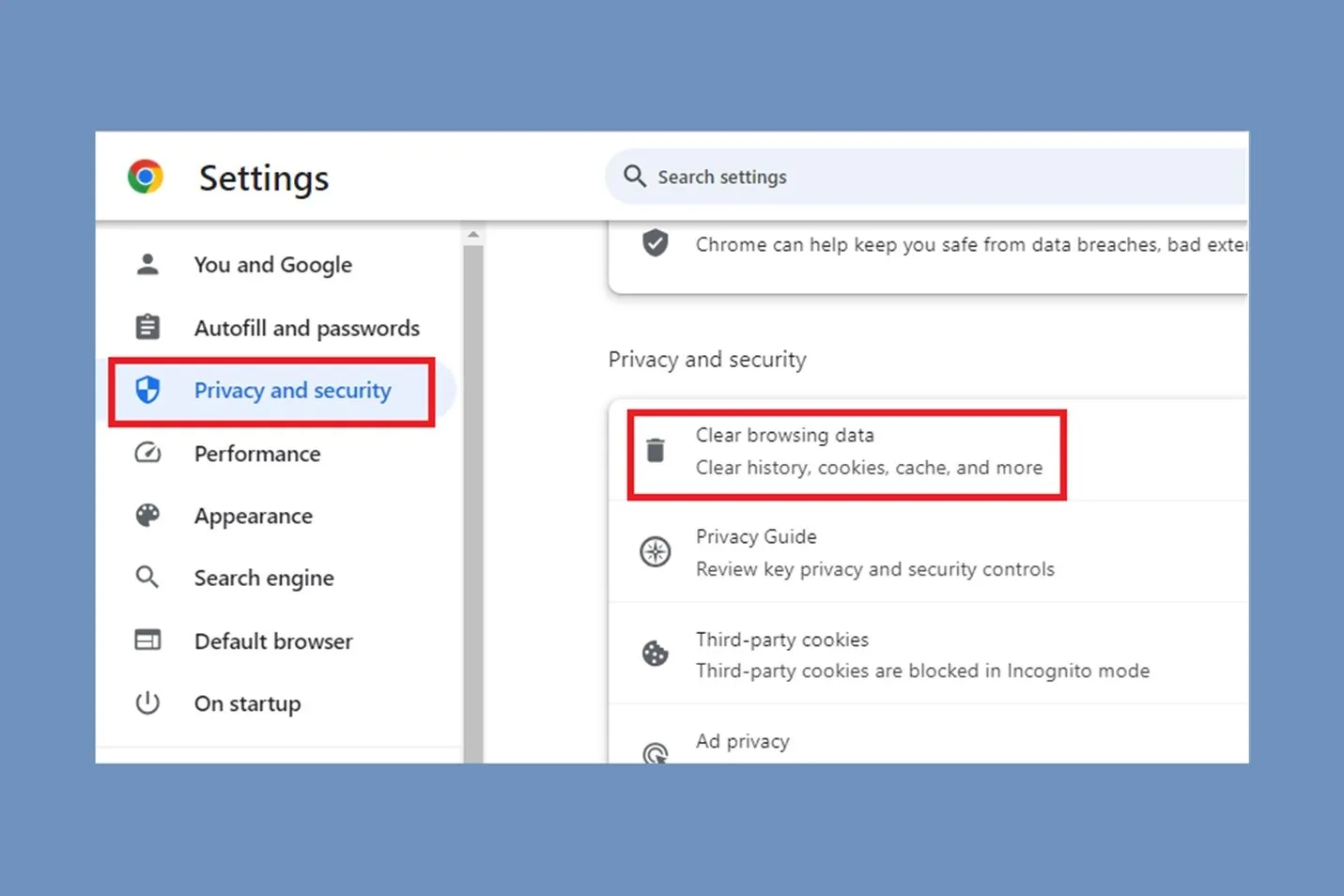
- Open Chrome and click on the three vertical dots in the top-right corner.
-
- Navigate to “More tools” > “Clear browsing data.”
-
- Select the time range and check “Cookies and other site data” and “Cached images and files.”
-
- Click “Clear data.”
Mozilla Firefox:
-
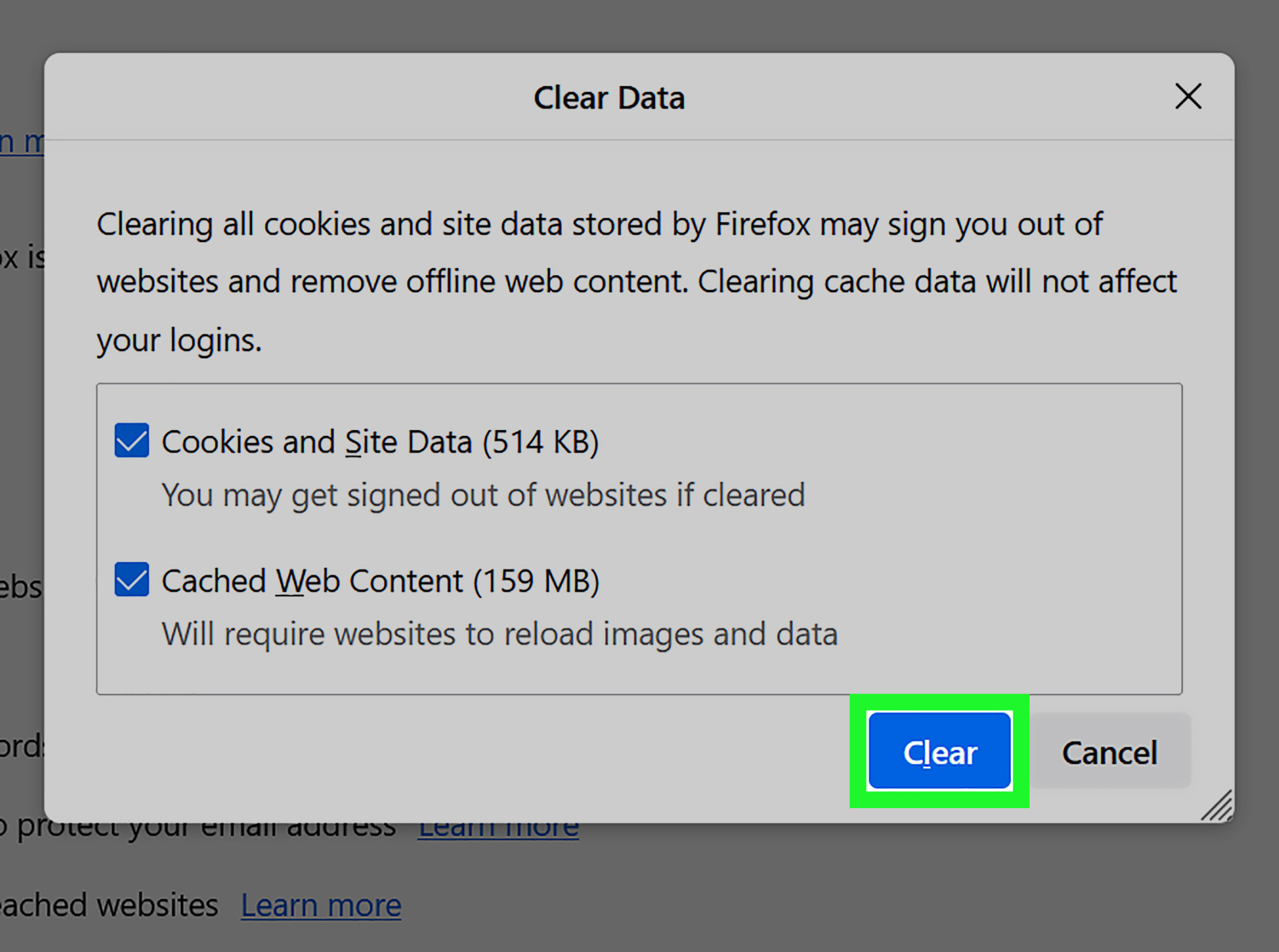
- Open Firefox and click on the three horizontal lines in the top-right corner.
-
- Select “Options” > “Privacy & Security.”
-
- Scroll to “Cookies and Site Data” and click “Clear Data.”
Microsoft Edge:
-
- Click on the three dots in the top-right corner and select “Settings.”
-
- Navigate to “Privacy, search, and services.”
-
- Under “Clear browsing data,” click “Choose what to clear.”
Apple Safari:
-
- Go to Safari > Preferences.
-
- Click on the “Privacy” tab.
-
- Click “Manage Website Data” and then “Remove All.”
Managing Cookie Permissions
Chrome:
-
- Go to Settings > Privacy and Security > Cookies and other site data.
-
- Choose your preferred cookie settings.
Firefox:
-
- Open Options > Privacy & Security.
-
- Under “Cookies and Site Data,” adjust the settings.
Edge:
-
- Settings > Privacy, Search, and Services.
-
- Adjust cookie settings under “Cookies and site permissions.”
Safari:
-
- Preferences > Privacy.
-
- Adjust settings for cookies.
Optimizing Browser Settings
-
- Enable or disable features like “Preload Pages” in Chrome or “Enhanced Tracking Protection” in Firefox to manage performance.
9. Troubleshooting Tips
Common Issues and Solutions
-
- Issue: Websites not loading correctly.
-
- Solution: Clear cache and cookies or try accessing the site in incognito mode.
-
- Issue: Websites not loading correctly.
-
- Issue: Persistent cookie-related errors.
-
- Solution: Delete specific cookies related to the issue via browser settings.
-
- Issue: Persistent cookie-related errors.
Diagnostic Tools
-
- Use built-in developer tools (F12) in browsers to check cache status and cookie data.
-
- Third-party tools like CCleaner can help manage cookies and cache across multiple browsers.
10. Real-World Examples
Case Studies in Cache Management
-
- E-commerce: A leading retailer optimized their cache settings, resulting in a 60% reduction in page load times and increased sales.
-
- Online News Sites: Implemented cookie management strategies, significantly improving user engagement and reducing bounce rates.
User Scenarios
-
- A user frequently encounters slow loading times. After clearing cache and managing cookies, they experienced improved performance and fewer errors.
11. Expert Insights
The future of browser caches and cookies is likely to focus on enhanced privacy and better user control. As machine learning and AI develop, browsers may introduce smarter caching solutions that not only speed up loading times but also adapt to user habits while respecting privacy.
Conclusion
Navigating the complexities of browser cache and cookies has become increasingly important in 2025 as the digital landscape evolves. Understanding how to manage these tools effectively can lead to a significantly improved browsing experience, enhanced security, and better privacy. By staying informed about the latest browser features, users can optimize their web experience, ensuring they enjoy the best of what the internet has to offer while safeguarding their data.