


How to Do It
Prerequisites
-
- Ensure your device is running Android 14 or 15, as processes may differ slightly between versions.
-
- Always back up your data before making significant changes to your device settings or formatting storage.
Step-by-Step Instructions
-
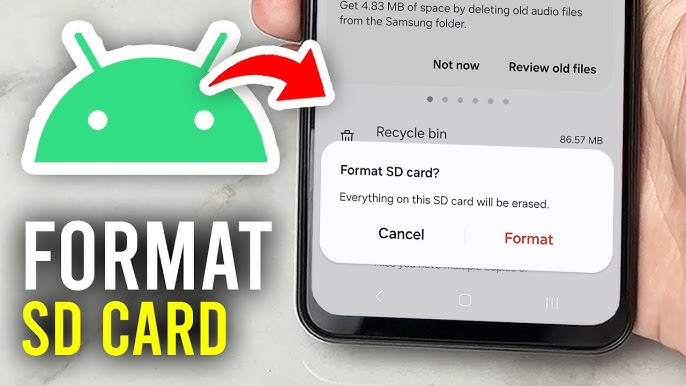
- To format your SD card on Android:
Settings → Storage → SD Card → FormatFollow the prompts to complete the process. This will erase all data on the card.
- To format your SD card on Android:
-
- To access storage settings on Samsung’s One UI:
Settings → Battery and device care → Storage → SD Card → FormatConfirm to format the SD card and ensure you’ve backed up any important data first.
- To access storage settings on Samsung’s One UI:
-
- For MIUI devices, navigate as follows:
Settings → Storage → SD Card → FormatAgain, confirm and proceed with caution as this will delete all files.
- For MIUI devices, navigate as follows:
-
- On OxygenOS, the path is similar:
Settings → Storage → SD Card → FormatDouble-check that you’ve backed up your data before confirming.
- On OxygenOS, the path is similar:
-
- Verify it worked by checking the SD card’s available space. The formatted card should show as empty.
Best Practices, Tips & Pitfalls
-
- Always back up important data before formatting your SD card to avoid unintentional loss.
-
- Use a high-quality SD card to ensure better speed and longevity, especially for tasks like video recording.
-
- Check the SD card’s compatibility with your device before formatting; not all brands work seamlessly with every phone.
-
- Regularly check the health of your SD card to avoid issues. Use built-in tools or third-party apps to monitor performance.
-
- If you encounter errors while formatting, try re-inserting the card or using a different device to perform the format.
Alternatives & Comparisons
If you’re considering alternatives to formatting directly through Android, here are a few viable options:
| Option | Best for | Trade-offs |
|---|---|---|
| Using a PC | Greater control and options | Requires a computer and USB connection |
| Third-party apps | User-friendly interfaces | Potential security risks; ensure apps are trusted |
While using a PC provides more flexibility, relying on reputable third-party applications can simplify the formatting process for those less comfortable with file systems.
Key Takeaways
-
- Understand the specific paths and options available on your device’s skin for formatting SD cards.
-
- Always back up data to prevent loss during the formatting process.
-
- Consider alternative methods, like using a PC or trusted apps, for added flexibility.
-
- Check your SD card’s compatibility and health regularly to ensure optimal performance.
FAQ
What happens if I format my SD card?
All data on the SD card will be erased, making it empty and ready for new data.
Can I format an SD card without losing data?
No, formatting will remove all data. Always back up before proceeding.
Is there a way to recover data after formatting?
Data recovery software may help, but success varies; it’s best to back up beforehand to avoid issues.
