In the ever-evolving landscape of web browsers, Firefox remains a popular choice among users who value speed, privacy, and customizability. However, even the best browsers can occasionally slow down. In 2025, with the introduction of new features, performance optimizations, and security enhancements, addressing slow browsing can be more straightforward than ever. This article provides an in-depth exploration of how to fix slow Firefox issues and optimize your browsing experience across different popular web browsers, including Chrome, Edge, and Safari.
Table of Contents
- Introduction
- Understanding Browser Performance
- Factors Affecting Browser Speed
- The Importance of Browser Updates
- Latest Firefox Features in 2025
- Performance Optimizations
- Security Enhancements
- Privacy Settings
- Steps to Fix Slow Firefox
- General Troubleshooting Tips
- Advanced Performance Tweaks
- Cross-Browser Comparisons
- Speed Assessments
- Feature Comparisons
- User Experience
- Expert Insights
- Conclusion
1. Introduction
As we move further into 2025, the web browsing experience is more critical than ever. Firefox has been a stalwart in offering users a balance of speed, privacy, and extensions. However, some users may still experience slow loading times or sluggish performance. This article aims to equip you with practical tips and tools to enhance your Firefox experience while comparing it to other leading browsers.
2. Understanding Browser Performance
Before diving into fixes, understanding what contributes to a browser’s speed is crucial.
Factors Affecting Browser Speed
-
Hardware Limitations: Your device’s RAM, CPU, and storage can significantly impact browsing speed.
-
Network Connection: A slow or unstable internet connection can lead to poor performance, irrespective of browser optimization.
-
Extensions and Add-ons: While extensions enhance functionality, they can also consume resources and slow down browsing.
-
Browser Settings: Misconfigured settings can hinder performance.
-
Cache and Cookies: Over time, accumulated data can slow down browser performance.
The Importance of Browser Updates
Staying updated is vital. Firefox, along with other browsers, regularly releases updates that include performance improvements, new features, and security patches. Ensure you’re using the latest version by checking for updates in the browser settings.
3. Latest Firefox Features in 2025
In 2025, Firefox has introduced groundbreaking features aimed at enhancing user experience.
Performance Optimizations
-
Multi-Process Architecture: Firefox’s multi-process architecture allows it to run multiple tabs and processes independently, reducing the chances of one tab slowing down the entire browser.
-
Improved Resource Management: Firefox 2025 includes smarter resource allocation, enabling it to use system resources more efficiently.
-
Enhanced GPU Acceleration: Firefox now leverages GPU acceleration more effectively to render graphics, improving speed for media-heavy websites.
Security Enhancements
-
Enhanced Tracking Protection: This feature automatically blocks trackers and scripts that slow down browsing.
-
Sandboxing for Extensions: Firefox now runs extensions in a sandboxed environment, improving security without sacrificing performance.
-
Phishing and Malware Protection: The updated malware protection keeps users safe from malicious sites, which can sometimes cause slowdowns.
Privacy Settings
-
Total Cookie Protection: This limits tracking across websites, enhancing privacy while improving performance.
-
Improved Password Manager: The built-in password manager now offers more robust performance and usability.
4. Steps to Fix Slow Firefox
When facing slow performance in Firefox, consider these steps:
General Troubleshooting Tips
-
Close Unused Tabs: Keep only the tabs you need open. Too many tabs can strain resources.
-
Disable Extensions: Go to the extensions menu and disable any that are unnecessary.
-
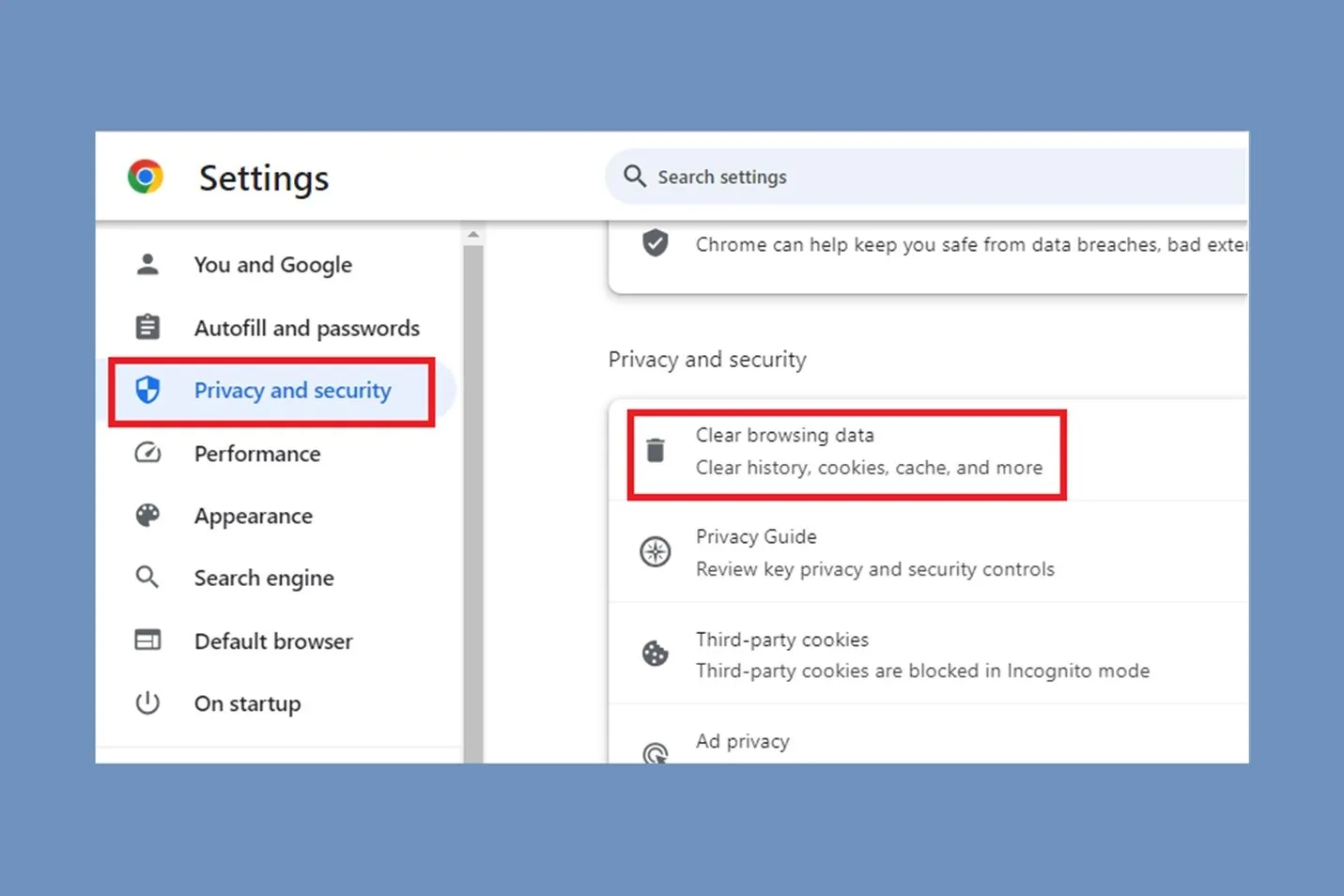
Clear Cache and Cookies:
- Click the menu button (three horizontal lines).
- Select “Options”.
- Go to “Privacy & Security”.
- Scroll to “Cookies and Site Data” and click “Clear Data”.
-
Restart Firefox: Sometimes, simply restarting the browser can resolve temporary slowdowns.
-
Check Your Internet Speed: Use tools like Speedtest to check your connection speed.
Advanced Performance Tweaks
For users comfortable with deeper changes, consider these advanced tweaks:
-
Adjust Configuration Settings:
- Type
about:configin the address bar and press Enter. - Search for
browser.tabs.remote.autostart. Set it totrueto enable multi-process.
- Type
-
Increase Content Process Limit:
- In
about:config, finddom.ipc.processCountand increase the number (e.g., set it to 4 for four processes).
- In
-
Disable Hardware Acceleration:
- Sometimes, turning off hardware acceleration can resolve performance issues.
- Go to “Options” > “General”, scroll to “Performance”, and uncheck “Use recommended performance settings”.
-
Enable HTTP/3:
- In
about:config, search fornetwork.http.http3.enabledand ensure it’s set totrue.
- In
-
Reset Firefox: If performance issues persist, you may want to reset Firefox. Go to “Help” > “More Troubleshooting Information” and click “Refresh Firefox”.
5. Cross-Browser Comparisons
To provide a holistic view, let’s compare Firefox with other popular browsers in terms of speed, features, and user experience.
Speed Assessments
-
Firefox vs. Chrome: Firefox generally offers better performance for memory-intensive tasks, while Chrome often excels in loading JavaScript-heavy sites faster.
-
Firefox vs. Edge: Edge has made significant strides in speed due to its Chromium base, but Firefox’s independent architecture can lead to reduced resource usage.
-
Firefox vs. Safari: Safari is optimized for Apple devices, often outperforming Firefox on macOS but may lag on Windows due to device optimization.
Feature Comparisons
| Feature | Firefox | Chrome | Edge | Safari |
|---|---|---|---|---|
| Tracking Protection | Strong | Moderate | Strong | Moderate |
| Extensions | Extensive | Extensive | Moderate | Limited |
| Customizability | High | Moderate | Moderate | Low |
| Privacy Features | Strong | Moderate | Strong | Moderate |
User Experience
- Firefox: Offers a highly customizable experience with a strong focus on privacy.
- Chrome: Known for its speed and extensive library of extensions but can be resource-heavy.
- Edge: Provides a seamless integration with Windows and has improved privacy settings over time.
- Safari: Best for Apple users, featuring tight integration with the Apple ecosystem but limited flexibility compared to others.
6. Expert Insights
Experts recommend regularly revisiting browser settings and extensions, as user needs can change. The development teams behind browsers like Firefox actively monitor performance and user feedback to continually improve the browsing experience.
7. Conclusion
In conclusion, while Firefox has made significant strides in performance, security, and privacy features in 2025, users may still encounter slow browsing from time to time. By following the steps outlined in this guide and comparing it with other browsers, you can optimize your browsing experience effectively. Remember, the key to a faster, more efficient browser lies in regular maintenance, updates, and conscious usage of features.
By staying informed and proactive, you can enjoy a smoother, faster Firefox experience, making the most out of your web browsing journey.
This comprehensive guide has explored the intricacies of Firefox’s performance in 2025 and equipped you with practical solutions to enhance your browsing experience. For best results, remain proactive in managing your browser settings, keeping your software updated, and monitoring your internet speed.