- What is Incognito Mode?
- Latest Features and Enhancements (2025)
- 1. User Interface Improvements
- 2. Performance Optimizations
- 3. Security Enhancements
- 4. Privacy Settings
- Cross-Browser Comparison of Incognito Modes
- Step-by-Step Instructions for Using Incognito Mode
- Troubleshooting Tips for Incognito Mode
- Issue: Incognito Mode Not Opening
- Issue: Cookies Still Being Saved
- Issue: Inability to Access Certain Websites
- Real-World Examples
- Example 1: Shopping for Gifts
- Example 2: Researching Sensitive Topics
- Example 3: Logging into Multiple Accounts
- Expert Insights
- Conclusion
As we move further into 2025, the way we browse the internet continues to evolve. One feature that has gained significant attention over the years is Incognito Mode, also known as Private Browsing in various browsers. This mode promises to enhance user privacy and security while browsing the web. In this article, we’ll explore the latest features, performance optimizations, security enhancements, privacy settings, and a cross-browser comparison of incognito modes. We’ll also provide step-by-step instructions and troubleshooting tips to help you optimize your browsing experience.
What is Incognito Mode?
Incognito Mode is a privacy feature found in most modern web browsers that allows users to browse the internet without storing browsing history, cookies, site data, or form inputs. When you exit Incognito Mode, your browsing session is not saved, which helps keep your activities private from other users of the same device.
Latest Features and Enhancements (2025)
1. User Interface Improvements
In 2025, browser developers have focused on enhancing the user interface of incognito modes. For example:
- Visual Themes: Browsers like Chrome and Firefox have introduced customizable themes for Incognito Mode, allowing users to personalize their private browsing experience.
- Tab Grouping: Enhanced tab management features let users group incognito tabs, making it easier to organize and find them.
2. Performance Optimizations
Modern browsers have made significant strides in performance, even in Incognito Mode.
- Faster Load Times: Browsers have optimized their engines to ensure that websites load faster in incognito mode. Chrome’s V8 engine and Firefox’s Quantum engine are continually updated for performance.
- Reduced Resource Usage: Improved memory management means incognito sessions use resources more efficiently, which is especially noticeable on devices with limited RAM.
3. Security Enhancements
Security remains a top priority for browsers in 2025.
- Enhanced Tracking Prevention: Browsers have rolled out smarter tracking prevention mechanisms. For instance, Firefox’s Enhanced Tracking Protection works even in Incognito Mode, blocking third-party trackers from collecting data.
- Phishing Protection: Many browsers now offer real-time phishing protection that is not disabled in incognito mode, alerting users before they visit potentially harmful sites.
4. Privacy Settings
Privacy features have become more nuanced.
- Granular Permissions: Users can now set specific permissions for incognito mode, deciding which sites can access their location, camera, or microphone.
- Temporary Profiles: Some browsers allow users to create temporary profiles for incognito sessions, which can be useful for logging into multiple accounts without affecting main profiles.
Cross-Browser Comparison of Incognito Modes
Let’s compare how different browsers implement incognito features in 2025.
1. Google Chrome
- Incognito Mode Features: Chrome’s Incognito Mode allows you to browse without saving your history, cookies, or site data. It now includes a “Focus Mode” that minimizes distractions by blocking notifications.
- Performance: Chrome has improved its loading times and resource usage, making incognito browsing smoother.
- Privacy Settings: Users can block third-party cookies and enable Safe Browsing for enhanced security.
2. Mozilla Firefox
- Private Browsing: Firefox’s Private Browsing includes tracking protection, which blocks trackers and ads. In 2025, Firefox also introduced a feature to automatically delete cookies when the session ends.
- Performance: Known for its efficient memory usage, Firefox remains one of the top performers in incognito browsing.
- User Control: Users can customize privacy features extensively, including enabling a VPN for incognito sessions.
3. Microsoft Edge
- Privacy Features: Edge’s InPrivate feature includes Microsoft’s Intelligent Tracking Prevention, which actively blocks trackers and provides a summary of blocked items.
- Performance: Edge is optimized for speed, and its integration with Windows 11 enhances loading times in incognito mode.
- User Interface: Edge has introduced a sleek UI for InPrivate mode, making it visually appealing and user-friendly.
4. Apple Safari
- Private Browsing: Safari’s Private Browsing mode prevents tracking and minimizes cookie storage. It now includes features to block malicious websites.
- Performance: Safari continues to lead in power efficiency on macOS and iOS devices, ensuring a fast and smooth incognito experience.
- Privacy Enhancements: With features like Privacy Report, users can see how many trackers are blocked.
5. Brave Browser
- Built-In Features: Brave’s Incognito Mode emphasizes privacy with built-in ad and tracker blocking. In 2025, it has introduced automatic HTTPS upgrades for all sites.
- Performance: Brave is known for its speed, utilizing a lightweight browsing engine that enhances performance.
- User Control: Users can customize their privacy settings extensively, including the ability to enable or disable fingerprinting protection.
Step-by-Step Instructions for Using Incognito Mode
Google Chrome
- Open Chrome.
- Click on the three dots in the upper-right corner.
- Select New Incognito Window from the dropdown menu.
- A new window will open with a dark theme, indicating you are in Incognito Mode.
Mozilla Firefox
- Open Firefox.
- Click on the three horizontal lines in the upper-right corner.
- Select New Private Window.
- The private window will appear with a darker interface.
Microsoft Edge
- Open Edge.
- Click on the three dots in the upper-right corner.
- Choose New InPrivate Window.
- The InPrivate window will open with a distinct appearance.
Apple Safari
- Open Safari.
- Click File in the menu bar.
- Select New Private Window.
- A private window will open with a darkened address bar.
Brave Browser
- Open Brave.
- Click on the three horizontal lines in the upper-right corner.
- Select New Private Window.
- The new window will open, indicating you’re in Incognito Mode.
Troubleshooting Tips for Incognito Mode
Issue: Incognito Mode Not Opening
- Check Browser Updates: Ensure you are using the latest version of your browser.
- Restart the Browser: Close and reopen the browser to reset its state.
- Disable Extensions: Some extensions can interfere. Try disabling them temporarily.
Issue: Cookies Still Being Saved
- Review Privacy Settings: Check if your browser is set to allow certain cookies even in incognito mode.
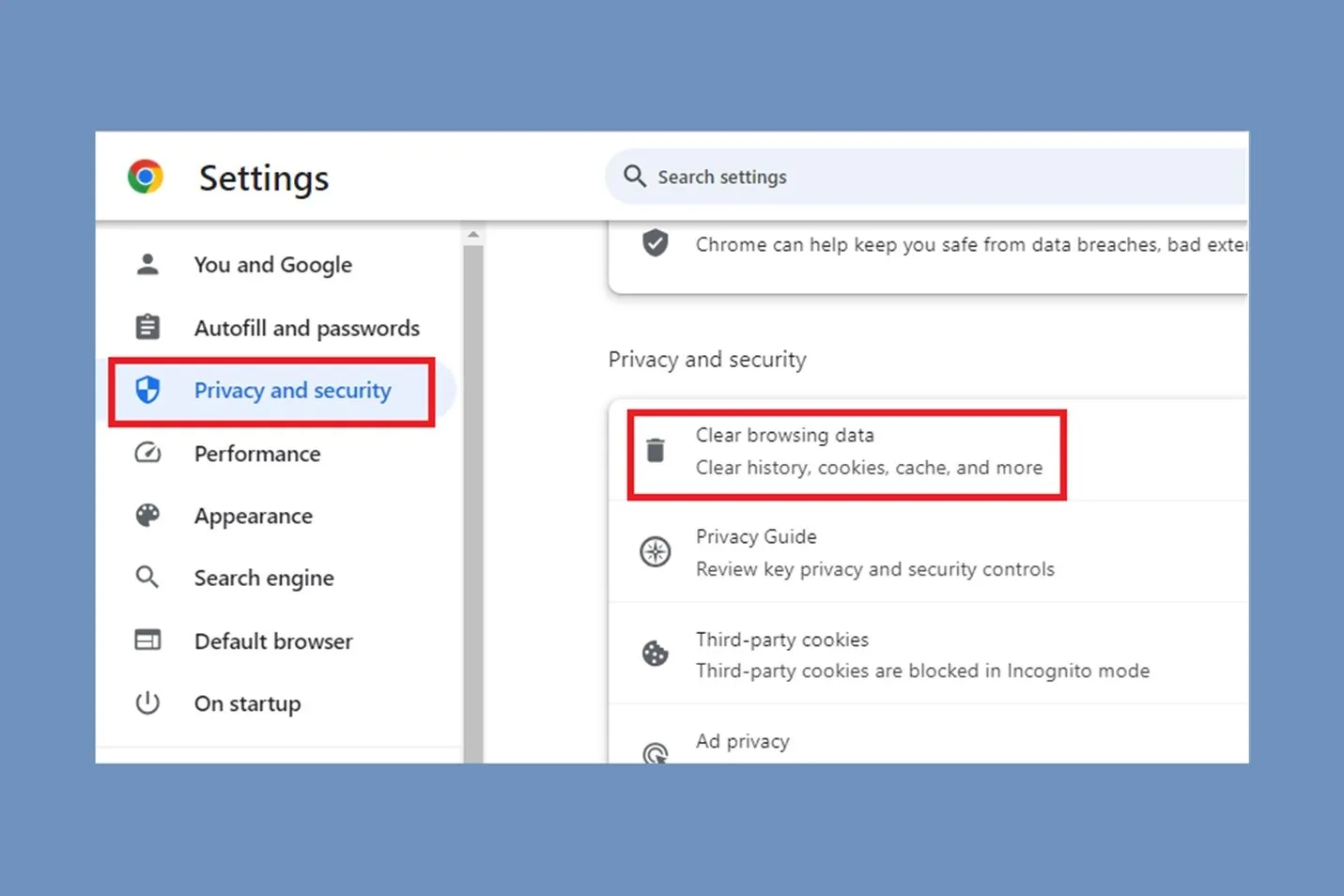
- Clear Cache: Clear your browser cache and cookies to ensure no residue is left.
Issue: Inability to Access Certain Websites
- Network Restrictions: Some sites may block access from incognito sessions. Try opening them in a regular window.
- Check VPN Settings: If using a VPN, ensure it is configured correctly.
Real-World Examples
Example 1: Shopping for Gifts
Imagine you are shopping for gifts during the holiday season and want to keep your purchases private. Using Incognito Mode can help ensure that your browsing history does not reveal your shopping habits to others using the same device.
Example 2: Researching Sensitive Topics
If you need to research sensitive topics, such as health issues or personal matters, using Incognito Mode can help protect your search history from being stored, giving you peace of mind.
Example 3: Logging into Multiple Accounts
For professionals who need to access multiple accounts on the same platform, incognito mode allows them to log into different accounts without logging out of their primary account.
Expert Insights
In 2025, as privacy concerns intensify, the importance of using incognito modes cannot be overstated. Experts suggest that users should not solely rely on incognito mode for privacy. While it provides an added layer of anonymity, it does not protect against all forms of tracking, such as IP address tracking.
Best Practices
- Combine with VPN: For enhanced privacy, consider using a VPN along with incognito mode. This can mask your IP address and encrypt your internet traffic.
- Regularly Clear Browsing Data: Even outside incognito mode, periodically clear your browser history and cache to maintain privacy.
- Stay Informed: Keep updated with the latest privacy features and settings in your browser to maximize your online security.
Conclusion
As we navigate the complexities of digital privacy, Incognito Mode offers a valuable tool for maintaining some level of anonymity while browsing the web. In 2025, with advancements in features, performance, and security, users can confidently use incognito modes across various browsers. Understanding the nuances of how different browsers implement these features will help users make informed decisions about their online activities.
By following the provided tips and insights, you can optimize your browsing experience and enjoy a safer, more private internet journey. Whether you’re shopping online, researching sensitive topics, or just looking to keep your browsing habits private, incognito mode has you covered.